退屈な PDF タスクを自動化する Python スクリプト 5 つ
KDnuggets は、PDF の処理や変換といった日常的な業務を自動化するための Python スクリプト 5 つを紹介し、開発者の生産性向上に寄与する実用的なリソースを提供した。
キーポイント
多様な PDF 自動化タスクの紹介
PDF の結合、分割、パスワード解除、テキスト抽出、および画像変換など、頻出する 5 つの業務を Python で自動化する方法が解説されている。
主要ライブラリの活用方法
PyPDF2, pypdf, pdfplumber, PyMuPDF (fitz) などの人気オープンソースライブラリを活用した具体的なコード例が提示されている。
スクリプトの実用性と拡張性
提供されたスクリプトは単なるデモではなく、実際の業務フローに組み込んで再利用可能なテンプレートとして設計されており、学習コストも低い。
重要な引用
automate boring PDF tasks
useful Python scripts to automate common PDF operations
影響分析・編集コメントを表示
影響分析
この記事は、AI や高度な機械学習技術ではなく、既存の Python ライブラリを活用した実務自動化の重要性を再認識させる内容です。特にデータ処理や文書管理に携わるエンジニアにとって、即戦力となるスクリプト集であり、業務プロセスの効率化に対する具体的な解決策を提供しています。
編集コメント
高度な AI モデルを必要としない、堅実かつ即効性のある業務効率化の事例として価値があります。
 image**
# イントロダクション
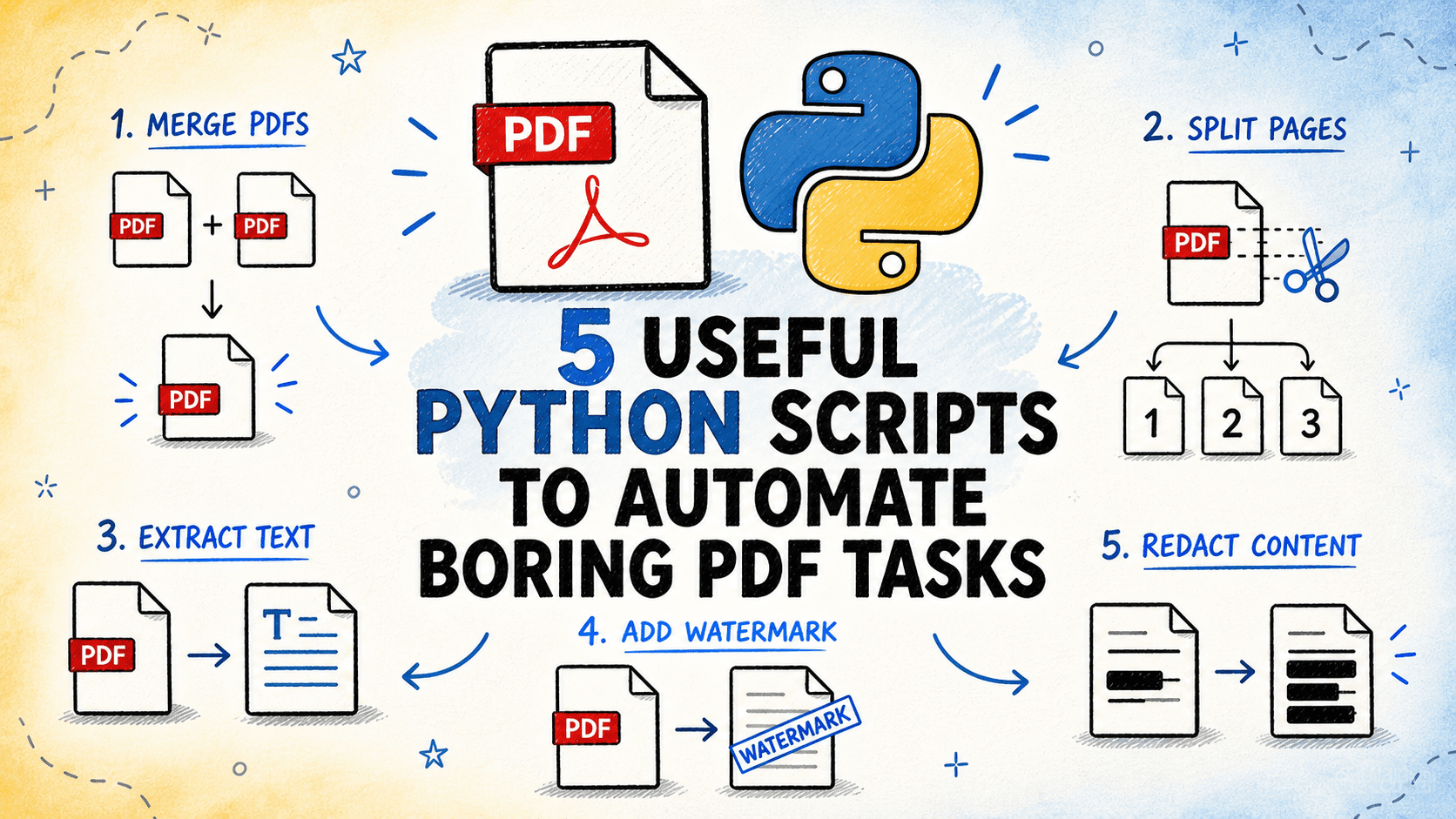
PDF ファイルは多くのワークフローで広く使用されています。レポートの結合、大規模ファイルの分割、テキストやテーブルの抽出、透かしの追加、機密情報の隠蔽などが必要になる場合があります。これらはすべて日常的なタスクですが、複数のファイルを手動で処理すると時間がかかり、エラーが発生しやすくなります。これらの 5 つの Python スクリプトは、そのプロセスを自動化します。コマンドラインから実行可能で、バッチ処理をサポートし、設定も容易です。
# 1. PDF ファイルの結合と分割
// 課題点
複数の PDF ファイルを 1 つに結合したり、ページ範囲に基づいて大規模な PDF を個別のファイルに分割したりすることは、最も一般的な PDF タスクの一つです。どちらも手動で実行するのは面倒であり、特に多数のファイルを扱う場合やページ数が多い場合にはなおさらです。
// スクリプトの機能
フォルダ内の PDF ファイルを指定された順序で 1 つの出力ファイルに結合するか、固定ページ範囲、N ページごとの分割、または特定のページ番号リストに基づいて単一の PDF を個別のファイルに分割します。両方の操作は、モードフラグを介して同じスクリプトによって処理されます。
// 動作原理
このスクリプトは、すべてのページレベルの操作に pypdf を使用します。マージモードでは、入力フォルダからすべての PDF ファイルを読み込み、ファイル名(またはテキストファイルで定義されたカスタム順序)に基づいてソートし、それらを連続して単一の出力 PDF に書き出します。分割モードでは、ページ範囲リスト、固定チャンクサイズ、または分割対象のページ番号リストのいずれかを受け入れます。各分割セグメントは、番号付きの出力ファイルに書き込まれます。マージモードでは、最初の入力ファイルからのメタデータが保持されます。
# 2. PDF からテキストとテーブルの抽出
// 課題点
レポートからのテキストや文書からの表データなど、PDF から利用可能なデータを取得することは、その後の処理を行う前に必ず行わなければならない作業です。数ページを超える場合、PDF ビューアからのコピー&ペーストは現実的ではなく、出力結果もほとんどがきれいなものではありません。
// スクリプトの機能
1 つ以上の PDF ファイルからテキストとテーブルを抽出し、その結果を構造化された出力ファイルに書き出します。テキストはプレーンテキストまたはマークダウンファイルに書き込まれます。テーブルは CSV または Excel 形式で書き出され、見つかった各テーブルごとに別シートが作成されます。テキストベースの PDF と、基本的なレイアウト保持抽出の両方をサポートしています。
// 動作原理
このスクリプトは、基本的なテキスト抽出には pypdf を使用し、レイアウトを考慮した抽出やテーブル検出には pdfplumber を利用します。各入力ファイルに対してページごとに処理を行い、pdfplumber のテーブル検索機能を用いてテキストブロックの抽出とテーブル領域の検出を行います。抽出されたテーブルは正規化され(空行の削除、ヘッダーの検出)、それぞれ個別の出力ファイルに書き込まれます。サマリーレポートでは、各ファイルで見つかったページ数とテーブル数が一覧表示され、抽出結果が得られなかったページにはフラグが立てられます。
# 3. スタンプ、透かし、ページ番号の追加
// 課題
配布前に PDF のバッチに対して透かしやスタンプ、ページ番号を追加することは概念としては単純ですが、グラフィカルユーザーインターフェース(GUI)でファイルごとに手動で行うのは時間がかかります。バッチサイズが大きい場合や、この作業が定期的に行われる必要がある場合は、自動化が必要です。
// スクリプトの機能
1 つ以上の PDF ファイルのすべてのページに、テキストまたは画像のスタンプを適用します。斜めの透かし、ヘッダー/フッターテキスト、ページ番号、画像のオーバーレイに対応しています。位置、フォントサイズ、不透明度、色はすべて設定可能です。フォルダ全体をバッチ処理で処理できます。
// 仕組み
このスクリプトは、ページ操作に pypdf を使用し、スタンプレイヤーの生成には reportlab を利用します。入力される各 PDF に対して、reportlab を用いてメモリ上に単ページのスタンプ PDF を作成します。設定された位置、角度、フォント、不透明度でテキストを描画するか、指定した座標に画像を配置します。その後、このスタンプページは pypdf のページ結合機能を用いて、ソース PDF のすべてのページにマージされます。結果は新しい出力ファイルとして書き出され、元のファイルは変更されません。ページ番号は特別なケースとして処理され、各ページごとに一意のスタンプが生成されます。
# 4. 機密情報の削除
// 課題点
PDF を外部と共有する前に、名前、参照番号、財務数値、住所などの機密情報を削除する必要があります。PDF エディタでテキストの上に黒い四角形を手動で描画する方法もありますが、すべてのツールで実際のテキストが削除されるわけではなく、ページ数が多くなると実用的ではありません。
// スクリプトの機能
定義したパターン(正規表現、完全一致文字列、またはメールアドレスや電話番号などの事前定義カテゴリ)に一致するテキストを PDF ページ上でスキャンし、黒い長方形で置き換えることで機密情報を永久的に削除します。視覚的に隠すだけでなく、実際のテキストデータを除去した新しい PDF を出力します。
// 仕組み
このスクリプトは pymupdf を使用しており、これはバウンディングボックス座標付きのテキスト検索機能と、適用された際に基盤となるコンテンツを永久的に削除する赤色塗りつぶし注釈を描画できる機能を両方提供します。各ページについて、スクリプトは設定された各パターンに対するすべての一致を検索し、バウンディング矩形を赤色塗りつぶし注釈としてマークした後、それらを適用してページコンテンツストリームからテキストを削除します。レポートには、行われたすべての赤色塗りつぶしの詳細(ページ番号、赤色塗りつぶし前の一致したテキスト、およびトリガーとなったパターン)がリスト形式で出力されます。
# 5. メタデータの抽出と PDF インベントリの生成
// 課題点
大量の PDF ファイルコレクションを扱う際、各ファイルについてページ数、ファイルサイズ、作成日、著者、暗号化の有無、テキストが含まれているかスキャン画像であるかなど、基本的な事実を知っておくと非常に役立ちます。ビューアを通じて各ファイルを個別に確認するのは、大規模な処理においては現実的ではありません。
// スクリプトの機能
PDF ファイルが格納されたフォルダをスキャンし、ページ数、ファイルサイズ、作成日および更新日、著者、プロデューサー、暗号化ステータス、文書に検索可能なテキストが含まれているかスキャン画像であるかの有無など、各ファイルからメタデータを抽出します。すべての情報を単一の CSV または Excel のインベントリファイルに書き出します。
// 動作原理
このスクリプトは、pypdf を使用して PDF の情報辞書からドキュメントメタデータを読み取り、pdfplumber を使用してページをサンプリングしてテキストコンテンツを取得します。各ファイルに対して、PDF の開封を試み、標準的なメタデータフィールドを読み取ります。また、最初の数ページをサンプリングして、スキャンされた画像ページではなく抽出可能なテキストが含まれているかどうかを判断します。開封できない暗号化ファイルは、無視されるのではなくフラグとして表示されます。出力インベントリには、各ファイルごとにすべての抽出フィールドを含む行が 1 つずつ含まれ、下部には合計値と平均値を示すサマリー行が追加されます。
まとめ
**
これら 5 つの Python スクリプトは、通常は反復的な手作業になりがちな PDF のタスク(ファイルの分割、コンテンツの抽出、バッチ処理、ドキュメントワークフローの整理)を自動化します。各スクリプトは、元のファイルを修正するのではなく新しい出力を生成しながら、単一ファイルまたはフォルダ全体に対して安全に動作するように設計されています。
まずは小規模なバッチから始め、出力を確認した上で、すべてが正常であれば大規模なフォルダへ拡張してください。セットアップのほとんどは、リストされた依存関係のインストールと、ファイルパスや設定を調整するための構成セクションの変更だけで済みます。
Bala Priya C はインド出身のエンジニア兼テクニカルライターです。数学、プログラミング、データサイエンス、コンテンツ制作が交差する領域での作業を好んでいます。彼女の関心分野および専門知識には、DevOps(開発運用)、データサイエンス、自然言語処理が含まれます。読書、執筆、コーディング、そしてコーヒーを楽しむのが好きです。現在、チュートリアル、ハウツーガイド、意見記事などを執筆することで、開発者コミュニティに知識を共有し、学びを広げる活動に取り組んでいます。また、魅力的なリソースの概要やコーディングチュートリアルも作成しています。
原文を表示
**
# Introduction
PDF files are widely used in many workflows. You might need to merge reports, split large files, extract text or tables, add watermarks, or redact sensitive content. These are all routine tasks, but handling them manually for multiple files can be slow and error-prone. These five Python scripts automate the process. They run from the command line, support batch processing, and are easy to configure.
You can find all the scripts on GitHub.
# 1. Merging and Splitting PDF Files
// The Pain Point
Combining multiple PDF files into one, or splitting a large PDF into separate files by page range, are among the most common PDF tasks. Both are tedious to do manually, particularly when dealing with many files or large page counts.
// What the Script Does
Merges a folder of PDF files into a single output file in a configurable order, or splits a single PDF into separate files by fixed page ranges, every N pages, or by a list of specific page numbers. Both operations are handled by the same script via a mode flag.
// How It Works
The script uses pypdf** for all page-level operations. In merge mode, it reads all PDFs from an input folder, sorts them by filename (or a custom order defined in a text file), and writes them sequentially into a single output PDF. In split mode, it accepts either a page range list, a fixed chunk size, or a list of page numbers to split on. Each split segment is written to a numbered output file. Metadata from the first input file is preserved in merge mode.
⏩ Get the PDF merge & split script
# 2. Extracting Text and Tables from PDFs
// The Pain Point
Getting usable data out of a PDF — whether it's text from a report or tabular data from a statement — is something that needs to happen before any further processing can occur. Copy-pasting from a PDF viewer is impractical for anything beyond a few pages, and the output is rarely clean.
// What the Script Does
Extracts text and tables from one or more PDF files and writes the results to structured output files. Text is written to plain text or markdown files. Tables are written to CSV or Excel, with one sheet per table found. Supports both text-based PDFs and basic layout-preserving extraction.
// How It Works
The script uses pypdf for basic text extraction and pdfplumber for layout-aware extraction and table detection. For each input file, it runs page by page, extracting text blocks and detecting table regions using pdfplumber's table finder. Extracted tables are normalized — empty rows removed, headers detected — and written to separate output files. A summary report lists how many pages and tables were found in each file, and flags any pages where extraction produced no output.
⏩ Get the PDF text & table extractor script
# 3. Stamping, Watermarking, and Adding Page Numbers
// The Pain Point
Adding a watermark, a stamp, or page numbers to a batch of PDFs before distributing them is straightforward in concept but slow to do one file at a time through a graphical user interface (GUI). When the batch is large or the requirement is recurring, it needs automating.
// What the Script Does
Applies a text or image stamp to every page of one or more PDF files. Supports diagonal watermarks, header/footer text, page numbers, and image overlays. Position, font size, opacity, and color are all configurable. Processes entire folders in batch.
// How It Works
The script uses pypdf for page manipulation and reportlab to generate the stamp layer. For each input PDF, it creates a single-page stamp PDF in memory using reportlab. It renders text at the configured position, angle, font, and opacity, or places an image at specified coordinates. This stamp page is then merged onto every page of the source PDF using pypdf's page merging. The result is written to a new output file, leaving the original unchanged. Page numbers are handled as a special case, generating a unique stamp per page.
# 4. Redacting Sensitive Content
// The Pain Point
Before sharing a PDF externally, sensitive content — like names, reference numbers, financial figures, and addresses — often needs removing. Manually drawing black boxes over text in a PDF editor works, but does not actually remove the underlying text in all tools, and is impractical for more than a handful of pages.
// What the Script Does
Scans PDF pages for text matching patterns you define — regex patterns, exact strings, or predefined categories like email addresses and phone numbers — and permanently redacts matching content by replacing it with black rectangles. Outputs a new PDF with the underlying text removed, not just visually obscured.
// How It Works
The script uses pymupdf, which provides both text search with bounding box coordinates and the ability to draw redaction annotations that permanently remove the underlying content when applied. For each page, the script searches for all matches of each configured pattern, marks the bounding rectangles as redaction annotations, then applies them — which removes the text from the page content stream. A report is written listing every redaction made, including page number, matched text (before redaction), and the pattern that triggered it.
⏩ Get the PDF redaction script
# 5. Extracting Metadata and Generating a PDF Inventory
// The Pain Point
When working with a large collection of PDF files, it is often useful to know basic facts about each one — page count, file size, creation date, author, whether it is encrypted, whether it contains text or is a scanned image. Checking each file individually through a viewer is not practical at scale.
// What the Script Does
Scans a folder of PDF files and extracts metadata from each one, including page count, file size, creation and modification dates, author, producer, encryption status, and whether the document appears to contain searchable text or scanned images. Writes everything to a single CSV or Excel inventory file.
// How It Works
The script uses pypdf to read document metadata from the PDF info dictionary and pdfplumber to sample pages for text content. For each file, it attempts to open the PDF and read standard metadata fields. It samples the first few pages to determine whether the file contains extractable text as opposed to scanned image pages. Encrypted files that cannot be opened are flagged rather than skipped silently. The output inventory includes one row per file with all extracted fields, and a summary row at the bottom with totals and averages.
⏩ Get the PDF inventory script
# Wrapping Up
**
These five Python scripts handle the PDF tasks that usually turn into repetitive manual work: splitting files, extracting content, processing batches, and cleaning up document workflows. Each script is designed to work safely on single files or entire folders while generating new outputs instead of modifying the originals.
Start with a small batch, verify the output, then scale to larger folders once everything looks right. Most of the setup only involves installing the listed dependencies and adjusting the config section for your file paths and settings.
Bala Priya C** is a developer and technical writer from India. She likes working at the intersection of math, programming, data science, and content creation. Her areas of interest and expertise include DevOps, data science, and natural language processing. She enjoys reading, writing, coding, and coffee! Currently, she's working on learning and sharing her knowledge with the developer community by authoring tutorials, how-to guides, opinion pieces, and more. Bala also creates engaging resource overviews and coding tutorials.
関連記事
今日のまとめ
AI日報で今日の重要ニュースをまとめ読み