MCP を活用した時系列データベースとの Amazon Quick 統合による市場インテリジェンスの強化
AWS は Amazon Quick に Model Context Protocol (MCP) を統合し、KDB-X と連携させることで、金融アナリストが自然言語で時系列データベースにアクセスし、複雑なクエリなしで市場インサイトを取得できる環境を提供した。
キーポイント
Model Context Protocol (MCP) の実装
Amazon Quick に MCP を統合することで、AI システムと外部ツール・データソースを標準化された方法で接続し、自然言語クエリを SQL 変換して実行する機能を強化した。
KDB-X と kdb+ の連携
高性能な時系列データベースである KDB-X(kdb+ ベース)の MCP サーバーを Amazon EC2 に設置し、Quick から直接接続して高頻度市場データの分析を可能にした。
Amazon Bedrock AgentCore Gateway の活用
認証とルーティング層として AgentCore Gateway を使用し、MCP サーバーへの安全なアクセス経路を確立し、エージェントがツールを効率的に操作できるようにした。
汎用的な適用可能性
金融市場分析だけでなく、IoT センサーモニタリングや DevOps パフォーマンスダッシュボードなど、時系列データのアクセス簡素化が必要な多様なドメインへの展開が可能である。
セキュリティ強化された KDB-X データベースサービス
KDB-X は専用ユーザーアカウントで実行され、NoNewPrivileges や ProtectSystem=strict などの systemd パラメータにより、プロセスが侵害された場合の被害範囲を制限する設計となっています。
MCP サーバーの自動起動設定と依存関係管理
uv を使用して MCP サーバーをインストールし、データベースサービス(kdb-x-service)への依存関係を明示した systemd サービスとして構成することで、再起動時の自動起動と安定稼働を実現しています。
本番環境でのセキュリティ強化
公開アクセスを避けるため、Route 53 と AWS Certificate Manager を使用し、VPC Lattice を介して Amazon Bedrock AgentCore Gateway から直接 MCP サーバーへ通信する構成が推奨されます。
重要な引用
Model Context Protocol (MCP) integration in Amazon Quick transforms how financial analysts access time-series market intelligence, removing the need for complex database queries.
Quick translates natural language queries into SQL statements and passes them to the KDB-X MCP server, which executes these queries against the KDB-X database.
Amazon Bedrock AgentCore Gateway serves as a single access point for the agent to interact with its tools.
The systemd unit enforces NoNewPrivileges, ProtectSystem=strict, and PrivateTmp=true to limit blast radius if the process is compromised.
After=network.target kdb-x-service.service Requires=kdb-x-service.service
For production deployments, replace nip.io with a domain registered in Amazon Route 53 with DNSSEC enabled, use AWS Certificate Manager (ACM) to issue and manage TLS certificates, and front the EC2 with an internal Application Load Balancer.
影響分析・編集コメントを表示
影響分析
この発表は、AI エージェントが専門的なデータベースに直接かつ安全にアクセスする際の標準化された手法(MCP)を実用レベルで確立した点で重要です。特に金融や IoT のような時系列データが重要な分野において、分析のハードルを劇的に下げ、意思決定のスピードを向上させる可能性があります。
編集コメント
MCP の実装により、AI と専門データベースの連携が「実験段階」から「標準的な業務フロー」へと移行する重要な一歩と言えます。特に金融分野での即効性は非常に高く、類似のデータ活用シーンにおけるベストプラクティスとして注目すべき記事です。
Model Context Protocol (MCP) の Amazon Quick への統合は、金融アナリストが時系列市場インテリジェンスにアクセスする方法を変革し、複雑なデータベースクエリの必要性を排除します。金融アナリストとして、あなたは毎秒市場を流れる数百万の株式取引をナビゲートし、取引決定を駆動するパターンを探しています。金融機関は、高頻度市場データを分析するために時系列データベースを頻繁に使用しています。
本稿では、KDB-X MCP サーバーと Amazon Quick の統合を用いた実用的な実装を解説し、トレーダーやアナリストが会話形式の言語で質問を行い、データセットから実行可能なインサイトを受け取る方法を示します。この統合パターンは、金融市場分析から IoT センサー監視、DevOps パフォーマンスダッシュボードに至るまで、時系列インテリジェンスへのアクセスを簡素化する必要があるさまざまなドメインに適用できます。
ソリューション概要
Amazon Quick は、データ分析、ビジュアライゼーションの作成、ワークフローの自動化、組織内でのコラボレーションを行うために使用できる包括的な生成 AI 搭載ビジネスインテリジェンスサービスです。Amazon Quick に MCP(Model Context Protocol)を統合することで、タスク実行とデータアクセス機能の両方に対応する MCP サーバーに接続できます。MCP は、AI システムを外部ツールやデータソースに標準化された方法で接続するための手段を提供します。本例では、業界をリードする kdb+ を基盤として構築された KDB-X が提供する時系列データベースを使用します。kdb+ は、ベクトル言語 q によって駆動される高性能な時系列データベースおよび分析エンジンです。
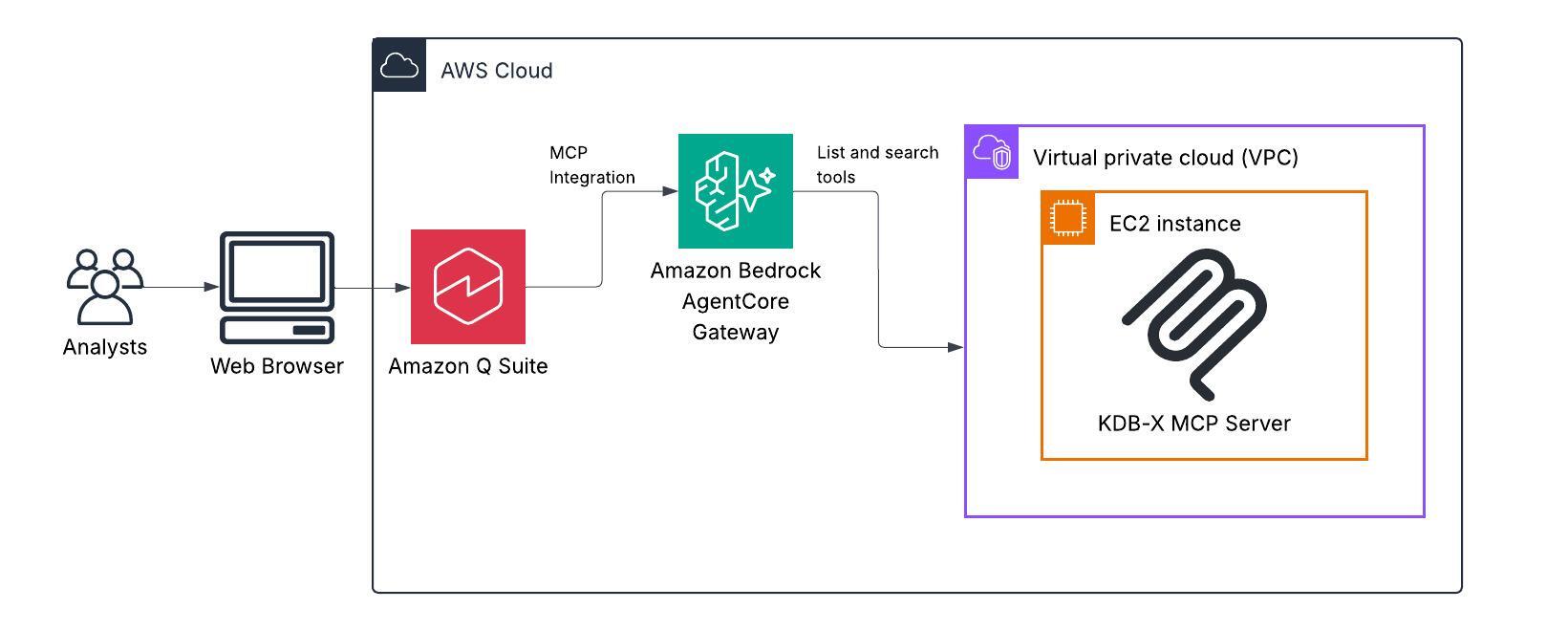
まず、Amazon Elastic Compute Cloud (Amazon EC2) インスタンス上に KDB-X MCP サーバーをインストールすることから始めます。このインストールにより、KDB-X サービスが継続的に実行可能となり、クエリ実行のための MCP サーバーと KDB-X サービス間の接続が確立されます。Amazon Quick は自然言語によるクエリを SQL 文に変換し、それを KDB-X MCP サーバーに渡します。MCP サーバーは、この SQL 文を KDB-X データベースに対して実行します。
MCP サーバーを Quick に接続するには、認証およびルーティング層として Amazon Bedrock AgentCore Gateway を使用します。AgentCore Gateway は、エージェントがそのツールと対話するための単一のアクセスポイントとして機能します。本アーキテクチャでは、MCP サーバーを AgentCore Gateway 内のターゲットとして構成し、Amazon EC2 で実行されている MCP サーバーとの通信を可能にしています。また、Gateway を経由してターゲットへのアクセスを試みるユーザーを検証するインバウンド認証も実装しており、これにより Quick における MCP 統合に必要な認証資格情報の要件を満たすことができます。本ソリューションでは、AgentCore Gateway へのアクセスのアイデンティティプロバイダーとして Amazon Cognito を構成しています。この統合は Quick のチャットインターフェース上でアクションとして表示され、ユーザーが関連するタスクを実行できるようになり、サードパーティ製サービスの統合を通じて生産性が向上します。
前提条件
本記事の手順に従って、ご自身の AWS アカウントでこのソリューションをデプロイする前に、以下の前提条件が満たされていることを確認してください。開始する前に、必ず以下を用意してください:
- AWS アカウント
- Author Pro サブスクリプションを付与した Amazon Quick のセットアップ完了
- AWS リソース、AWS Identity and Access Management (IAM) ロールおよびポリシーの作成権限
- AWS サービスに関する基礎知識
- KDB-X へのアクセス(KDB-X パブリックプレビューへの登録が必要)
- KDB-X MCP サーバーを実行するための UV のインストール
MCP サーバーの設定
前提条件が整ったところで、EC2 インスタンス上で MCP サーバーを設定します。
KDB-X MCP サーバーは、hybrid_search、run_sql_query、similarity_search といったドメイン固有のツールへのアクセスを提供します。これらのツールはカスタム Python 関数として実装されています。このサーバーにより、自然言語を通じて KDB-X データを照会する能力が拡張されます。ユーザーは、ボラティリティの計算や市場データの照会、SEC ファイルの KDB-X テーブル内での意味検索といった専門的なタスクを実行できます。
EC2 上で MCP サーバーをインストールして実行するには、以下の手順に従ってください。まずは EC2 インスタンスの起動 から始めます。できれば t2.medium 以上のインスタンスを選択してください。
- リポジトリのクローン
まず、KDB-X MCP サーバー のリポジトリを EC2 インスタンスにクローンします。
- KDB-X サービスのインストール
MCP サーバーには、バックグラウンドで実行されている KDB-X サービスが必要です。前提条件セクションで言及されているように、KDB-X パブリックプレビュー にサインアップして KDB-X をインストールしてください。
- KDB-X サービスの設定
KDB-X サービスをポート 5000 でリスニングするように設定します。ここでは、価格、サイズ、シンボルに対してランダムな値を与えながら、時間経過に伴う取引データをシミュレートするサンプルデータセットを作成します。
KDB-X のために専用の OS サービスアカウントを作成します:
useradd -r -s /sbin/nologin kdbx-svc
mkdir -p /opt/kdbx
cp -r /root/.kx /opt/kdbx/.kx
chown -R kdbx-svc:kdbx-svc /opt/kdbx
株式シンボルを含む stocks.txt ファイルをダウンロードします。
curl -sL https://raw.githubusercontent.com/KxSystems/kdb-x-mcp-server/main/stocks.txt \
  -o /opt/kdbx/stocks.txt
chown kdbx-svc:kdbx-svc /opt/kdbx/stocks.txt
起動スクリプトを作成します。以下の内容をプレーンテキストエディタにコピーし、ターミナルに貼り付けてください:
python3
このスクリプトは KDB-X サービスを初期化し、株式データを含むダミーテーブルを作成します。ファイルからランダムに 100 の株式シンボルを選択します。また、データの正常な取り込みを確認するために、サンプル行 10 行も出力されます。
- KDB-X サービスの起動と検証
systemd サービスユニットを作成します。以下の内容をプレーンテキストエディタにコピーし、ターミナルに貼り付けてください:
python3
次のコマンドを実行して、サービスのステータスを確認し、ログを検証してください:
ステータス確認
sudo systemctl status kdb-x-service.service
ログを表示して初期化を確認
sudo journalctl -u kdb-x-service.service -n 50
ステータスを確認すると、以下のような出力が表示されるはずです:
kdb-x-service.service - KDB-X Database Service
Loaded: loaded (/etc/systemd/system/kdb-x-service.service; enabled; preset: disabled)
Active: active (running) since ...
Main PID: XXXXX (start-kdb-x.sh)
CGroup: /system.slice/kdb-x-service.service
├─XXXXX /bin/bash /opt/kdbx/start-kdb-x.sh
└─XXXXX /opt/kdbx/.kx/bin/q -p 5000
注記:KDB-X は、ログインシェルを持たず、sudo も SSH キーも使用できない専用 kdbx-svc アカウントとして実行されます。systemd ユニットは、プロセスが侵害された場合の被害範囲を制限するために、NoNewPrivileges、ProtectSystem=strict、PrivateTmp=true を強制しています。このサービスは再起動後に自動起動するように有効化されています。
- MCP サーバーの開始
uv をインストールし、MCP サーバーサービスをセットアップします:
curl -LsSf https://astral.sh/uv/install.sh | env HOME=/root sh
cp /root/.local/bin/uv /usr/local/bin/uv
chmod 755 /usr/local/bin/uv
chown -R ec2-user:ec2-user /opt/kdbx-mcp
MCP サーバーの systemd サービスを作成します。以下の内容をプレーンテキストエディタにコピーし、ターミナルに貼り付けてください:
python3
- MCP サーバー設定の確認
MCP サーバーが正しく構成されていることを確認するには、利用可能なツールを表示する次のコマンドを実行してください:
curl -X POST http://127.0.0.1:8080/mcp \
-H "Content-Type: application/json" \
-d '{"jsonrpc":"2.0","id":1,"method":"tools/list","params":{}}'
- KDB-X MCP サーバーの HTTPS エンドポイントの設定
をあなたの EC2 インスタンスのパブリック IP アドレスに置き換えてください。これらの手順を完了すると、.nip.io/mcp でアクセス可能な稼働中の MCP HTTPS エンドポイントが利用可能になります。
本番環境でのデプロイでは、nip.io の代わりに Amazon Route 53 で登録された DNSSEC を有効にしたドメインを使用し、AWS Certificate Manager (ACM) を使用して TLS 証明書の発行と管理を行い、EC2 の前に内部アプリケーションロードバランサーを配置してください。その後、Amazon VPC Lattice を使用して VPC エグレスを設定することで、AgentCore から MCP サーバーへのトラフィックを AWS ネットワーク内だけでルーティングし、パブリックインターネットへの露出を完全に排除できます。詳細は プライベートリソースへの安全なアクセスのための Amazon Bedrock AgentCore Gateway の設定 を参照してください。
ステップ 1: 必要なパッケージのインストール
システムを更新し、SSL 証明書の管理に Nginx と Certbot をインストールします:
sudo yum update -y
sudo yum install -y nginx python3-certbot-nginx
sudo systemctl start nginx
sudo systemctl enable nginx
ステップ 2: 一時的な HTTP 設定の作成
証明書の検証用の一時的な HTTP 設定を設定します。必要なディレクトリと設定ファイルを作成してください:
sudo mkdir -p /var/www/html
sudo mkdir -p /etc/nginx/conf.d
sudo tee /etc/nginx/conf.d/mcp-server.conf > /dev/null .nip.io;
location /.well-known/acme-challenge/ {
root /var/www/html;
}
location / {
return 200 "Temporary - obtaining certificate";
add_header Content-Type text/plain;
}
}
EOF
Step 3: Test and Reload Nginx
Nginx の設定構文を検証し、再読み込みします:
sudo nginx -t
sudo systemctl reload nginx
Step 4: Configure EC2 Security Group
EC2 セキュリティグループ がポート 80 および 443 への着信トラフィックを許可しているか確認してください。
Step 5: Obtain Let's Encrypt Certificate
Let's Encrypt から SSL 証明書をリクエストします。メールアドレスはご自身のものに置き換えてください:
sudo certbot certonly --nginx \
-d .nip.io \
--non-interactive \
--agree-tos \
Step 6: Configure HTTPS-Only Access
証明書を取得した後、Nginx の設定を更新して HTTPS を有効化し、すべての HTTP トラフィックをリダイレクトします:
sudo tee /etc/nginx/conf.d/mcp-server.conf > /dev/null .nip.io;
location /.well-known/acme-challenge/ {
root /var/www/html;
}
location / {
return 301 $host$request_uri;
}
}
HTTPS サーバー - アプリケーションはここで実行されます
server {
listen 443 ssl;
server_name .nip.io;
ssl_certificate /etc/letsencrypt/live/.nip.io/fullchain.pem;
ssl_certificate_key /etc/letsencrypt/live/.nip.io/privkey.pem;
ssl_protocols TLSv1.2 TLSv1.3;
ssl_ciphers HIGH:!aNULL:!MD5;
ssl_prefer_server_ciphers on;
location / {
proxy_pass localhost:8080/;
proxy_set_header Host $host;
proxy_set_header X-Real-IP $remote_addr;
proxy_set_header X-Forwarded-For $proxy_add_x_forwarded_for;
proxy_set_header X-Forwarded-Proto $scheme;
}
}
EOF
Step 7: 設定変更の適用
更新された設定をテストし、Nginx をリロードします:
sudo nginx -t
sudo systemctl reload nginx
これで MCP サーバーは .nip.io/mcp を介して HTTPS でアクセス可能になります。すべての HTTP リクエストは自動的に HTTPS にリダイレクトされ、Quick と KDB-X MCP サーバー間の安全な通信をサポートします。
Amazon Bedrock AgentCore Gateway の MCP との統合
Amazon Bedrock AgentCore Gateway は、開発者が大規模にツールを構築・デプロイし、発見・接続するための安全な手段を提供します。Gateway を使用すれば、開発者は数行のコードで、API や AWS Lambda 関数、既存のサービスを MCP 互換のツールに変換し、Gateway エンドポイントを通じてエージェントが利用できるようにできます。AgentCore Gateway では、ゲートウェイを作成する際に、事前設定された MCP サーバーをターゲットとして定義することが可能です。
HTTPS エンドポイントが稼働したので、これを MCP サーバーターゲットとして AgentCore Gateway と統合できます。以下の手順に従ってください:
- Amazon Bedrock AgentCore Gateway コンソールに移動し、左側のナビゲーションペインから「Gateways」を選択します。「Create Gateway」を選択して開始してください。
- 受信側認証については、以下のパラメータを設定します。本ソリューションでは、AgentCore Gateway の受信側認証機構として Cognito ユーザープールを使用します:
- ID プロバイダー
- ディスカバリー URL
- 許可されたクライアント
- ターゲットの下で、「Target type」として MCP サーバーを選択し、MCP エンドポイント URL として HTTPS エンドポイントを入力してください。ターゲットが正常に接続されると、以下のスクリーンショットに示すように「Ready」ステータスが表示され、接続が確立されたことが確認されます。
AgentCore Gateway の設定と実行が完了したら、Quick 内で統合を作成する準備が整いました。本番環境へのデプロイでは、Nginx で IP ごとのレート制限を追加し、AWS CloudTrail を有効にして API 活動の監査ログを取得することを検討してください。
Amazon Quick との統合アクション
Quick と統合するには、左側のパネルからIntegrationsを選択し、Actionsをクリックします。利用可能なオプションからModel Context Protocolを選んでください。Amazon Quick 内の統合機能は、AI を活用した分析と自動化のために外部アプリケーションやサービスへの接続を可能にします。Action コネクタは、Quick と外部サービスの間に安全な接続を作成します。MCP 統合を利用することで、タスク実行およびデータアクセスの両方の機能を持つ MCP サーバーへの接続が可能になります。以下の手順に従って統合を完了してください。
- 作成した AgentCore Gateway から取得した Gateway リソース URL を、MCP サーバーのエンドポイントとして提供してください。
- 認証タイプには Service-to-Service OAuth を選択し、Cognito ユーザープール設定から以下の詳細情報を入力してください:
- トークン URL
- クライアント ID
- クライアントシークレット
本番環境でのデプロイでは、Cognito のクライアント ID とクライアントシークレットを AWS Secrets Manager に保存してください。Quick コネクタの設定時に必要に応じて値を取得し、Secrets Manager で自動ローテーション機能を有効にします。また、/oauth2/token エンドポイントを資格情報の盗難攻撃やブルートフォース攻撃から保護するために、AWS WAF の Web ACL を Cognito ユーザープールにアタッチすることを検討してください。
統合が作成されると、MCP サーバーから利用可能なすべてのツールが、以下のスクリーンショットに示すように Actions セクションに表示されます。
原文を表示
Model Context Protocol (MCP) integration in Amazon Quick transforms how financial analysts access time-series market intelligence, removing the need for complex database queries. As a financial analyst, you navigate millions of stock trades flowing through markets every second, searching for patterns that drive trading decisions. Financial institutions often use time series databases to analyze high-frequency market data.
In this post, we walk through a practical implementation using KDB-X MCP server integration with Amazon Quick, demonstrating how traders and analysts can ask questions using conversational language and receive actionable insights from datasets. You can apply this same integration pattern across various domains, from financial market analysis to IoT sensor monitoring to DevOps performance dashboards, where you need to simplify access to time series insights.
Solution overview
Amazon Quick is a comprehensive, generative AI-powered business intelligence service that you can use to analyze data, create visualizations, automate workflows, and collaborate across your organization. With MCP integration in Amazon Quick, you can connect to MCP servers for both task execution and data access capabilities. MCP provides a standardized way to connect AI systems with external tools and data sources. In this example, you’ll work with time series databases provided by KDB-X, which is built on the industry-leading kdb+. kdb+ is a high-performance time-series database and analytics engine, powered by the vector language q.
We begin by installing the KDB-X MCP server on an Amazon Elastic Compute Cloud (Amazon EC2) instance. This installation enables the KDB-X service to run continuously and establishes the connection between the MCP server and KDB-X service for query execution. Quick translates natural language queries into SQL statements and passes them to the KDB-X MCP server, which executes these queries against the KDB-X database.
To connect the MCP server with Quick, we use Amazon Bedrock AgentCore Gateway as an authentication and routing layer. The AgentCore Gateway serves as a single access point for the agent to interact with its tools. In our architecture, we configure MCP servers as targets within the AgentCore Gateway, enabling communication with the MCP server running on Amazon EC2. We also implement inbound authorization for the AgentCore Gateway, which validates users attempting to access targets through the gateway. Since MCP integration in Quick requires authentication credentials, the inbound authentication to the gateway fulfills this requirement for the MCP connector. For this solution, we configure Amazon Cognito as the identity provider for accessing the AgentCore Gateway. This integration appears in the Quick chat interface as actions, allowing users to perform relevant tasks and boosting productivity through third-party service integration.
Prerequisites
Verify that you meet the following prerequisites to deploy the solution in your own AWS account using the step-by-step instructions in this post. Before you begin, make sure that you have the following:
- An AWS account
- Amazon Quick set up with Author Pro subscription
- Permission to create AWS resources and AWS Identity and Access Management (IAM) roles and policies
- Basic knowledge of AWS services
- Access to KDB-X (sign up to the KDB-X public preview)
- UV Installed for running the KDB-X MCP Server
Configuration of MCP server
With the prerequisites in place, we will configure the MCP server on your EC2 instance.
The KDB-X MCP server provides access to domain-specific tools such hybrid_search, run_sql_query and similarity_search. These tools are implemented as custom Python functions. The server extends the ability to query KDB-X data through natural language. Users can perform specialized tasks such as computing volatility, querying market data, or semantically searching SEC filings within KDB-X tables.
Follow these steps to install and run the MCP server on EC2. Start by launching an EC2 instance, preferably t2.medium or larger.
- Clone the repository
Begin by cloning the KDB-X MCP server repository to your EC2 instance.
- Install KDB-X Service
The MCP server requires KDB-X service running in the background. Install KDB-X by signing up for the KDB-X public preview as mentioned in the prerequisites section.
- Configure KDB-X Service
Configure the KDB-X service to listen on port 5000. We will create a sample dataset that simulates trade data over time with random values for price, size, and symbols.
Create a dedicated OS service account for KDB-X:
useradd -r -s /sbin/nologin kdbx-svc
mkdir -p /opt/kdbx
cp -r /root/.kx /opt/kdbx/.kx
chown -R kdbx-svc:kdbx-svc /opt/kdbxDownload the stocks.txt file containing stock symbols.
curl -sL https://raw.githubusercontent.com/KxSystems/kdb-x-mcp-server/main/stocks.txt \
-o /opt/kdbx/stocks.txt
chown kdbx-svc:kdbx-svc /opt/kdbx/stocks.txtCreate the startup script. Copy the following into a plain text editor and paste into the terminal:
python3 << 'PYEOF'
script = """#!/bin/bash
export QLIC=/opt/kdbx/.kx
cd /opt/kdbx
/opt/kdbx/.kx/bin/q -p 5000 << 'QEOF'
.s.init[]
.ai:use `kx.ai
syms: 100?`$read0 `:stocks.txt
n: 20000000; day: 2025.01.01
trade:([] time:asc (`timestamp$day)+n?24:00:00; sym:n?syms; price:n?100f; size:n?1000)
count trade
10 sublist trade
QEOF
"""
with open('/opt/kdbx/start-kdb-x.sh', 'w') as f:
    f.write(script)
print("Done")
PYEOF
chmod +x /opt/kdbx/start-kdb-x.sh
chown kdbx-svc:kdbx-svc /opt/kdbx/start-kdb-x.sh
This script initializes the KDB-X service and creates a dummy table with stock data. It randomly selects 100 stock symbols from the file. The script also prints 10 sample rows to verify successful data ingestion.
- Start and Verify KDB-X Service
Create the systemd service unit. Copy the following into a plain text editor and paste into the terminal:
python3 << 'PYEOF'
unit = """[Unit]
Description=KDB-X Database Service
After=network.target

[Service]
Type=simple
User=kdbx-svc
WorkingDirectory=/opt/kdbx
ExecStart=/opt/kdbx/start-kdb-x.sh
Restart=on-failure
NoNewPrivileges=true
ProtectSystem=strict
PrivateTmp=true
ReadWritePaths=/opt/kdbx

[Install]
WantedBy=multi-user.target
"""
with open('/etc/systemd/system/kdb-x-service.service', 'w') as f:
    f.write(unit)
print("Done")
PYEOF
systemctl daemon-reload
systemctl enable kdb-x-service.service
systemctl start kdb-x-service.service
Run the following commands to check the service status and verify the logs:
# Check status
sudo systemctl status kdb-x-service.service

# View logs to confirm initialization
sudo journalctl -u kdb-x-service.service -n 50
When you check the status, you should see output similar to this:
kdb-x-service.service - KDB-X Database Service
Loaded: loaded (/etc/systemd/system/kdb-x-service.service; enabled; preset: disabled)
Active: active (running) since ...
Main PID: XXXXX (start-kdb-x.sh)
CGroup: /system.slice/kdb-x-service.service
├─XXXXX /bin/bash /opt/kdbx/start-kdb-x.sh
└─XXXXX /opt/kdbx/.kx/bin/q -p 5000
Note: KDB-X runs as a dedicated kdbx-svc account with no login shell, no sudo, and no SSH keys. The systemd unit enforces NoNewPrivileges, ProtectSystem=strict, and PrivateTmp=true to limit blast radius if the process is compromised. The service is enabled to auto-start after a reboot.
- Start the MCP Server
Install uv and set up the MCP server service:
curl -LsSf https://astral.sh/uv/install.sh | env HOME=/root sh
cp /root/.local/bin/uv /usr/local/bin/uv
chmod 755 /usr/local/bin/uv
chown -R ec2-user:ec2-user /opt/kdbx-mcp
Create the MCP server systemd service. Copy the following into a plain text editor and paste into the terminal:
python3 << 'PYEOF'
unit = """[Unit]
Description=KDB-X MCP Server
After=network.target kdb-x-service.service
Requires=kdb-x-service.service

[Service]
Type=simple
User=ec2-user
WorkingDirectory=/opt/kdbx-mcp
Environment="PATH=/usr/local/bin:/usr/bin:/bin"
Environment="QLIC=/opt/kdbx/.kx"
ExecStart=/usr/local/bin/uv run mcp-server --mcp.transport streamable-http --mcp.host 127.0.0.1 --mcp.port 8080 --db.host 127.0.0.1 --db.port 5000
Restart=on-failure

[Install]
WantedBy=multi-user.target
"""
with open('/etc/systemd/system/kdb-mcp-server.service', 'w') as f:
    f.write(unit)
print("Done")
PYEOF
systemctl daemon-reload
systemctl enable kdb-mcp-server.service
systemctl start kdb-mcp-server.service- Verify MCP Server configuration
To confirm the MCP server is configured correctly, run this command to display available tools:
curl -X POST http://127.0.0.1:8080/mcp \
  -H "Content-Type: application/json" \
-d '{"jsonrpc":"2.0","id":1,"method":"tools/list","params":{}}'- Configure HTTPS endpoint for KDB-X MCP Server
Replace ` with your EC2 instance’s public IP address. After completing these steps, you will have a running MCP HTTPS endpoint accessible at .nip.io/mcp`.
For production deployments, replace nip.io with a domain registered in Amazon Route 53 with DNSSEC enabled, use AWS Certificate Manager (ACM) to issue and manage TLS certificates, and front the EC2 with an internal Application Load Balancer. You can then configure Amazon Bedrock AgentCore Gateway with VPC egress using Amazon VPC Lattice to route traffic from AgentCore to your MCP server entirely within the AWS network, without any public internet exposure. See Configuring Amazon Bedrock AgentCore Gateway for secure access to private resources.
Step 1: Install Required Packages
Update your system and install Nginx with Certbot for SSL certificate management:
sudo yum update -y
sudo yum install -y nginx python3-certbot-nginx
sudo systemctl start nginx
sudo systemctl enable nginx
Step 2: Create Temporary HTTP Configuration
Set up a temporary HTTP configuration for certificate verification. Create the necessary directories and configuration file:
sudo mkdir -p /var/www/html
sudo mkdir -p /etc/nginx/conf.d
sudo tee /etc/nginx/conf.d/mcp-server.conf > /dev/null .nip.io;
    location /.well-known/acme-challenge/ {
        root /var/www/html;
    }
    location / {
        return 200 "Temporary - obtaining certificate";
        add_header Content-Type text/plain;
    }
}
EOF
Step 3: Test and Reload Nginx
Verify the configuration syntax and reload Nginx:
sudo nginx -t
sudo systemctl reload nginx
Step 4: Configure EC2 Security Group
Verify your EC2 security group allows inbound traffic on Port 80 and 443.
Step 5: Obtain Let’s Encrypt Certificate
Request an SSL certificate from Let’s Encrypt. Replace the email address with your own:
sudo certbot certonly --nginx \
  -d .nip.io \
  --non-interactive \
  --agree-tos \
  --email
Step 6: Configure HTTPS-Only Access
After obtaining the certificate, update the Nginx configuration to enable HTTPS and redirect all HTTP traffic:
sudo tee /etc/nginx/conf.d/mcp-server.conf > /dev/null .nip.io;
    location /.well-known/acme-challenge/ {
        root /var/www/html;
    }
    location / {
        return 301 $host$request_uri;
    }
}

# HTTPS server - your application runs here
server {
    listen 443 ssl;
    server_name .nip.io;
    ssl_certificate /etc/letsencrypt/live/.nip.io/fullchain.pem;
    ssl_certificate_key /etc/letsencrypt/live/.nip.io/privkey.pem;
    ssl_protocols TLSv1.2 TLSv1.3;
    ssl_ciphers HIGH:!aNULL:!MD5;
    ssl_prefer_server_ciphers on;
    location / {
        proxy_pass localhost:8080/;
        proxy_set_header Host $host;
        proxy_set_header X-Real-IP $remote_addr;
        proxy_set_header X-Forwarded-For $proxy_add_x_forwarded_for;
        proxy_set_header X-Forwarded-Proto $scheme;
    }
}
EOF
Step 7: Apply Configuration Changes
Test the updated configuration and reload Nginx:
sudo nginx -t
sudo systemctl reload nginx
Your MCP server is now accessible through HTTPS at .nip.io/mcp. All HTTP requests will automatically redirect to HTTPS, supporting secure communication between Quick and your KDB-X MCP server.
Amazon Bedrock AgentCore Gateway integration with MCP
Amazon Bedrock AgentCore Gateway provides a secure way for developers to build, deploy, discover, and connect to tools at scale. With Gateway, developers can convert APIs, AWS Lambda functions, and existing services into MCP-compatible tools and make them available to agents through Gateway endpoints with just a few lines of code. In AgentCore Gateway, you can define a preconfigured MCP server as a target when creating a gateway.
Now that your HTTPS endpoint is running, you can integrate it with AgentCore Gateway as an MCP server target. Follow these steps:
- Navigate to the Amazon Bedrock AgentCore Gateway console and select Gateways from the left navigation pane. Choose Create Gateway to begin.
- For inbound authorization, configure the following parameters. This solution uses a Cognito user pool as the inbound authorization mechanism for the AgentCore Gateway:
- Identity provider
- Discovery URL
- Allowed Clients
- Under Targets, select MCP server as the Target type. Enter your HTTPS endpoint as the MCP endpoint URL. After the target is successfully attached, it will display a Ready status as shown in the following screenshot, confirming the connection is established.
With your AgentCore Gateway configured and running, you’re ready to create an integration within Quick. For production deployments, consider adding per-IP rate limiting in Nginx and enabling AWS CloudTrail for API activity.
Integration with Amazon Quick actions
To integrate with Quick, select Integrations from the left panel and choose Actions. Choose Model Context Protocol from the available options. Integrations in Amazon Quick connect you to external applications and services for AI-powered analysis and automation. Action connectors create secure connections between Quick and external services. With MCP integration, you can connect to MCP servers for both task execution and data access capabilities. Follow these steps to complete the integration:
- Provide the Gateway resource URL from your created AgentCore Gateway as the MCP server endpoint.
- For Authorization type, select Service-to-Service OAuth. Enter the following details from your Cognito user pool configuration:
- Token URL
- Client ID
- Client Secret
For production deployments, store the Cognito Client ID and Client Secret in AWS Secrets Manager. Retrieve the values on-demand when configuring the Quick connector and enable automatic rotation in Secrets Manager. Consider attaching an AWS WAF web ACL to the Cognito user pool to protect the /oauth2/token endpoint from credential stuffing and brute-force threats.
After the integration is created, all available tools from the MCP server will appear in the Actions section as shown in the following screenshot.
関連記事
今日のまとめ
AI日報で今日の重要ニュースをまとめ読み