Amazon、Microsoft 365 に AI アシスタント「Quick」を統合し業務効率化
本文の状態
日本語全文を表示中
詳細モードで約19分の本文を読めます。
同じ出来事の情報源
この情報源を基点に整理
AWS Machine Learning Blog
Amazon は Microsoft 365 アプリ内に AI アシスタント「Quick」の拡張機能を導入し、企業データと業務フローを直接連携させる新機能を発表した。
Continue in AI NEW LAB
このニュースを、実務の判断につなげる
AI NEW LABで、試したことや先に確認したい条件を共有できます。まずはログインなしで読めます。
AI NEW LABで論点を見るAI深層分析を開く2026年8月14日 01:15
AI深層分析
キーポイント
Microsoft 365 への統合
Amazon Quick は Word, Excel, PowerPoint, Outlook のデスクトップおよび Web バージョンに拡張機能として導入され、外部アプリの切り替えなしで利用可能となる。
データアクセスの一元化
Quick Sight ダッシュボードや AWS データソース、SaaS 連携データなどを、Microsoft 365 アプリ内で直接参照・編集できる機能を提供する。
アジェンシー型 AI の実装
単なるチャットボットではなく、ドキュメントの編集やデータ分析を実行する自律的なエージェントとして動作し、業務効率を劇的に向上させる。
文書内での直接実行と変更追跡
AI アシスタントはチャットで答えるだけでなく、ドキュメント内で直接テキストの置換や挿入を実行し、視覚的な比較表示と監査証跡を提供する。
セッションを超えた会話履歴の維持
パネルを閉じても会話は消えず、Outlook では各メールスレッドごとに個別に永続的な対話履歴が保存される。
重要な引用
Amazon Quick bridges that gap as an AI assistant grounded in your data
These extensions don't require you to adopt a new application or change how you work
The value isn't in the underlying agentic model itself. It's in the breadth of connected data
These extensions aren't a chatbot bolted onto Office, and they aren't a standalone application that asks you to work somewhere new. They are agentic: the AI assistant does more than answer questions.
編集コメントを表示
編集コメント
既存の Office ツールを拡張する形での AI 導入は、ユーザーの抵抗感を下げつつ実効性を高める有効な戦略である。データサイロの解消と業務効率化の両立を目指す企業にとって、今回の連携は重要なステップとなるだろう。
Source Article
元記事を日本語で読む
本文に関係しない購読案内、埋め込み通知、サイト内プロモーションは除いています。
企業のデータは数十のシステムに散在していますが、実際の業務は Microsoft 365 上で行われることがほとんどです。Amazon Quick は、お客様のデータを基盤とした AI アシスタントとしてそのギャップを埋め、Word、Excel、PowerPoint、Outlook の各アプリ内で直接利用できるようになりました。
これらの拡張機能を利用するには、新しいアプリケーションの導入や業務フローの変更は不要です。代わりに、チームが毎朝開く Microsoft 365 アプリに、Amazon Quick を介したデータアクセスと、文書編集を行うエージェント機能を直接組み込みます。これにより、Word、Excel、PowerPoint、Outlook の画面を離れることなく、Amazon Quick Sight のダッシュボードやスペース、AWS データソース、サードパーティとの連携機能を利用できるようになります。
本稿では、インストールとセットアップの方法、および各アプリで実行可能なワークフローについて解説します。
一般公開とアクセス方法
Amazon Quick の顧客は、新しい Microsoft 365 拡張機能を今すぐ利用できます。Word、Excel、PowerPoint、Outlook の 4 つの拡張機能は、Microsoft 365 のデスクトップ版および Web 版の両方にインストール可能です。Plus、Professional、Enterprise プランをご利用中の顧客には、追加ライセンスは必要ありません。
なぜ重要なのか:インテリジェンスレイヤー
本当に重要なのは、ビジネス上の意思決定が行われるワークフローに AI をどう組み込むかです。
多くの組織では、AWS インフラストラクチャ、Amazon QuickSight のダッシュボード、Salesforce パイプライン、Jira プロジェクト、Slack 上の会話、SharePoint リポジトリなどを併用しています。Quick はこれらを、日々の業務に不可欠な生産性ツールとつなぎます。ここで重要なのは、基盤となるエージェントモデルそのものではなく、エージェントがあなたの対話にもたらす多様な接続データにあります。
私のワークフローでの具体例を挙げましょう。現在、顧客からの提案依頼(RFP)への回答作成は数時間で完了します。内部ナレッジベースや過去の提案資料、リアルタイムの顧客データを参照しながらです。以前はこの作業にチームが散在する情報源から情報を集めるのに数週間を要していました。構造化データと非構造化ドキュメントを組み合わせたカスタマイズされた顧客向けプレゼンテーションも、今では1〜2日かかっていたものが1時間で作成可能です。節約した時間は、情報の収集や締切対応に追われるのではなく、ポジショニングの洗練や各顧客にとって重要な事項への集中に充てられます。
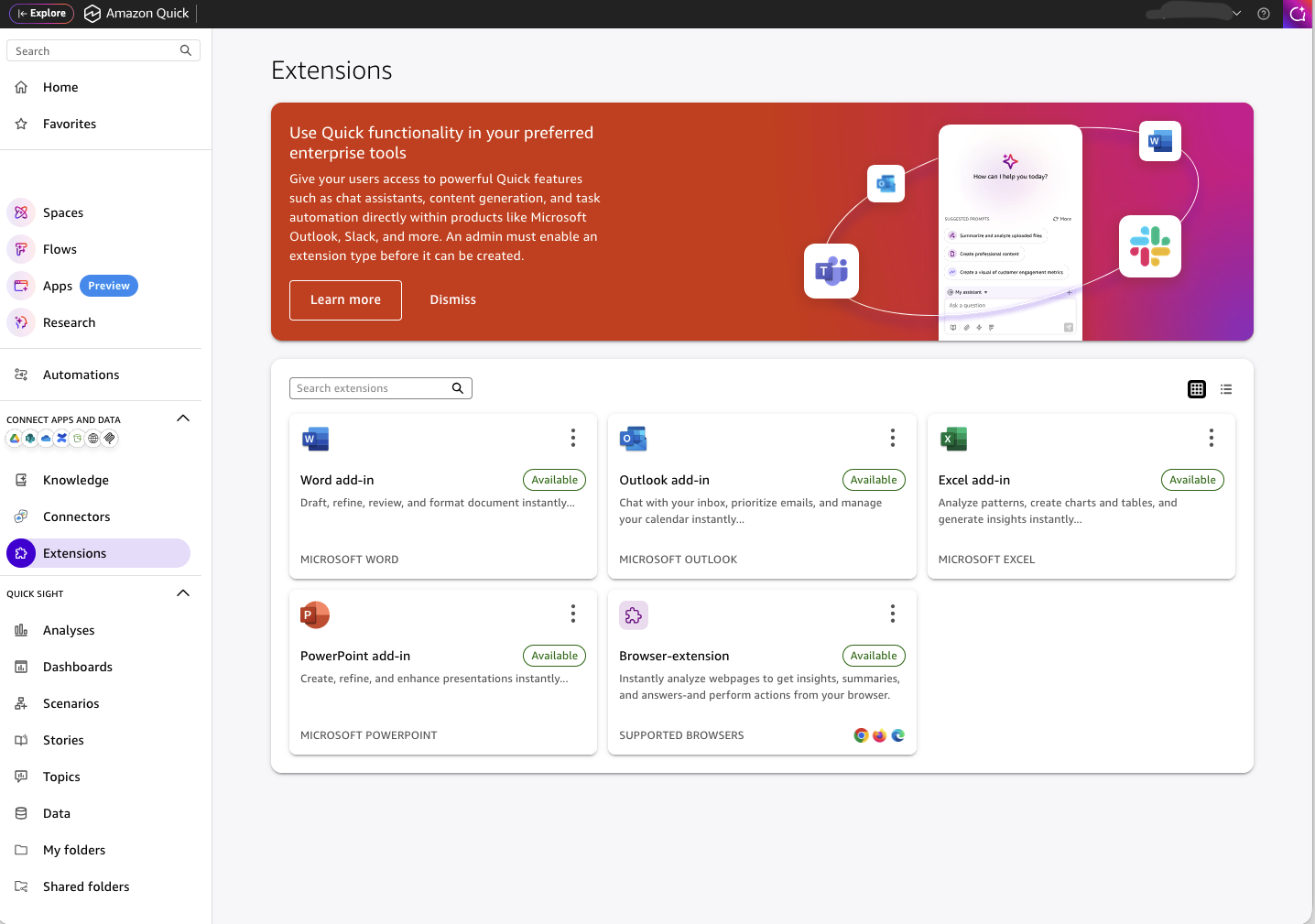
**図 1: Microsoft 365 エクステンションが有効化された Amazon Quick コンソール。Word、Excel、PowerPoint、Outlook のエクステンクションがアクティブ化され、展開の準備ができている様子。
仕組み:チャットだけでなく「エージェント」であること
これらの拡張機能は、Office に無理やり取り付けられたチャットボットでもなければ、新しい場所で作業を求められるスタンドアロンのアプリケーションでもありません。これらは「エージェント型」です。AI アシスタントは単に質問に答えるだけでなく、文書やスプレッドシート、プレゼンテーション、メール内ですでに直接アクションを実行します。
Quick は Microsoft Word 内に常駐するサイドパネルとして動作します。リボンから開いて質問をしたり指示を出したりすると、エージェントがアプリケーションのコンテキスト内で作業を開始します。タブを切り替える必要も、アプリ間でコピー&ペーストする必要もありません。エージェントはあなたの文書を確認し、それに対して直接行動を起こします。
Word 内では、エージェントはテキストの検索と置換、セクションの挿入、コンテンツの再フォーマットが可能です。実行後は、変更前の状態との視覚的な比較結果を表示します。
文書内でのすべてのエージェントアクションは追跡されます。Word では、変更点は監査証跡へのリンクとして表示されるか、チャット内で直接視覚的な比較として確認できます。監査証跡の各項目には、影響を受けたコンテンツへ選択して戻る参照情報が含まれています。
パネルを閉じても会話履歴が消えることはありません。拡張機能はセッション間でも履歴を保持します。Microsoft Outlook では、それぞれのメールスレッドに固有の永続的な対話が作成されます。複数のメールスレッドを行き来しても、拡張機能が各スレッドで何について議論したかを記憶し続けています。
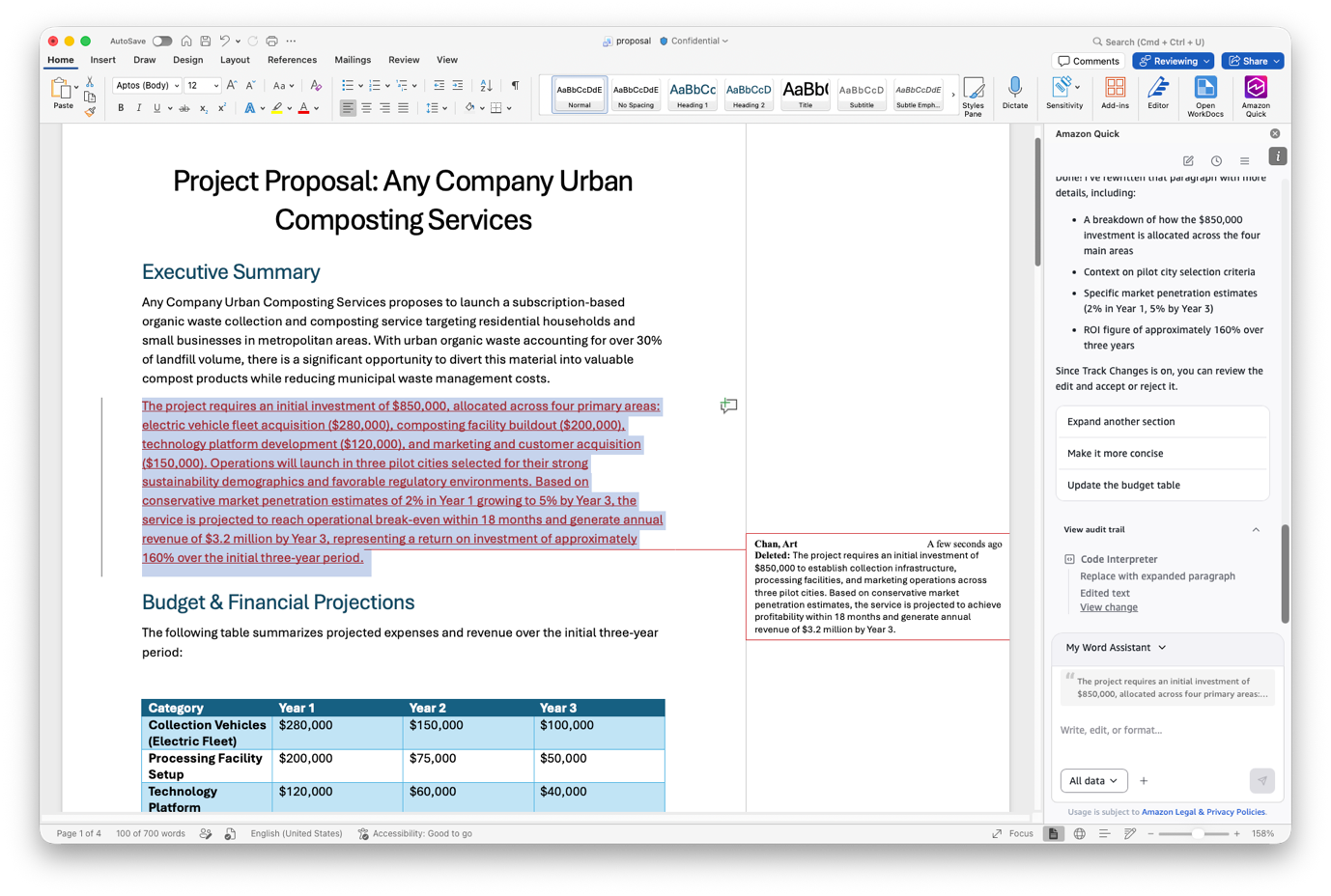
図 2: Word の Amazon Quick サイドパネル。エージェントが提案した編集内容と、変更前後の追跡表示を視覚的に比較した例です。この例では記事の書き出し部分を再作成するよう指示を出しており、Word 上の変更点と、エージェントサイドパネルで確認できる監査ログの両方が表示されています。
インストールと認証:複雑な要素が最小限に
これらの拡張機能には、クライアント側でのインストールは不要です。すべてクラウド上で動作するため、ユーザー端末へのデプロイ作業は一切不要です。管理者は標準的なマニフェストを使用して、Microsoft 365 管理センターから特定のユーザーやグループに対して拡張機能を配布できます。これは Microsoft 365 アドインを配布する際と同じ仕組みです。
あるいは、Microsoft アドインストア から自分でインストールすることも可能です。「Quick」と検索し、「追加」を選択すると、Office リボンに拡張機能が追加されます。どちらの方法でも、一度導入されれば更新は自動的に行われます。チームが一度デプロイするだけで、IT 部門の介入なしに全ユーザーが最新バージョンを自動的に利用できるようになります。
唯一の例外は Outlook です。多くの組織で Graph API の権限制限が設けられているため、Outlook 拡張機能では完全な機能を発揮するために管理者による承認が必要です。Outlook については、管理者によるデプロイを想定しておいてください。
認証モデルは、Quick のネイティブ認証を採用しており、Entra アプリの追加は不要です。その結果、管理すべき要素が減り、セットアップが迅速化され、IT チームの依存関係も軽減されます。これにより、Quick が提供するセキュリティフレームワークを維持したまま、効率的な運用が可能になります。
Free または Plus プランをご利用の場合、エンタープライズ資格情報によるサインインや、Google や Apple などのソーシャルログインに対応しています。別途アイデンティティ設定を行う必要はありません。
エージェントの設定やカスタムブランディングは、Office マニフェストまたはポリシー設定を通じて行えます。追加のインフラ構築は不要です。
拡張機能は、以下の 7 つの Quick AWS リージョンで利用可能です:米国東部(バージニア北部)、米国西部(オレゴン)、欧州(アイルランド)、欧州(ロンドン)、欧州(フランクフルト)、アジア太平洋(シドニー)、およびアジア太平洋(東京)。データは選択したリージョン内に留まり、バックエンドインフラは完全に分離された環境で稼働します。外部への公開出口もありません。
利用を開始するには、アクティブな Quick アプリケーションが必要です。拡張機能は設定済みの Quick 環境に接続され、既存のナレッジベース、データソース、および統合機能をそのまま引き継ぎます。これは別個の製品を購入・プロビジョニングするものではなく、すでに使用している Quick の機能拡張です。
拡張機能をインストールすると、Office リボンに「Quick」アイコンが表示されます。これをクリックして開き、サインインすればすぐに作業を開始できます。Microsoft 365 アプリ内での操作となるため、インターフェースはすでに慣れ親しんだものになっています。既存のスペースやダッシュボード、そして Salesforce、Jira、Slack、SharePoint などを含む各種連携機能も、追加設定なしですぐに利用可能です。また、拡張機能はユーザーが持つ既存の権限とセキュリティポリシーを尊重します。
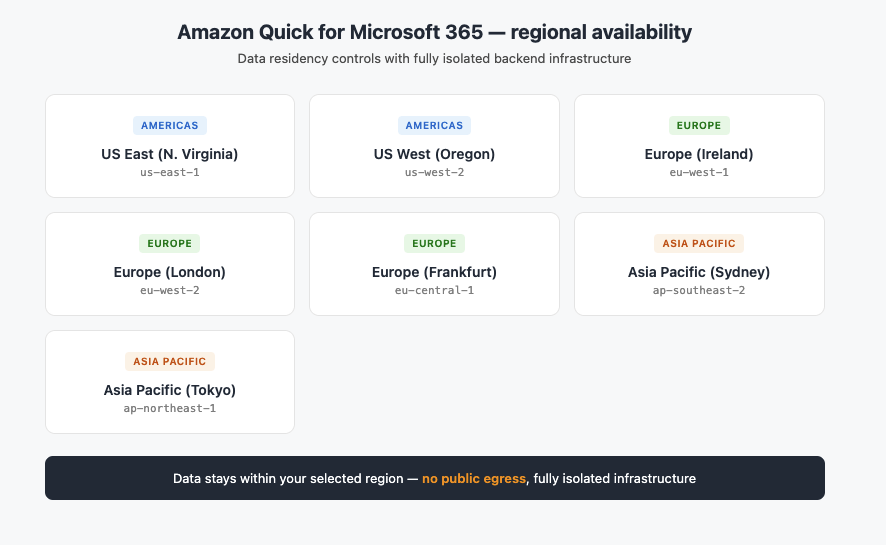
図 3: Amazon Quick 拡張機能は、データ所在地管理機能を備えた 7 つの AWS リージョンで利用可能です。
Microsoft Excel:数字が意思決定へ変わる場所
このエージェントは、あなたがすでに扱っているデータの文脈の中で動作します。
この拡張機能 は、データ取得と書式設定をワンステップで処理するため、システム間を行き来することなく、質問から回答へとスムーズに進むことができます。
これにより、他者が作成した複雑なスプレッドシートを解読したり、計算結果の不一致の原因を素早く特定したりすることが可能になります。
外部データを取り込む必要がある場合、拡張機能はクラウドストレージ、データウェアハウス、Quick Sight、Salesforce、SharePoint などからデータを取得します。その後、矛盾点の検出や書式の問題修正を行い、分析に即した形式に変換します。
分析結果は、QuickSight に保存された実際のビジネス指標と照合して検証できます。これにより、モデルが現実と整合しているかを確認でき、分析プロセスを通じてスプレッドシートが生データに常時接続されたクローズドループワークフローを実現します。
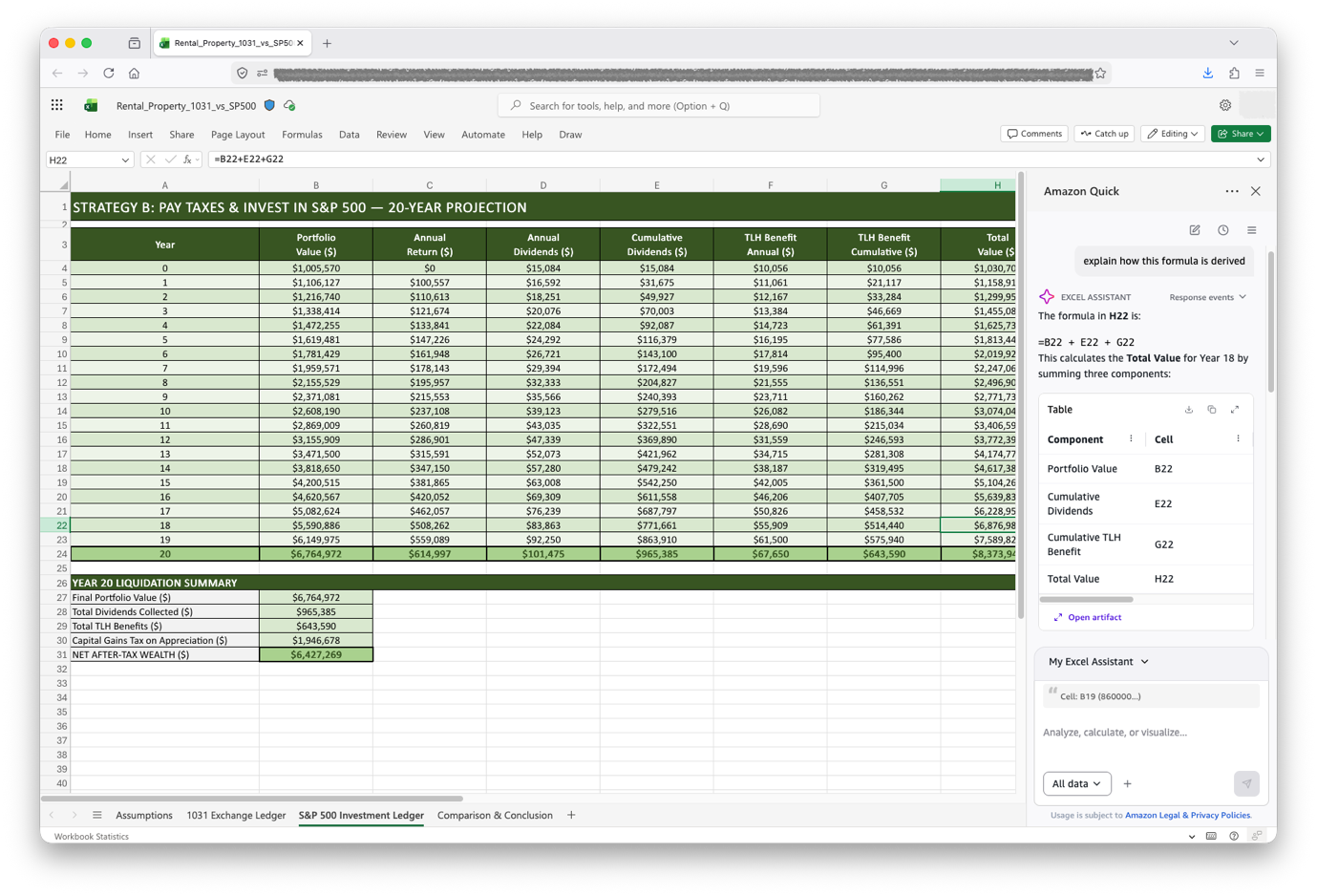
図 4:Quick は、サイドパネルでセルの修正や数式の解説を直接行います。他のワークシート内の参照箇所もハイライト表示されます。この例ではセルが選択されており、エージェントと対話して数式がどのように導き出されたかを確認できます。なお、これは Excel の Web バージョンでの動作です。
典型的な Excel ワークフローを考えてみましょう。まず、現在のシートを分析させ、前月比で 10% を超える異常値をアラートさせます。次に、QuickSight ダッシュボードから地域別の第 1 四半期収益データを新しいタブに取得します。複雑な数式に出会った場合は、Quick にその解説と依存関係の追跡を依頼してください。いよいよ発表の段階になったら、エージェントに実績値と予測値を比較するチャートの作成を命じればよいのです。
Microsoft Word:エンタープライズコンテキストで執筆
「Word 拡張機能」は、ドキュメントと接続されたデータソースの両方を理解する共著者として機能します。既存のフォント、見出しスタイル、組織パターンを含むドキュメントの構造を尊重し、セクションを追加または変更しても、出力が既存の内容に一致するように設計されています。この新しい拡張機能は Word のネイティブ書式モデルと直接連携するため、文書全体に一貫したスタイルを維持できます。
拡張機能はすべての編集を前後のスナップショットとして記録し、チャットパネルで視覚的な比較結果として表示します。各変更には、影響を受けたセクションへの参照リンクが含まれており、どこがどのように変更されたかを簡単に確認できます。これにより、エージェントの作業履歴を完全に把握することが可能です。特に複数の人が共同で文書を作成する環境では、誰が何をなぜ変更したのかを理解するために、この監査証跡は極めて重要です。
Quick Sight ダッシュボードからデータを取得して表や可視化グラフを生成できます。Salesforce のパイプライン指標を参照した経営陣向けサマリーや、Jira からプロジェクトの進捗状況を取り入れた文書も作成可能です。
単に数値をあるシステムからコピーして別のドキュメントに貼り付けるのではなく、この拡張機能は複数のソースからの定量的データを文章の中に自然に織り交ぜます。その結果、プレースホルダーテキストではなく、実際の数値を引用したレポートや提案書、ブリーフを作成できるようになります。
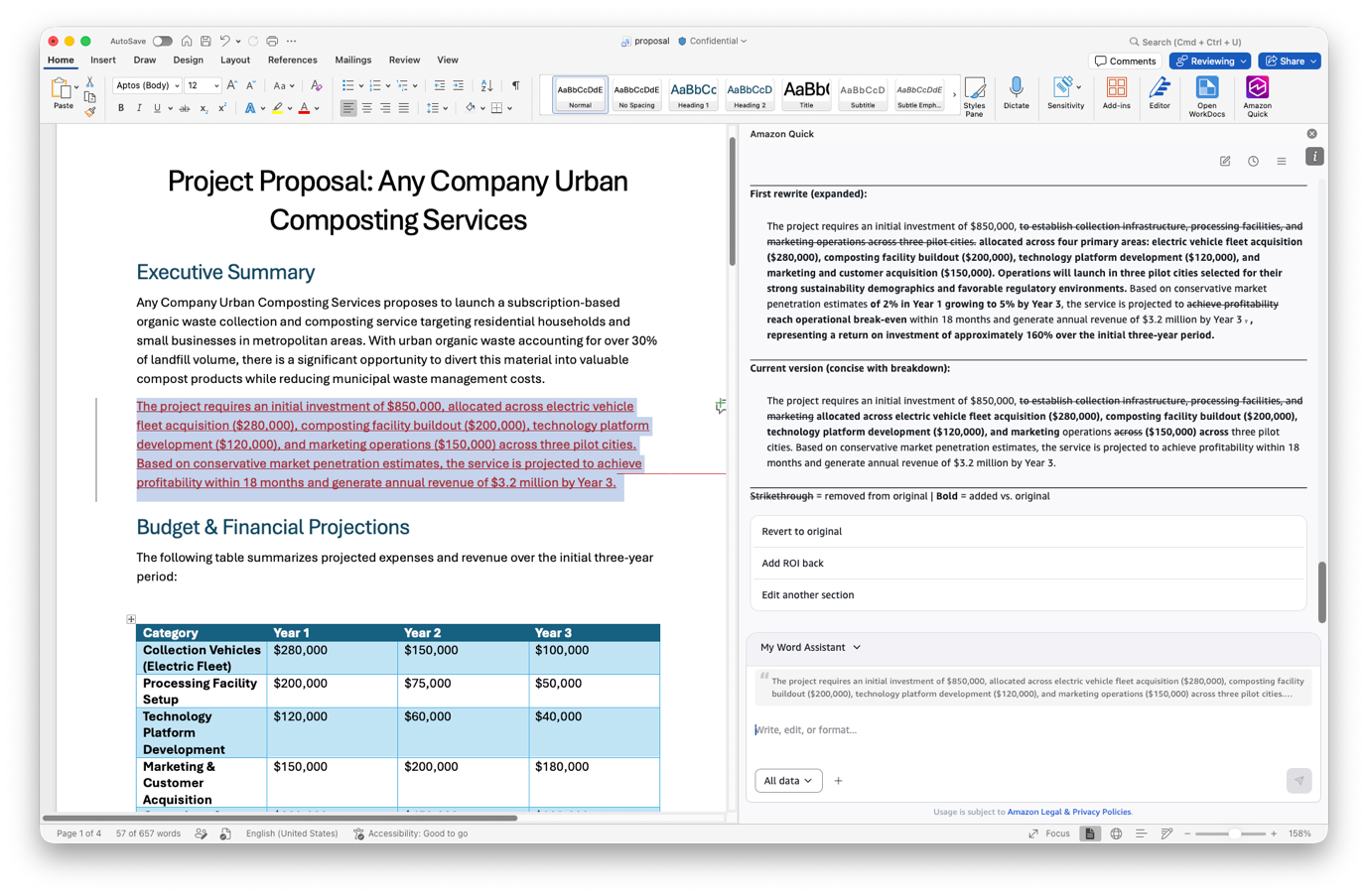
図 5: エージェントが提案した編集内容は、チャットウィンドウ内で変更前後のブロックとして表示できます。
実際の運用では、まず長い報告書を「Quick」に読み込ませ、要点をまとめた 1 ページの経営層向け要約を作成させることができます。
対象読者が技術者でない場合でも安心です。特定のセクションを書き直させつつ、基礎となる数値データはそのまま維持するよう指示すれば OK です。戦略文書に対しては、「Quick」に前四半期の Salesforce パイプラインの指標を参照した結論セクションを追加させることも可能です。エージェントはデータを照会し、必要な文章を一括で生成します。
Microsoft Outlook: 企業データに基づくインテリジェントなメール対応
Outlook の拡張機能 は、確認中のメールや会議の文脈を自動的に理解します。件名、送信者、宛先、スレッド履歴、タイムスタンプなど、すべての対話にこれらの情報が付随するため、エージェントからの回答は常にその文脈に沿ったものになります。「何を見ているのか」を説明したり、背景情報を貼り付けたりする必要はありません。
メッセージ作成がより迅速かつ的確に行えるようになります。エージェントは、スレッド全体を把握した上で返信、全員への返信、新規メールのドラフトを作成します。Outlook、Gmail、Apple Mail といった異なるメールクライアント間での会話の区切りを理解し、返信において正しいスレッド構造を維持します。
宛先(To)、CC、BCC フィールドへの追加、添付ファイルの挿入、送信スケジュールの設定も可能です。これらの作業は、インボックスから離れることなくサイドパネルで完結します。
作成機能だけでなく、この拡張機能はメール管理の効率化も支援します。メッセージにフラグを立てたり、カテゴリ分けしたり、移動させたりできます。長いスレッドを要約し、アクションアイテムを抽出することも可能です。これにより Outlook は単なるコミュニケーションツールから、Salesforce のアカウント、QuickSight の指標、Jira のチケットと連携したインテリジェントなワークフロー表面へと進化します。これらの情報をメール返信に直接参照でき、すべてのメッセージが実際のビジネス文脈に基づいたものになります。
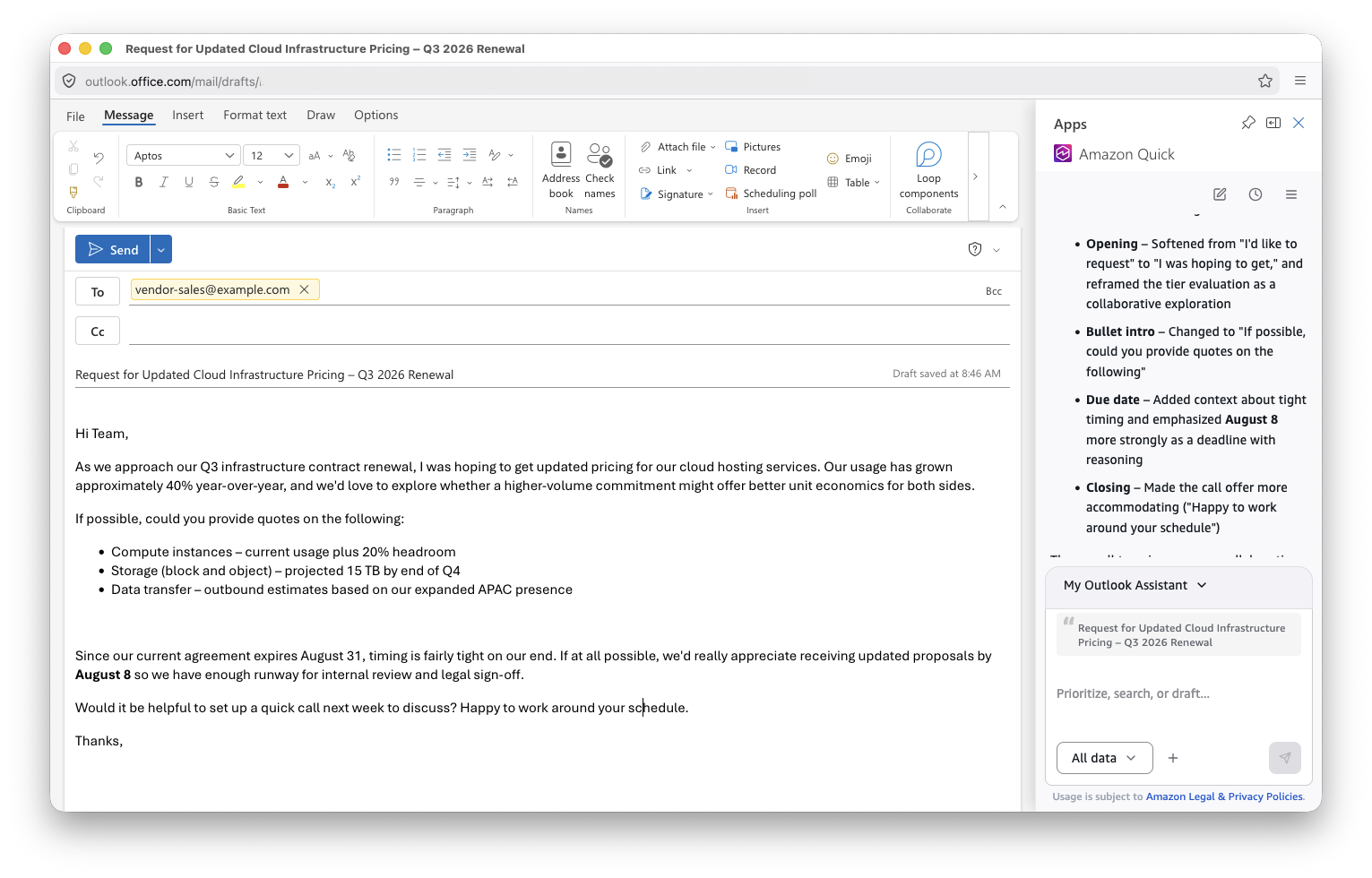
図 6: Quick は、インボックスから離れることなく、顧客データとスレッド履歴を活用して文脈に即した返信をドラフトできます。
顧客に対応する際、Quick に Salesforce から最新のアカウントヘルスメトリクスを取得させ、それを返信内容に織り込ませるよう指示できます。その結果、実際のアカウントデータに基づいたメッセージが作成されます。
長期間放置されたスレッドについては、所有者と期限を明確に示した要約ダイジェストの作成を依頼できます。あるいは、参加者が多く未解決項目が多いスレッドでは、Quick に全参加者を含めた 30 分の会議を設定させ、次のステップについて合意形成を図ることも可能です。エージェントは出席者名、タイトル、アジェンダを自動的に生成します。
Microsoft PowerPoint: 実データに基づくプレゼンテーション
PowerPoint エクステンション はスライドをプログラムで生成し、単一のプロンプトによる生成を超えた、多段階のクリエイティブワークフローをサポートします。プレゼンテーションはエージェントとの複数回のやり取りを通じて反復的に構築され、デザインとコンテンツが徐々に洗練されていきます。
Quick は、既存のスライドマスター、レイアウト、フォント、カラーパレットを活用するため、生成されたスライドはチームがすでに使用しているデザインシステムに完全に適合します。AI の支援と社内のテンプレート選択を迫られる必要はありません。エージェントは最初からブランドガイドラインの範囲内で動作します。
1 ステップでテーマやカラーパレットを定義し、次のステップですべてのスライドに適用することで、複数の会話を通じて物語の構成を構築できます。
この拡張機能により、プレゼンテーションとデータを直接連携させることができます。QuickSight のダッシュボードや Salesforce のメトリクスを参照したチャートや経営層向けのサマリーを自動生成可能です。
Excel で分析を作成した場合、PowerPoint 拡張機能は分析結果を理解し、その内容に合わせたナラティブ(物語)を構築する資料デッキを生成します。両方の拡張機能が同じ接続されたデータソースを利用するため、データの文脈がプレゼンテーションへとスムーズに移行されます。
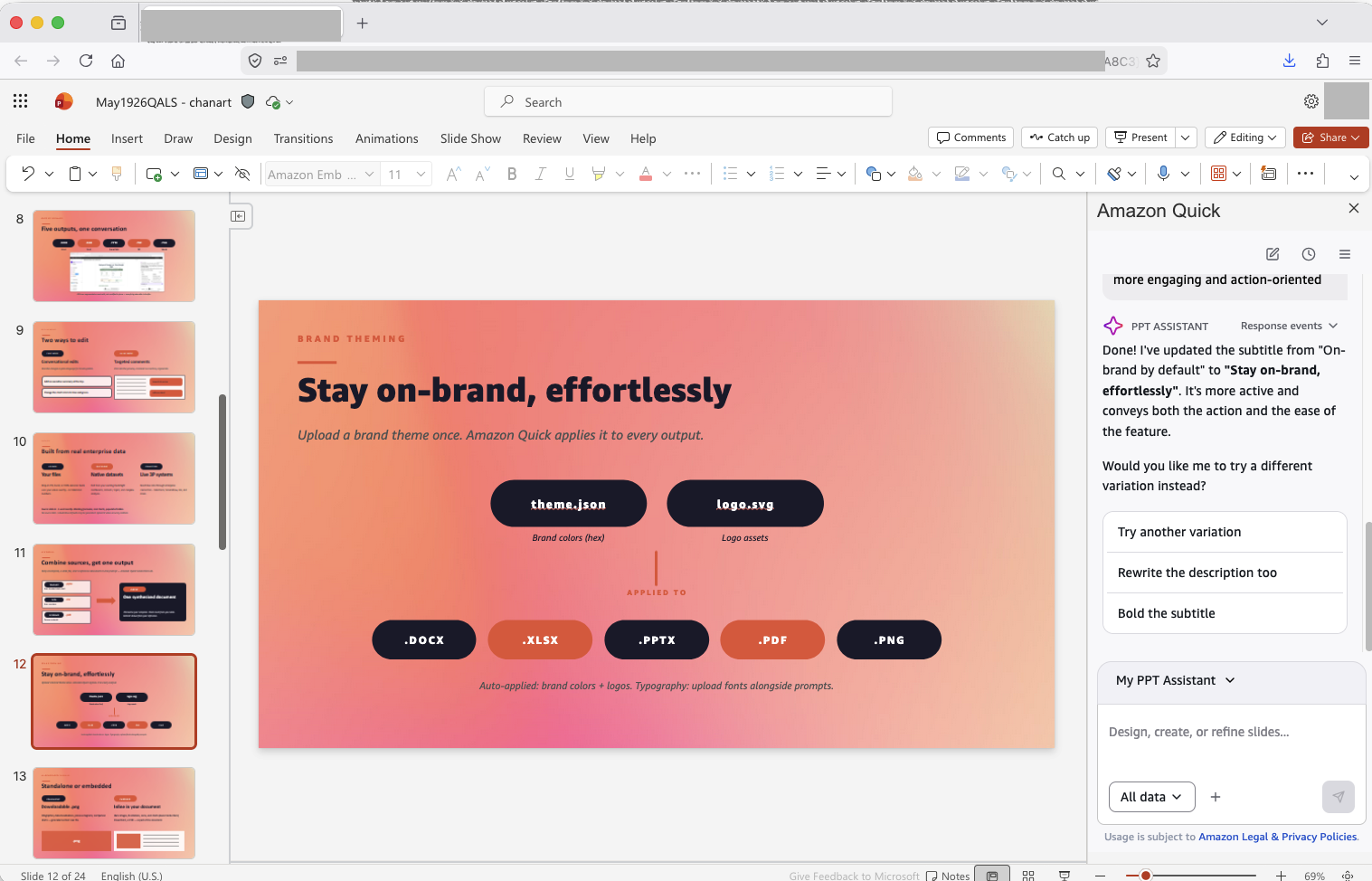
図 7:PowerPoint 拡張機能は、多段階のワークフロー全体で Quick データを活用したブランディングされたスライドを生成します。この例では、推奨アクションを選択できる「Quick Action」機能を示しています。
実際に試すには、自社のテンプレートを用いて 5 スライドの経営層向けサマリーを作成し、QuickSight ダッシュボードから第 1 四半期(Q1)のメトリクスを参照してください。
次のステップ
今回のリリースでは、Excel や PowerPoint を含む Microsoft 365 に Quick の知能機能が追加されました。新しい機能やアップデートについては、Amazon Quick ドキュメントをご確認ください。
はじめに
Microsoft 365 向けの Amazon Quick 拡張機能が一般提供されました。すでに Quick の利用者であれば、Quick ダウンロードページ から拡張機能をインストールできます。まだ利用していない場合は、無料トライアルを開始 して拡張機能をインストールし、Word、Excel、PowerPoint、Outlook で Quick を使い始めることができます。
詳細については、Amazon Quick のドキュメント をご覧いただくか、Quick コンソールにログインして「Extensions」メニューから Microsoft 365 拡張機能を選択してください。
執筆者について

Art Chan
Art は AWS の Amazon Quick でシニア・ワールドワイド・スペシャリスト SA を務めています。AI による生産性ツールが組織の働き方をどのように変革できるかを、顧客や現場チームに理解してもらう支援を行っています。勤務時間外には、次のマラソンに向けて距離を走るか、農場で汗を流しています。

Abhinand Sukumar
アビナンド氏は、Amazon Q Business のシニアプロダクトマネージャーとして Amazon Web Services に在籍し、革新的な生成 AI ソリューションの製品ビジョンとロードマップを主導しています。ブラウザ拡張機能を含む成功した統合を実現するため、顧客やエンジニアリングチームと密接に連携しています。専門分野は生成 AI 体験と AI/ML 教育デバイスにまたがり、教育、人工知能、デザイン思考に対する深い情熱を持っています。AWS 入社前は、ネットワーク業界で組み込みソフトウェアエンジニアとして活躍していました。
原文を表示
Your enterprise data lives in dozens of systems, but often the work happens in Microsoft 365. Amazon Quick bridges that gap as an AI assistant grounded in your data, now available directly inside Microsoft Word, Excel, PowerPoint, and Outlook.
These extensions don’t require you to adopt a new application or change how you work. Instead, they bring Amazon Quick connected data access and agentic document editing directly into the Microsoft 365 apps your teams open every morning. Your Amazon Quick Sight dashboards, Spaces, AWS data sources, and third-party integrations are now accessible without leaving Word, Excel, PowerPoint, or Outlook.
In this post, we cover how installation and setup works, and workflows that you can run across each app.
General availability and access
Amazon Quick customers can access the new Microsoft 365 extensions now. You can install the four extensions (Word, Excel, PowerPoint, and Outlook) across both desktop and web versions of Microsoft 365. No additional licensing is required for customers on Plus, Professional, or Enterprise plans.
Why this matters: The intelligence layer
What really matters is how you embed AI into the workflows where business decisions happen.
Most organizations also use AWS infrastructure, Amazon Quick Sight dashboards, Salesforce pipelines, Jira projects, Slack conversations, and SharePoint repositories. Quick connects these to your daily productivity tools. The value isn’t in the underlying agentic model itself. It’s in the breadth of connected data that the agent brings to your interactions.
An example from my own workflow: I now draft customer request for proposal responses in hours, pulling from internal knowledge bases, past proposals, and live customer data. This used to take a team weeks to compile from scattered sources. Customized customer presentations that weave together structured data sources and unstructured documents come together in an hour rather than a day or two. The time I save goes straight into refining positioning and focusing on what matters to each customer, rather than scrambling to gather information and meet a response deadline.
**Figure 1: The Amazon Quick console with Microsoft 365 extensions enabled, showing Word, Excel, PowerPoint, and Outlook extensions activated and ready for deployment
How it works: Agentic, not only chat
These extensions aren’t a chatbot bolted onto Office, and they aren’t a standalone application that asks you to work somewhere new. They are agentic: the AI assistant does more than answer questions. It takes action directly within your documents, spreadsheets, presentations, and email messages.
Quick lives inside Microsoft Word as a persistent side panel. You open it from the ribbon, ask a question or give an instruction, and the agent works within the application context. There’s no tab-switching and no copy-pasting between apps. The agent sees your document and acts on it.
In Word, the agent can find and replace text, insert sections, and reformat content. It then shows you a visual comparison of what changed.
Every agent action in a document is tracked. In Word, changes appear as an audit trail link, or as a visual comparison directly in the chat. Each change in the audit trail includes a selectable reference back to the affected content.
Conversations don’t vanish when you close the panel either. The extension preserves history across sessions. In Microsoft Outlook, each email thread gets its own persistent conversation. Switch between email threads, and the extension remembers what you discussed in each one.
Figure 2: The Amazon Quick side panel in Word displaying a visual comparison of agent-suggested edits with before-and-after change tracking. In this example I’ve asked it to rewrite the opening to this post, showing changes in both Word and the audit trail that can be displayed in the agent side panel
Installation and authentication: Fewer moving parts
The extensions require no client-side installation. They run entirely in the cloud, so there’s nothing to deploy to user machines. An administrator can push them to targeted users and groups through the Microsoft 365 admin center using a standard manifest. This is the same mechanism used for any Microsoft 365 add-in.
Alternatively, you can install it yourself through the Microsoft add-in store. Search for “Quick,” choose Add**, and the extension appears on the Office ribbon. Either way, after it’s there, updates ship automatically. Your team deploys once, and every user gets the latest version without IT intervention.
The one exception is Outlook. Because most organizations restrict Graph API permissions, the Outlook extension typically requires admin approval for full functionality. Plan on admin deployment for Outlook.
The authentication model uses Quick native authentication and does not require an Entra app. The result is fewer moving parts, faster setup, and fewer dependencies for your IT team to manage, while maintaining the security framework that Quick provides. If you’re on the Free or Plus Quick plan, you can sign in with your enterprise credentials or through social login (Google, Apple), with no separate identity configuration to set up.
You can configure agent settings and custom branding through the Office manifest or policy settings, with no additional infrastructure required.
You can access the extensions across seven Quick AWS Regions: US East (N. Virginia), US West (Oregon), Europe (Ireland), Europe (London), Europe (Frankfurt), Asia Pacific (Sydney), and Asia Pacific (Tokyo). Data stays within your selected region, and the backend infrastructure runs fully isolated with no public egress.
Getting started requires an active Quick application. The extensions connect to your configured Quick environment, inheriting your existing knowledge bases, data sources, and integrations. They’re an expansion of the Quick you already use, not a separate product to purchase or provision.
After the extension is in place, you find the Quick icon on the Office ribbon. Select it to open, sign in, and start working. The interface is already familiar because you stay inside Microsoft 365 apps. Your existing Spaces, dashboards, and integrations (including Salesforce, Jira, Slack, SharePoint, and more) are available immediately without additional configuration. The extensions respect your existing permissions and security policies.
Figure 3: Amazon Quick extensions are available across seven AWS Regions with full data residency controls
Microsoft Excel: Where numbers become decisions
The agent operates within the context of the data you’re already working with.
The extension handles the data retrieval and formatting in a single step, so you go from question to answer without switching between systems.
This helps you decode complex spreadsheets built by others or quickly trace the source of calculation discrepancies.
When you need to bring in external data, the extension pulls from cloud storage, data warehouses, Quick Sight, Salesforce, or SharePoint. It then identifies inconsistencies, cleans formatting issues, and transforms everything into analysis-ready formats.
You can then validate your analysis against actual business metrics stored in Quick Sight to verify your models align with reality. This closed-loop workflow keeps your spreadsheets connected to live data throughout the analysis process.
Figure 4: Quick modifies cells and explains formulas directly in the side panel, with highlighted references across worksheets. In this example, a cell is selected and you can interact with the agent to understand how a formula is derived. This example is working against the web version of Excel
Consider a typical Excel workflow. Ask the agent to analyze your current sheet and flag month-over-month anomalies greater than 10 percent. Then pull Q1 revenue by Region from your Quick Sight dashboard into a new tab. If you encounter a complex formula, ask Quick to explain it and trace its dependencies. When you’re ready to present, have the agent create a chart that compares actual and forecast values.
Microsoft Word: Write with enterprise context
The Word extension acts as a co-editor that understands both your document and your connected data sources. It respects your document’s existing structure, including fonts, heading styles, and organizational patterns. When it adds or modifies a section, the output matches what’s already there. The new extension works directly with the native formatting model in Word, maintaining consistent styling throughout.
The extension captures every edit as a before-and-after snapshot and renders it as a visual comparison in the chat panel. Each change includes a selectable reference back to the affected section. You can review what was modified, where, and in what order. This gives you a complete record of the agent’s work. The audit trail is especially valuable in collaborative environments where multiple people contribute to the same document and need to understand what changed and why.
Generate tables and visualizations that pull from Quick Sight dashboards. Build executive summaries that reference Salesforce pipeline metrics or include project status updates from Jira.
Rather than copying numbers from one system and pasting them into a document, the extension weaves quantitative data from multiple sources into narrative documents. The result is reports, proposals, and briefs that cite real numbers rather than placeholder text.
Figure 5: Agent-suggested edits can be displayed as before and after blocks within the chat pane
In practice, you might start with a long report and ask Quick to summarize it into a one-page executive brief with key takeaways.
Need to reach a non-technical audience? Ask Quick to rewrite a specific section while preserving the underlying data points. For strategic documents, prompt the extension to add a conclusion section that references your Salesforce pipeline metrics from last quarter. The agent queries the data and writes the narrative in one step.
Microsoft Outlook: Email informed by your enterprise data
The Outlook extension automatically understands the context of the email or meeting you’re reviewing. Subject, sender, recipients, thread history, and timestamps are included with every interaction, so the agent’s responses stay relevant to that context. There’s no need to explain what you’re looking at or paste in background.
Composing messages becomes faster and more informed. The agent drafts replies, reply-all messages, and new email messages with full thread awareness. It understands conversation boundaries across email clients including Outlook, Gmail, and Apple Mail, and preserves the correct thread structure in its responses.
Add recipients to To, CC, or BCC fields, include attachments, and schedule sends. The side panel handles these tasks without leaving your inbox.
Beyond composition, the extension helps you stay on top of your inbox. Flag, categorize, and move messages. Summarize long threads and extract action items. The extension turns Outlook from a communication tool into an intelligent workflow surface connected to your Salesforce accounts, Quick Sight metrics, and Jira tickets. Reference any of these directly in your email responses, grounding every message in actual business context.
Figure 6: Quick can draft contextual replies using customer data in Quick and thread history, without leaving your inbox
When responding to a customer, prompt Quick to pull the latest account health metrics from Salesforce and weave them into your response. The result is a message grounded in real account data.
For long threads that have gone cold, ask for a digest that summarizes the conversation with owners and deadlines called out explicitly. Or, for threads with many participants and open items, prompt Quick to create a 30-minute meeting with everyone on the thread to align on next steps. The agent generates the attendees, title, and agenda automatically.
Microsoft PowerPoint: Presentations backed by real data
The PowerPoint extension generates slides programmatically and supports multi-step creative workflows that go well beyond single-prompt generation. You build presentations iteratively, refining design and content across multiple interactions with the agent.
Quick uses your slide masters, layouts, fonts, and color schemes, so generated slides match the design system your team already uses. You don’t need to choose between AI assistance and your company’s templates. The agent works within your brand guidelines from the start.
Define a theme or color palette in one step and apply it across slides in the next, building a narrative arc over several conversations.
The extension also connects your presentations to your data. Generate charts and executive summaries that reference Quick Sight dashboards or Salesforce metrics. When you’ve built an analysis in Excel, the PowerPoint extension can generate a board deck that understands what the analysis found and structures the narrative accordingly. Context flows from data to presentation because both extensions draw on the same connected data sources.
Figure 7: The PowerPoint extension generates branded slides with Quick data across a multi-step workflow. In this example we show the Quick Action feature, where you can choose a suggested action
To try this, create a five-slide executive summary using your company template, pulling Q1 metrics from your Quick Sight dashboard.
What’s next
This release brings Quick intelligence to Microsoft 365, including Excel and PowerPoint. Visit the Amazon Quick documentation for new capabilities and updates as they become available.
Get started
Amazon Quick extensions for Microsoft 365 are generally available. If you’re already a Quick user, you can install extensions from the Quick Download page. If you aren’t a Quick user, you can start a free trial, install the extensions, and start using Quick in Word, Excel, PowerPoint, and Outlook.
To learn more, visit the Amazon Quick documentation or sign in to the Quick console and choose the Microsoft 365 extensions from the Extensions menu.
About the authors
Art Chan
Art is a Senior Worldwide Specialist SA for Amazon Quick at AWS. He helps customers and field teams understand how AI-powered productivity tools can reshape the way organizations work. When he’s not on the clock, he’s either logging miles for his next marathon or getting his hands dirty on his farm.
Abhinand Sukumar
Abhinand is a Senior Product Manager at Amazon Web Services for Amazon Q Business, where he drives the product vision and roadmap for innovative generative AI solutions. Abhinand works closely with customers and engineering to deliver successful integrations, including the browser extension. His expertise spans generative AI experiences and AI/ML educational devices, with a deep passion for education, artificial intelligence, and design thinking. Prior to joining AWS, Abhinand worked as an embedded software engineer in the networking industry.
関連記事
今日のまとめ
AIデイリーブリーフで今日の重要ニュースをまとめ読み