「Codexの始め方」
本文の状態
日本語全文を表示中
詳細モードで約3分の本文を読めます。
同じ出来事の情報源
この情報源を基点に整理
OpenAI News
OpenAI Academyは、CodexデスクトップアプリのダウンロードとChatGPTアカウントでのサインイン方法を解説し、ユーザーが最初のプロジェクトを作成して実務タスクを完了する手順を示している。
Continue in AI NEW LAB
このニュースを、実務の判断につなげる
AI NEW LABで、試したことや先に確認したい条件を共有できます。まずはログインなしで読めます。
AI NEW LABで論点を見るSource Article
元記事を日本語で読む
本文に関係しない購読案内、埋め込み通知、サイト内プロモーションは除いています。
Codexの始め方 | OpenAI 2026年4月23日
OpenAI Academy
Codexの設定、最初のプロジェクトの作成、そして実際のタスクを完了し始めるためのヒント。
まず、Codex desktop appをダウンロードし、ChatGPTアカウントでサインインしてください。
Codexを開いたら、最初のスレッド(thread)を作成してください。スレッドはChatGPTのチャットのようなもので、タスクを完了するためにCodexと往復してやり取りする空間です。
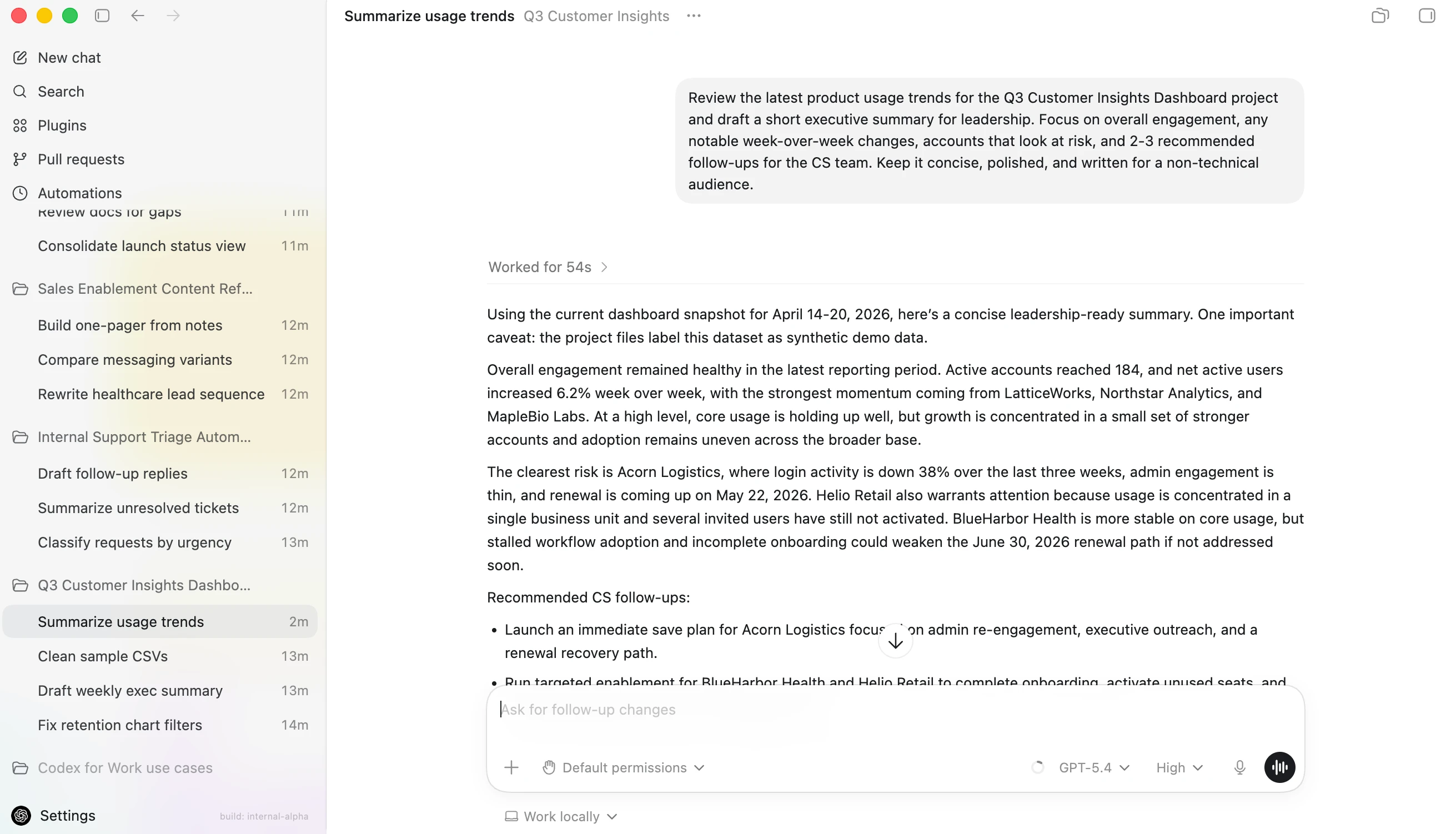
Codexは、プロジェクトと会話履歴を左側のサイドバーに保存し、メインのワークスペースには現在のスレッドとCodexとの共同作業チャットが表示されます。
単独のスレッドを作成することもできますが、ほとんどの場合はプロジェクト内で作業したいでしょう。プロジェクトはコンピュータ上のフォルダに接続されています:
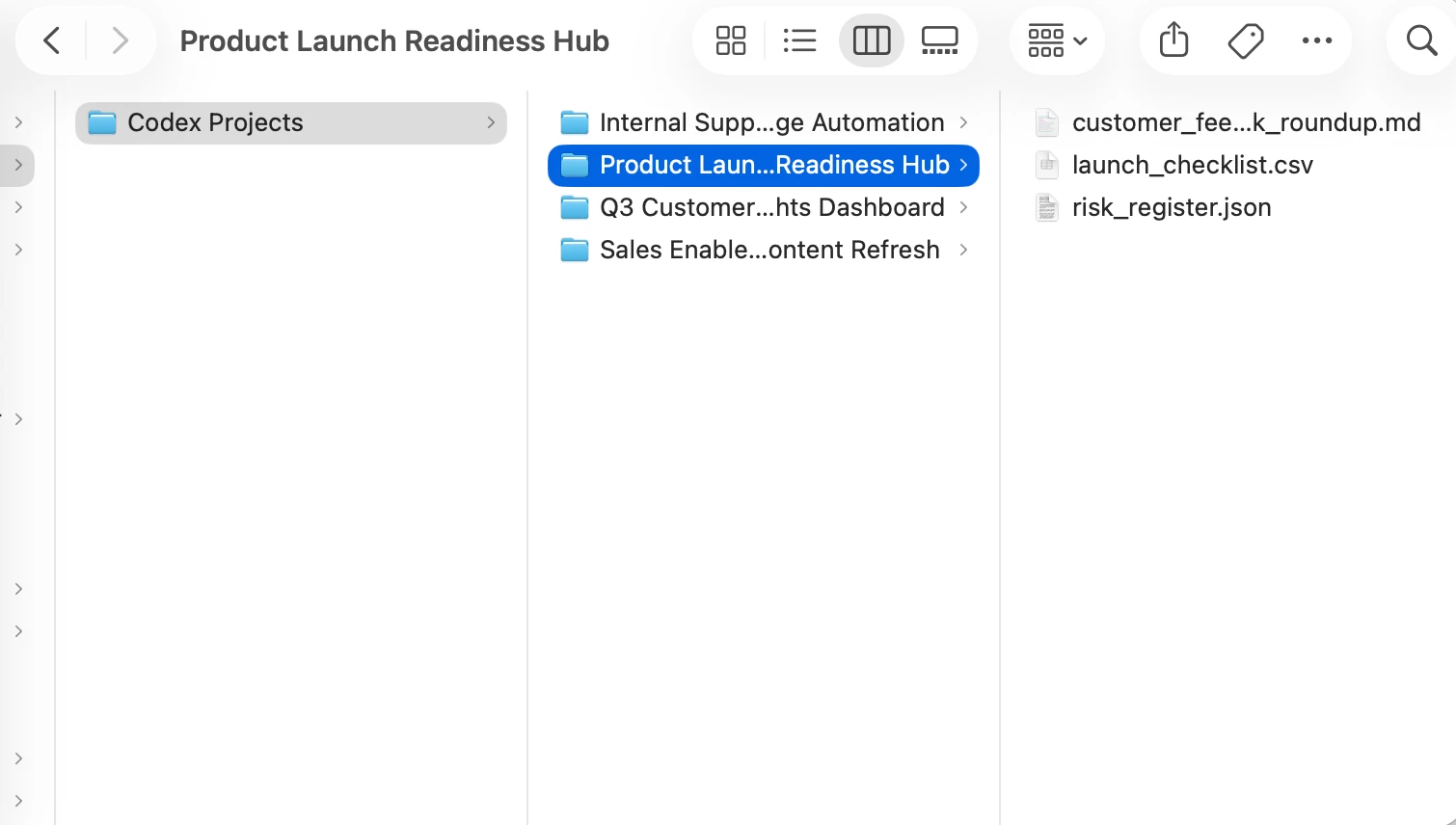
ヒント:シンプルに保つために、コンピュータ上に *Codex* という名前のフォルダを作成してください。その *Codex* フォルダ内に、各プロジェクト用の個別のフォルダを設けることができます。
プロジェクトの特定のファイルでCodexに作業させたい場合は、それらをフォルダにドラッグするだけです。そうでない場合は、フォルダを空のままにして、Codexがそのプロジェクトの新しいファイルを作成する場所として使用することもできます。
簡単で実用的な最初のタスクを選んでください。例えば、Codexにメモの整理、小規模なデータセットのクリーンアップ、またはドキュメントの2つのドラフトの比較を依頼することができます。

デフォルトで推奨されるCodexモデルから始め、難しいタスクには推論(reasoning)を強化してください。
プロジェクト内で作業している場合、入力ボックスの下に「Work locally」という表記が表示されることがあります。これは「Codexは私が指定したフォルダ内でのみ、私が選択したツールを使用して動作する」という意味です。また、権限を変更するかどうかを尋ねるドロップダウンメニューも表示されます。Codexを使い始める際は、ローカル環境において「Default permissions」を維持することをお勧めします。Codexはコンピュータ上のすべてのものに自動的にアクセスできるわけではありません。
完全な権限(Full permissions)を与えると、Codexがより自由に動作できるようになり、高度なタスクには役立ちますが、Codexの動作を理解し、管理者に確認した後にのみ使用してください。
最初のプロンプト(prompt)として適切な例は以下の通りです:
操作に慣れてきたら、Codexにより大きなタスクを任せることができます。小さく始めて、その動作を確認し、タスクごとに信頼を築いていきましょう。
原文を表示
How to get started with Codex | OpenAIApril 23, 2026
OpenAI Academy
Tips to set up Codex, create your first project, and start completing real tasks.
Start by downloading the Codex desktop app and signing in with your ChatGPT account.
Once you open Codex, create your first thread. A thread is like a chat in ChatGPT: a space where you go back and forth with Codex to accomplish a task.
Codex keeps your projects and conversation history in the left sidebar, while the main workspace shows your current thread and the chat where you collaborate with Codex.
You can create a standalone thread, but most of the time you’ll want to work inside a project. A project is connected to a folder on your computer:
Tip: To keep things simple, create a folder on your computer named *Codex*. Inside that *Codex* folder, you can have a separate folder for each project.
If you want Codex to work with specific files for a project, just drag them into the folder. If not, you can leave the folder empty and use it as the place where Codex creates new files for that project.
Pick a first task that is simple and useful. For example, you might ask Codex to organize notes, clean up a small dataset, or compare two drafts of a document.
Start with the default recommended Codex model, and increase reasoning for harder tasks.
If you’re working in a project, you may see the term “Work locally” below the input box. This means “Codex can only work in that folder I designated, using the tools that I choose.” You’ll also see a dropdown menu asking whether you want to change permissions. We recommend sticking with Default permissions in a local environment when you’re getting started with Codex. Codex does not automatically get access to everything on your computer.
Full permissions give Codex more room to act, which can be helpful for advanced tasks, but you should only use them when you understand what Codex is doing and you’ve checked with an admin.
A good first prompt is:
As you get more comfortable, you can give Codex bigger tasks. Start small, review what it does, and build trust one task at a time.
News to Guide
ニュースの次に確認する
発表内容を、現在の料金や仕様と照らし合わせられる関連ガイドです。
今日のまとめ
AIデイリーブリーフで今日の重要ニュースをまとめ読み