Git のワークツリーとは何か、そしてなぜ使用するべきなのか?
本文の状態
日本語全文を表示中
詳細モードで約7分の本文を読めます。
同じ出来事の情報源
この情報源を基点に整理
GitHub Blog
GitHub は、2015 年から存在する Git の機能「ワークツリー」が最近注目されている理由を解説し、ブランチやスタッシュとの違いや、タスク切り替えにおける利点を説明している。
Source Article
元記事を日本語で読む
本文に関係しない購読案内、埋め込み通知、サイト内プロモーションは除いています。
最近の Git の話題では、ワークツリーという概念が注目されています。これは少し皮肉なことに、2015 年からすでに存在していたものです。
しかし、それでも彼らは素晴らしいものであり、なぜそれを使うのか、ブランチとどう違うのか、そしてなぜ急にこれほど人気があるのかを疑問に思っているかもしれません。
それについて話しましょう!
ブランチとスタッシュによるコンテキストスイッチング
ワークツリーのない世界に住んでいて、あるチケットの作業をしていたところ、突然緊急のバグが発生してコンテキストを切り替えなければならなくなったと仮定してみましょう。
まず、作業をスタッシュします:
git stash "wip feature login"
次に、メインブランチに切り替えて更新します:
git checkout main
git pull origin main
その後、バグ修正用のブランチを作成します:
git checkout -b hotfix-bug
そして、すべての問題を修正し、コミットしてブランチをプッシュします:
git add .
git commit -m "fix broken submit button"
git push origin hotfix-bug
その後、プルリクエストのマージが終わったら、コンピュータに戻ってメインを取得し、バグ修正ブランチを削除するかもしれません:
git checkout main
git pull origin main
git branch -d hotfix-bug
そして、以前作業していた機能に戻ることができます:
git checkout feature-login
git stash pop
ふぅ。どこまで進んだっけ?
切り替えやファイルの再読み込み、何らかの変更に基づいて node_modules の再インストールなどを行う際の精神的な負荷は非常に大きいです。コンテキストスイッチングの負担は重いです。
さて、これは基本的な例ですが、時には開発者がより複雑な git stash コマンドを実行したり、同じリポジトリの複数のクローンを作成したりして、このような混乱を回避することがあります(私もその一人です)。
それが…ワークツリー登場!
ワークツリーによるコンテキストスイッチング
ワークツリーを使えば、ブランチから離れることもなく、stash する必要もありません。元の機能の編集コンテキストもそのまま維持されます。
git worktree add ../hotfix-workspace -b hotfix-bug main
これにより、すぐに"hotfix-workspace"という兄弟フォルダが作成され、main ブランチをベースとして、"hotfix-bug"という新しいブランチをチェックアウトします。
これで、そのフォルダを新しいエディタウィンドウで開く(または cd して移動し)バグを修正できます。元のエディタウィンドウは、あなたが離れる前と全く同じ状態のままです。
cd ../hotfix-workspace
...fix fix fix...
git add .
git commit -m "fix broken submit button"
git push origin hotfix-bug
オンラインでプルリクエストをマージするのは以前と同じように行い、マージが完了したら、一時フォルダを単に削除するだけです。
cd ../main-project
git worktree remove ../hotfix-workspace
これははるかにスムーズです!stash の競合リスクはゼロ、エディタの中断もなく、真に並列して作業できます。
では…なぜ今なのか?
非常に長い間、ワークツリーは比較的知られていませんでした。多くの開発者はこれについて聞いたことがありませんでした。なぜなら、Git GUI がこれをサポートしていなかった(または準二等公民として扱っていた)か、あるいは単に「機能ブランチを作成→作業→PR 提出→マージ→繰り返し」という既知のパターンに従ってきたからです。
さて、開発者としての私たちの仕事は変化しました。AI の登場により、ソフトウェア開発の歴史においてこれまで以上に並行して作業を行うようになりました。開発者はかつてないほど多くのセッションを並行して実行しており、「コードレビュー文化」が「コード記述文化」を超えて成長しています。
エージェントと人間は、ワークツリーを使えばより多くのことを並行して行うことができます。これは GitHub Copilot アプリのデフォルトモードであり、多くの他の現代ツールでも同様です。
しかし、落とし穴はあるのでしょうか?
ワークツリーは確かに多くの問題を解決しますが、注意すべき点も確実に存在します。
依存関係の肥大化:各ワークツリーフォルダには、プロジェクトの依存関係のコピーがそれぞれ必要になります。複数の場所で npm install や pip install を実行すると、コンピュータのストレージがすぐに一杯になってしまう可能性があります。
フォルダ管理:時間とともに親ディレクトリが散乱しないよう、ワークツリーフォルダを削除する必要があります。GitHub Copilot アプリなどのアプリはこれを自動で処理することが多いですが、ターミナル上で直接操作している場合は、自分自身で行う必要があるかもしれません。
グローバルな .gitignore の要件:メインのリポジトリディレクトリ内にワークツリーフォルダを作成した場合、誤って追跡されないように手動で .gitignore に追加する必要があります。これらのワークツリーをメインのリポジトリの外に作成することも可能であり(多くのアプリがデフォルトでこれを行いますが)、その点は注記しておく価値があります。
ブランチ制限:Git はデータ破損を防ぐため、同じブランチを同時に 2 つの異なるワークツリーでチェックアウトすることを禁止しています。
GitHub Copilot アプリでワークツリーを使用するにはどうすればよいですか?
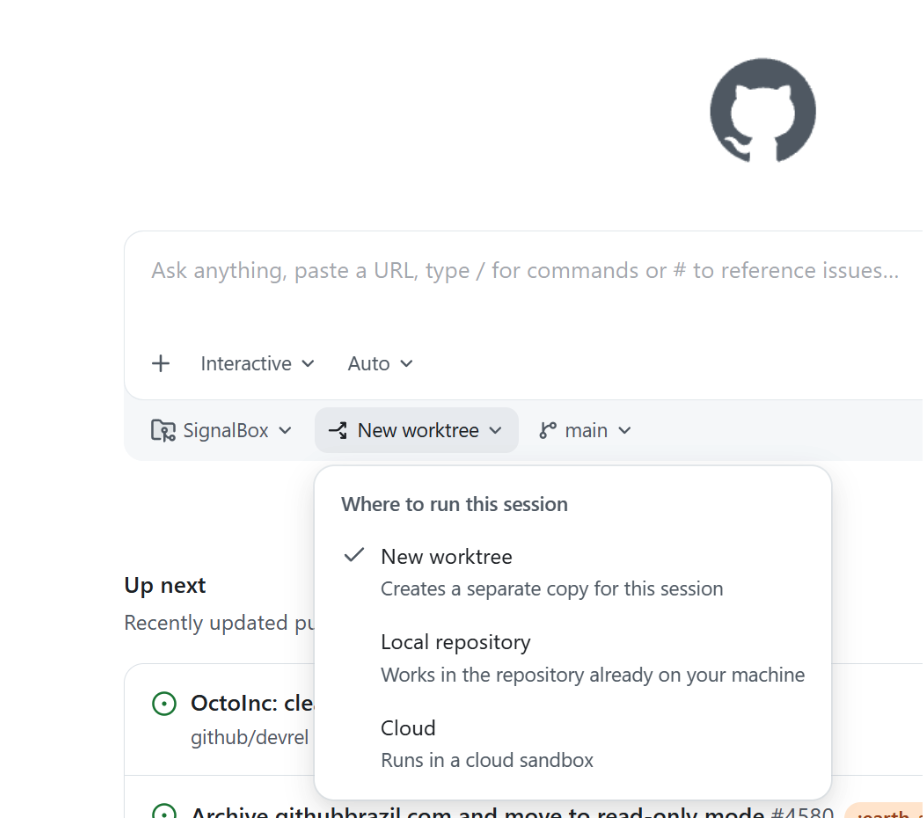
素晴らしい質問ですね!素晴らしいのは、これらがそのままの状態で「すぐに使える」ことです。アプリを開くと、ホーム画面で新しいセッションを実行する場所を尋ねるドロップダウンが表示されます。デフォルトは新しいワークツリーです。
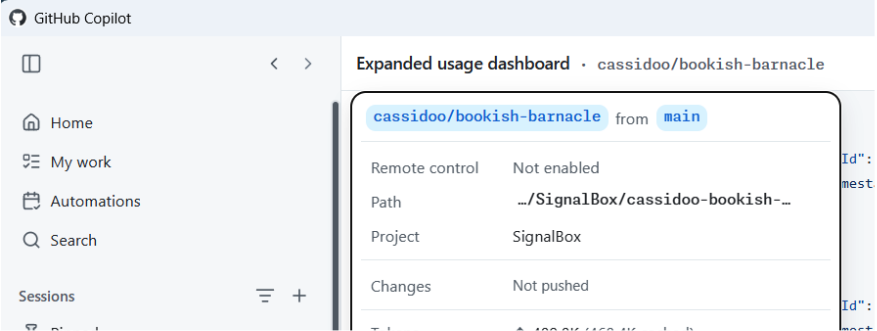
その後、新しいセッションを開始すると、アプリの上部にあるセッション名をクリックできます。そうすると、生成された(楽しい!)ワークツリーの名前と、それが配置されているバスタブ、そのワークツリーが対象とするプロジェクト、そしてあなたが行った変更に関する詳細が表示されます。
簡単すぎてレモンを絞るほど!
ワークツリーを使うべきでしょうか?
私ができる限りシニア開発者としての回答をします:それはケースによります!あなたは一方のやり方を好むかもしれませんし、他方のやり方を好むかもしれません。並行して行う作業がそれほど多くなく、ブランチやスタッシュというメンタルモデルが好きかもしれません。あるいは、今後はワークツリーのみを使うようになるかもしれません。両方を使いたいと思うこともあるでしょう。
世界はあなたのもの、そして GitHub Copilot アプリで今日からそれらすべてを試すことができます。
「git worktrees とは何か、なぜ使うべきか?」という投稿は、最初に The GitHub Blog で公開されました。
原文を表示
It seems like the latest hotness in git these days is the concept of worktrees. Which… is kind of funny because they’ve been around since 2015.
But, nevertheless, they are cool, and you might be wondering why you’d use them, how they differ from branches, and why they are suddenly so popular.
Let’s talk about it!
Context switching with branches and stashing
Let’s say you lived in a worktree-less world, and were working on a ticket, and suddenly an urgent bug came to you and you had to switch contexts.
First, you might stash your work:
git stash "wip feature login"
Then you’d switch to your main branch and update:
git checkout main
git pull origin main
Then make a bugfix branch:
git checkout -b hotfix-bug
Then you’d fix everything, commit, and push the branch:
git add .
git commit -m "fix broken submit button"
git push origin hotfix-bug
Then after merging a pull request, you might return back to your computer and pull main and remove the bug branch:
git checkout main
git pull origin main
git branch -d hotfix-bug
And then you could go back to the feature you were working on:
git checkout feature-login
git stash pop
Phew. Where were we?
The mental overhead of switching around, reloading files, reinstalling node_modules based on whatever changed, and so on, is a lot. The context switching burden is heavy.
Now, this is a basic example, but sometimes developers would work around this kind of chaos with doing some more complicated git stash commands, or even multiple clones of the same repo (I’m guilty of that one).
Until… worktrees!
Context switching with worktrees
With worktrees, you never leave your branch and you never stash, and your editor context for your original feature stays untouched.
git worktree add ../hotfix-workspace -b hotfix-bug main
This instantly creates a sibling folder called hotfix-workspace, and bases it on main, and checks out a new branch called hotfix-bug.
Now you can open that folder in a new editor window (or cd into it) and fix the bug. Your original editor window stays exactly as you left it.
cd ../hotfix-workspace
...fix fix fix...
git add .
git commit -m "fix broken submit button"
git push origin hotfix-bug
You merge the pull request online just like before, and once it’s merged, you can simply delete the temporary folder.
cd ../main-project
git worktree remove ../hotfix-workspace
This is so much smoother! There’s zero risk of stash conflicts, there’s no editor disruption, and you can truly work in parallel.
So… why now?
For a really long time, worktrees were relatively unknown. Most developers had never heard of them, because either Git GUIs didn’t support them (or treated them as second-class citizens), or because they just usually followed the known pattern of feature branch, then work, then PR, then merge, then repeat.
Now, our work as developers has changed. AI has made us work in parallel more than we ever have before in the history of software development. Developers run so many sessions in parallel, and “code review culture” is growing beyond “code writing culture.”
Agents and humans can do more in parallel with worktrees. It’s the default mode for the GitHub Copilot app, and for many other modern tools.
What’s the catch?
Worktrees do solve a whole lot of issues, but there’s definitely some things to watch out for.
Dependency bloat: each worktree folder requires its own copy of your project dependencies. If you’re running npm install or pip install across multiple of them, your computer might get very full, very quickly.
Folder management: you have to delete the worktree folders, to avoid cluttering your parent directory over time. Apps like the GitHub Copilot app do often handle this for you, but it’s still something you might have to do yourself if you’re operating in the terminal yourself.
Global .gitignore requirements: if you create worktree folders inside your main repo directory, you have to manually add them to .gitignore to not accidentally track them. You can make these worktrees outside of your main repo (and many apps do that by default), but it’s worth noting.
One branch limits: Git prevents you from checking out the exact same branch in two different worktrees at the same time to prevent data corruption.
How do I use worktrees in the GitHub Copilot app?
Great question! What’s awesome is… they “just work” out of the box. When you open the app, there’s a dropdown that asks you where you want to run your new session on the home screen. The default is a new worktree.
Then, once you kick off a new session, you can click the session name at the top of the app, and you’ll see the (fun!) generated name of your worktree, as well as the bath where it’s located, the project that worktree is for, and details about the changes that you’ve made.
Easy peasy lemon squeezy!
Should I use worktrees?
I will give you the most senior developer answer I can: It depends! You might prefer working in one way or another. You might not do as much work in parallel and like the mental model of branches and stashing. You might only do worktrees from now on. You might want to do both!
The world’s your oyster, and you can try them all in the GitHub Copilot app today.
The post What are git worktrees, and why should I use them? appeared first on The GitHub Blog.
今日のまとめ
AIデイリーブリーフで今日の重要ニュースをまとめ読み