OpenRouter、チーム全体の AI 利用コスト管理機能を6つ紹介
本文の状態
日本語全文を表示中
詳細モードで約27分の本文を読めます。
同じ出来事の情報源
この情報源を基点に整理
OpenRouter Blog
OpenRouter はチームの AI コスト管理を強化するため、API キーごとの制限や予算設定など6つの統制機能を導入し、リスクに応じた階層的な運用を可能にする仕組みを発表した。
Continue in AI NEW LAB
このニュースを、実務の判断につなげる
AI NEW LABで、試したことや先に確認したい条件を共有できます。まずはログインなしで読めます。
AI NEW LABで論点を見るAI深層分析を開く2026年8月7日 10:32
AI深層分析
キーポイント
コスト統制の3大機能分類
各制御機能は「支出額の制限」「利用可能なモデル・プロバイダーの指定」「誰が支出したかの可視化」のいずれかに分類され、これらが組み合わさることで包括的な管理を実現する。
6つの統制機能と適用ルール
API キーごとのクレジット制限、ガードレール、ワークスペース予算、プリセット、組織・ロール、アクティビティダッシュボードの6機能が用意され、重複する場合はより厳しい制限が優先される。
プラン別利用可能な機能
API キー制限やガードレールは無料および従量課金プランで利用可能だが、ワークスペース全体の予算管理機能はエンタープライズプランでのみ提供される。
コスト管理の構成原則
実用的な設定では、少なくとも1つのブロック制御と1つのレポート制御を組み合わせる必要がある。例えば、生産環境用のキーに月間制限を設定し、Activityダッシュボードで支出先を確認する。
課金構造の明確化
プラットフォームは推論コストに対してマークアップを行わず、請求されるのはクレジット購入時の手数料のみである。失敗したリクエストには一切課金されないため、これらの制御は実際の推論実行量を制限する役割を持つ。
重要な引用
One developer creates a key for a side experiment. Another wires a few keys into a CI pipeline.
When two controls overlap, the stricter one applies.
Pick the cheapest control that fits your team's risk, then layer up.
A practical setup usually pairs at least one blocking control with one reporting control.
編集コメントを表示
編集コメント
AI モデル利用の急増に伴い、コスト管理は開発チームにとって喫緊の課題となっている。本記事で紹介される階層的な制御アプローチは、実装コストを抑えつつ柔軟に対応できる現実的な解決策として注目される。
Source Article
元記事を日本語で読む
本文に関係しない購読案内、埋め込み通知、サイト内プロモーションは除いています。
チームの AI 利用料金は、エンジニア一人ひとりが持つ API キーの総和です。ある開発者がサイドプロジェクト用のキーを作成し、別の人が CI パイプラインに数個のキーを埋め込みます。さらに誰かがノートブックにトークンを貼り付けてプロトタイプを動かしたまま、そのキーがまだ有効なことを忘れてしまうケースもあります。
それぞれが単独では無謀な行為ではありませんが、これらをすべて合計すると請求額の内訳が説明できなくなります。OpenRouter にはこれを整理するための 6 つの制御機能があり、この記事ではそれぞれの機能と、それが適したチーム規模、そして必要な設定手順を解説します。
これらの制御機能は階層的に作用します。まずはリスクをカバーできる最も安価な制御から始め、必要に応じて追加してください。複数の制御が重複する場合は、より厳しい側のルールが適用されます。ホワイトリスト同士が重なった場合や予算制限がかかっている場合は、より低い制限値が優先されます。
OpenRouter 上でチームの AI 利用料金を管理する最速の方法は?
チームのリスクレベルに合った最も安価な制御から選び、必要に応じて段階的に追加していくのがコツです。小規模チームであれば、初日から「キーごとの制限」と「アクティビティダッシュボード」だけで十分なケースが多いでしょう。
各制御機能は主に 3 つの役割のいずれかを担います。予算設定とキーごとの制限は「いくらまで使えるか」を決定し、モデルおよびプロバイダーのホワイトリストは「何に使うことができるか」を定義します。アクティビティダッシュボードは「誰が利用したか」を追跡します。これら 6 つの制御機能は 3 つの役割に分かれて連携するため、一度にすべてを使う必要はほとんどありません。
制御機能比較表
上から順にお読みください。支出をブロックする機能が先に並び、追跡・監視系の機能が後続しています。すべての機能は無料プランと従量課金プランで利用可能ですが、ワークスペース全体の予算管理機能のみ Enterprise プランでの提供となります。
| 制御 | 制限またはキャップの内容 | 設定場所 | 設定権限を持つ者 | プランティア | ブロックまたは追跡 |
|---|---|---|---|---|---|
| キーごとのクレジット制限 | API キー 1 つが使用できる総クレジット数 | ダッシュボードまたは Management API | キー所有者 | Free / PAYG | ブロック(制限超過時に拒否) |
| ガードレール | 予算、モデル/プロバイダーのホワイトリスト、プライバシー(メンバーまたはキーごと) | 設定 › プライバシー | アカウント所有者(組織内では組織管理者) | Free / PAYG | ブロック(予算上限で 403 エラー) |
| ワークスペース予算 | ワークスペース全体の総支出額 | ワークスペース設定または Management API | 組織管理者 | Enterprise | ブロック(制限で 403 エラー) |
| プリセット | リクエストで使用されるモデル、ルーティング、設定 | プリセット設定 | 組織メンバー(組織全体で共有するには管理者権限が必要) | Free / PAYG | 追跡(デフォルトであり、厳格な上限ではない) |
| 組織とロール | 支出権限を持つ者;共有クレジットプール | 組織設定 | 組織管理者 | Free / PAYG | 追跡(構造のみで、上限ではない) |
| アクティビティダッシュボード | 制限なし;報告のみを行う | アクティビティページ | すべての組織メンバー(閲覧権限あり) | Free / PAYG | 追跡(利用状況の記録およびエクスポート) |
実用的な運用では、少なくとも 1 つの制限制御と 1 つの報告制御を組み合わせるのが一般的です。例えば、本番環境用のサービスキーには月額利用枠を設定し、Activity ダッシュボードでそのサービスが実際に予算のどこに使われているかを確認できます。
特定の開発者だけが他者よりも厳しいモデル許可リストや予算制限を必要とする場合は、そのメンバー専用のガードレールを追加してください。
実際には何に支払っているのか?
制御を設定する前に、支出の実態を理解しておくことが役立ちます。OpenRouter はプロバイダーの価格に上乗せを行っていないため、モデルカタログに表示されている料金が推論コストそのものです。プラットフォーム利用料は、クレジット購入時(標準的な従量課金プランではカードでのチャージ時に 5.5%、最低 $0.80)に発生し、各リクエストごとに課金されるわけではありません。失敗したリクエストには一切請求されません。
つまり、隠れた上乗せ料金を監視する必要はありません。これらの制御の役割は、チームが実際に実行する推論コストを上限まで抑えることにあります。
モデルカタログ には、制限対象となる各モデルごとの料率が記載されています。
Bring-your-own-key (BYOK) の支出は挙動が異なる
BYOK(Bring Your Own Key)の支出は、期待される場所に反映されない場合があるため、制御を構築する前に必ず確認が必要です。独自のプロバイダーキーを経由してルーティングする場合、モデルコストに対して 5% の手数料 が課金されます(ただし、月間 100 万件までの BYOK リクエストは無料)。
What are you actually paying for?
Before you set up any controls, it helps to know what the spend actually is. We don't mark up provider pricing, so the price in the model catalog is what inference costs. The platform fee is charged when you buy credits (5.5% on card top-ups for standard pay-as-you-go, minimum $0.80), not on each request. A request that fails doesn't bill at all.
So there's no hidden markup to police. The job of these controls is simply to cap how much real inference your team runs.
The model catalog lists the per-model rates you'll be capping.
Bring-your-own-key (BYOK) spend behaves differently
BYOK spend doesn't always count where you'd expect, so you'll want to check this before you build controls around it. When you route through your own provider keys, we charge a 5% fee on the model cost, waived for the first 1 million BYOK requests per month.
デフォルトでは、ワークスペース予算とガードレール予算は OpenRouter でのクレジット利用分のみをカウントします。そのため、チームが独自のプロバイダーキーを利用している場合、設定した予算額に見えているほど請求額の抑制効果はありません。
各項目には「BYOK 利用分を含める」(include_byok_in_budgets) という設定があり、これをオンにすると BYOK による推論も制限枠に含まれるようになります。
リクエスト単価を下げる施策は、チーム全体の支出を上限に抑える施策とは別問題です。詳細については、コスト最適化のためのプロバイダールーティング や プロンプトキャッシュ のガイドをご覧ください。
個別の API キーで支出を上限に抑えるには?
キーごとの制限が、最もシンプルなハードキャップです。これは特定の API キー一つに対して適用され、組織アカウントを持つ必要もありません。
エンジニア一人、特定サービス、環境、プロトタイプ、または契約社員用のキーなど、個別のキーを制限したい場合に有効です。例えば、ステージング用キーには小規模な日次制限を設定し、本番環境のサービスキーにはより大きな月次制限を設定できます。また、評価期間限定のキーには週次リセットを設定すれば、レビュー終了後に自動的に支出が停止します。
これらの制限はダッシュボードから設定できるほか、Management API を利用して管理することも可能です。この API を使えば、キーの作成、ローテーション、更新、無効化を自動化できます。つまり、内部のプロビジョニングフローで各キー発行時に最初から制限を設定すれば、後から誰かが手動で追加する手間が省けます。
弱点は、キーごとの制限が「人」ではなく「キー」を縛る点にあります。ある人が 5 つのキーを持ち、それぞれに個別の日間制限があっても、その人は 5 つの制限合計分まで利用できてしまいます。各キーは他のキーの存在を認識していないからです。また、キーごとの制限では、呼び出し元がどのモデルやプロバイダーを利用できるかについても何も示しません。
まずはキーごとの制限から始めましょう。ただし、「人」に紐づくルールが必要だったり、予算とモデル、プロバイダー、プライバシー制限を組み合わせたルールが必要な場合は、ガードレールに移行してください。
ガードレールはどのようにして予算、モデル、プライバシーを制御するのか?
ガードレールとは、個人またはキーに適用されるポリシーのことです。
1 つのガードレールには、予算制限、許可リスト(ホワイトリスト)に登録されたモデルやプロバイダー、データ保持ゼロルール、プロンプトインジェクションやジャイブレイク検知機、機密情報の処理、カスタム正規表現フィルタなどを組み込むことができます。これを組織メンバーに割り当てれば、そのメンバーが持つすべてのキーの基準として機能します。あるいは、厳格な制御のために特定の API キーに直接割り当てることも可能です。
「このキーを制限する」だけでは不十分で、「この人はこれらのモデルのみを利用でき、予算はこれ以内、かつプライバシールールに従う」といった細かいルールが必要な場合に、ガードレールを活用してください。
プラットフォームチームがこうした方針にたどり着く背景には、組織内の各グループが異なるニーズを持っているという事実があります。あるグループは、コストよりも推論精度を重視する生産環境で最先端モデルを利用しています。別のグループはバッチジョブを実行しており、大量処理が必要で安価なモデルでも問題ありません。さらに別のチームは、機密情報を含む入力データを扱う必要があり、ゼロデータ保持(ZDR)が求められます。
ガールレール(ガードレール)を使えば、これらのルールを一度設定するだけで済み、各アプリケーションチームに個別にポリシーを実装させる必要はありません。
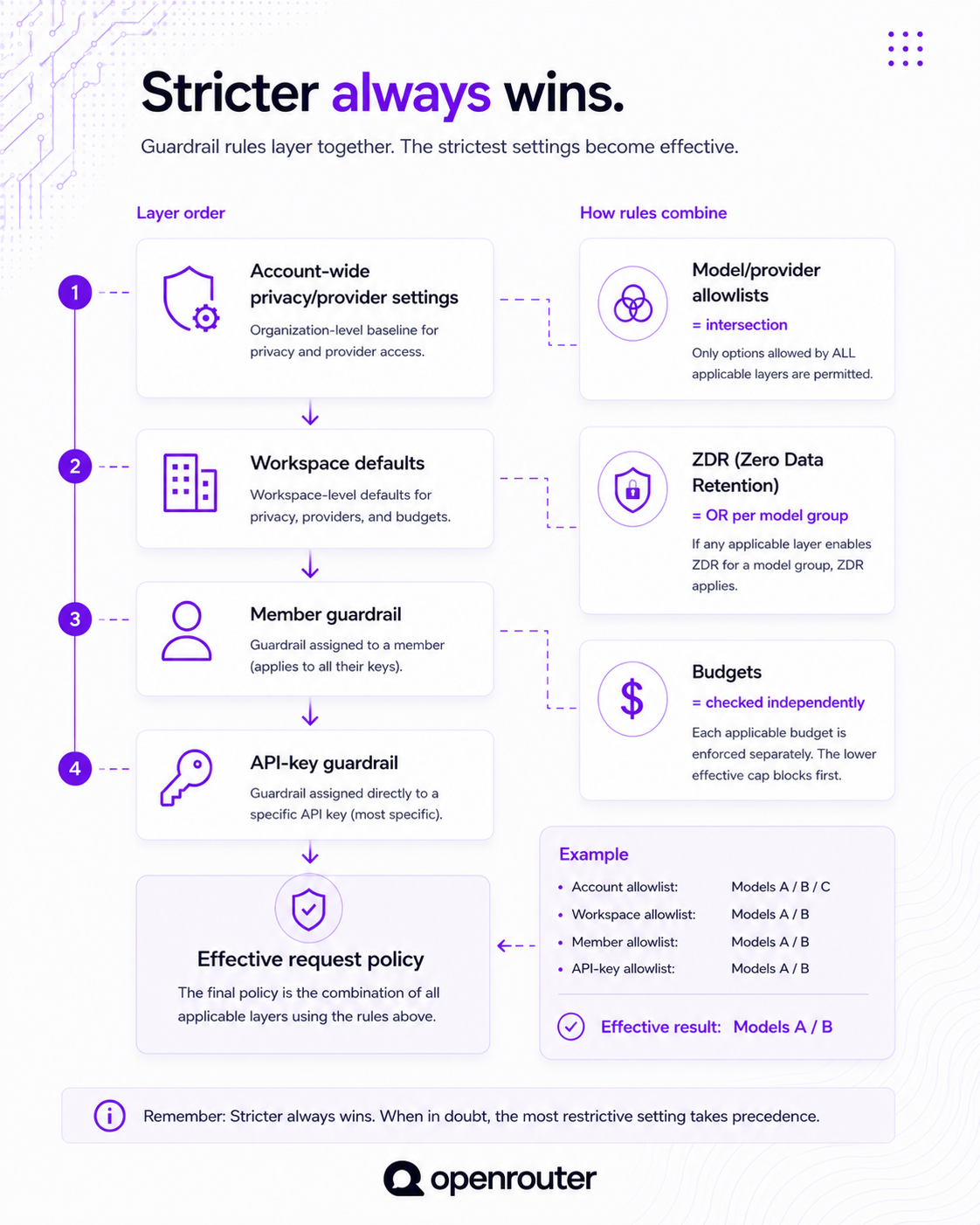
ガールレールのレイヤリングには、シンプルなルールを一つだけ適用します。「より厳しい制限が優先される」という原則です。上記の図では、リクエストに含まれるレイヤーは以下の 4 つです。
- アカウント全体の設定
- ワークスペースのデフォルト値
- メンバーアカウントに割り当てられたガールレール
- API キーに直接割り当てられたガールレール
これらすべてのレイヤーが統合され、一つの有効なリクエストポリシーを形成します。
複数のガードレールがリクエストに適用される場合、最も厳しいルールに従ってアクセス制限がかかります。モデルやプロバイダーの許可リストも同様の仕組みで動作します。例えば、アカウントのベースラインで 10 モデルの利用を許可していても、API キーごとのガードレールでその中から 3 つしか使えないと設定されていれば、キーが使えるのは 3 つのみとなり、10 個にはなりません。プロバイダーの許可リストについても同様です。ZDR(Zero-Day Response)については、モデルグループに対してどのレイヤーでもオンに設定されていれば、全体として有効になります。
複数の層で機密情報フィルタを設定している場合、すべてのフィルタが適用されます。その中で、あるフィルタがリクエストをブロックし、別のフィルタが情報を隠す(赤字化)という状況になった場合は、ブロックするルールが優先されます。バジェット(予算)のチェックも個別に行われます。チームメンバーレベルとキーレベルでそれぞれ予算を設定した場合、これらは一つのプールに統合されるわけではなく、リクエストは両方の予算制限を同時に通過する必要があります。
予算を制御するガードレールについては、ユーザーごと、キーごとに適用され、共有されません。つまり、設定したガードレールの予算は、割り当てられた各メンバーとキーに対して独立して機能します。同じ日次予算ガードレールを 3 人のメンバーに設定した場合、それぞれのメンバーが個別にその予算を得るだけで、一つの大きなプールを共有するわけではありません。OpenRouter にリクエストを送信すると、その利用量はキーの予算だけでなく、そのキーを所有するメンバーの予算にもカウントされます。
これが、単なるキーごとの制限ではなく、ガードレールを活用すべき主な理由です。ガードレールを使えば、ある人物が持つすべてのキーにまたがる支出を簡単に上限設定できます。一方で、特定のアプリケーションではより低い上限が必要といった場合でも、個別のキーに対して制限を強化する柔軟性を保つことができます。
知っておくべきポイントがいくつかあります。組織内では、ガードレール(制限)の管理は管理者のみが行えます(ただし、個人アカウントでも自らのキーに対して独自のガードレールを作成することは可能です)。モデルポリシーの変更に応じて、許可リストの維持管理も必要になる点にご注意ください。また、予算が枯渇した際、呼び出し元には事前警告ではなく 403 エラーが返されます。
ワークスペース予算はいつ使うべきか?
ワークスペース全体に対して厳格な上限を設けたい場合、またはその内部にいくつのキーが存在しても関係なく制限をかけたい場合は、ワークスペース予算を活用してください。1 日、1 週間、1 ヶ月、あるいは生涯の期間で USD 単位の上限を設定し、OpenRouter はその上限に達したリクエストを 403 でブロックします。これにより、環境全体を一括で制限できるため、内部にある個々のキーを一つずつ監視する必要がなくなります。
プランティアによる制限
ワークスペース予算はエンタープライズプランの機能であり、組織の管理者によって作成・管理されます。キーごとの制限やガードレールは無料プランおよび従量課金(PAYG)プランでも利用可能ですが、ワークスペース予算は対象外です。もしエンタープライズプランに加入していない場合、チーム全体の支出を上限設定するには、メンバーごとのガードレール予算を利用してください。
ワークスペースの役割
ワークスペースを使用すると、チームごとの設定を独立して管理できます。各ワークスペースには、独自のカスタムキー、ガードレール、BYOK(Bring Your Own Key)、ルーティングルール、プリセット、プラグイン、観測機能、メンバー、予算が割り当てられます。
ただし、請求処理や管理用キー、プライバシー設定はアカウントレベルで管理されます。アクティビティとログもアカウントレベルのビューですが、ワークスペース単位でフィルタリング可能です。この仕組みにより、ワークスペースに設定された予算は、そのワークスペースを経由するすべてのリクエストの合計支出を同時に制限することになります。また、ワークスペースの作成や削除ができるのは管理者のみです。
以下の制限事項にご注意ください:
- 短い期間の予算は、より長い期間の予算よりも小さく設定する必要があります。 生涯(ライフタイム)予算は月次予算より大きく、月次予算は週次予算より大きく、週次予算は日次予算より大きく設定されます。
- BYOK リクエストについて。 ご自身のプロバイダーキー(BYOK)を使用して実行されるリクエストは OpenRouter のクレジットを使用しないため、デフォルトでは予算の消費にはカウントされません。これらを予算に含める場合は、ワークスペースの設定で「Include BYOK spend」を有効化してください。
- 処理中のリクエストについて。 予算上限に達した時点で既に処理が開始されているリクエストは、完了まで許可されます。そのため、実際の支出額はわずかに予算額を超えた状態で、次のリクエストがブロックされることになります。
- メールや Webhook によるアラートはまだ提供されていません。 リクエストがブロックされた際、呼び出し元には HTTP 403 エラーが返されます。また、ワークスペースの設定画面にアクセスすることで、現在の予算の状態を確認できます。
詳細なルールと実装方法については、ワークスペース予算のドキュメント および エンタープライズクイックスタート をご覧ください。
プリセットでチームの支出を制御できるか?
直接的にはできません。プリセット はリクエストが実行する内容のデフォルトを設定しますが、コストに自動的に上限を設けるわけではありません。そのため、プリセットは「キーごとの制限」「ガードレール予算」「ワークスペース予算」という 3 つの堅牢な上限の下位に位置づけられています。
プリセットとは、@preset/slug という形式で参照される名前付き設定のことです。ここではモデルの選択、フォールバック用モデル、プロバイダーのルーティング、システムプロンプト、生成パラメータなどを保持できます。各サービスでこれらの選択肢をハードコードするのではなく、チームはリクエストを共有プリセットに指向させ、設定を一元管理して変更できるようにします。
AI 支出の無駄が発生する原因の多くは、陳腐化した設定にあります。あるサービスでは不要になったタスクに対して高価なモデルを固定し続けていたり、別のサービスではプロバイダーを価格順に並べ替えるのを忘れたりしています。さらに、誰も使わないコンテキストのためにトークンを浪費させる古いプロンプトを使い続けているケースもあります。プリセットを使えば、プラットフォームチームはデフォルト設定の修正を一箇所で完結できます。
例えば、チームは「サポート・トライアージ」用のプリセットを作成できます。これではコストに見合ったモデルを使用し、provider: { "sort": "price" } を設定して、アプリ間でシステムプロンプトを統一します。モデルやルーティングポリシーを変更する必要がある場合、複数のサービスにコードを配布するのではなく、このプリセットを更新するだけで済みます。
ただし、プリセットには限界があります。プリセットは行動を誘導するものであり、強制するものではありません。リクエスト側が独自のパラメータを送信すれば、プリセットの値を上書きできます。つまり、プリセットは振る舞いの良いアプリケーションを標準化するのに適していますが、異なるパラメータを送信しようとする呼び出し元を阻止するためのものではないのです。
組織とロールは誰がお金を使えるかをどう制御するのか?
組織では、全員の支出を一つの共有クレジットプールに集約し、その管理権限を誰が持つかを決定します。すべてのメンバーは 中央課金 から利用します。クレジットの購入や、課金・プロバイダー・プライバシー設定の変更ができるのは管理者のみです。メンバーは自分用のキーを作成し、自分の利用状況しか見ることができません。
AI 支出を共有する人が 1〜2 人を超え、請求書と管理者グループを一元化したい場合は、組織を作成してください。
ロールには Admin(管理者) と Member(メンバー) の 2 つがあります。管理者が支出権限を持ち、メンバーはその範囲内で活動します。サブチーム向けのより細かな権限設定はありません。組織全体のプリセットやガードレールにより、管理者は全組織に適用されるデフォルト値を設定できます。
組織には知っておくべきいくつかの制限事項があります:
組織のメンバー数は最大 10 名までです。これを超える場合はサポートにお問い合わせください。
個人アカウントのクレジットを組織に移行するには、クレジットページから自己完結型で手続きが可能です。ただし、アカウントや加入期間が一定条件を満たしていること、直近で購入したクレジットであること、クールダウン期間を経ているなどの eligibility rules(適用ルール)があります。請求書払いの組織では、この移行はできません。
個人アカウントを組織に昇格させることはできません。
組織内での分離はロールではなくワークスペースによって実現されます。各ワークスペースには独自のキー、ガードレール、予算が割り当てられ、組織全体で 1 つの請求書を管理します。
Activity ダッシュボードでチームの支出について何がわかるか?
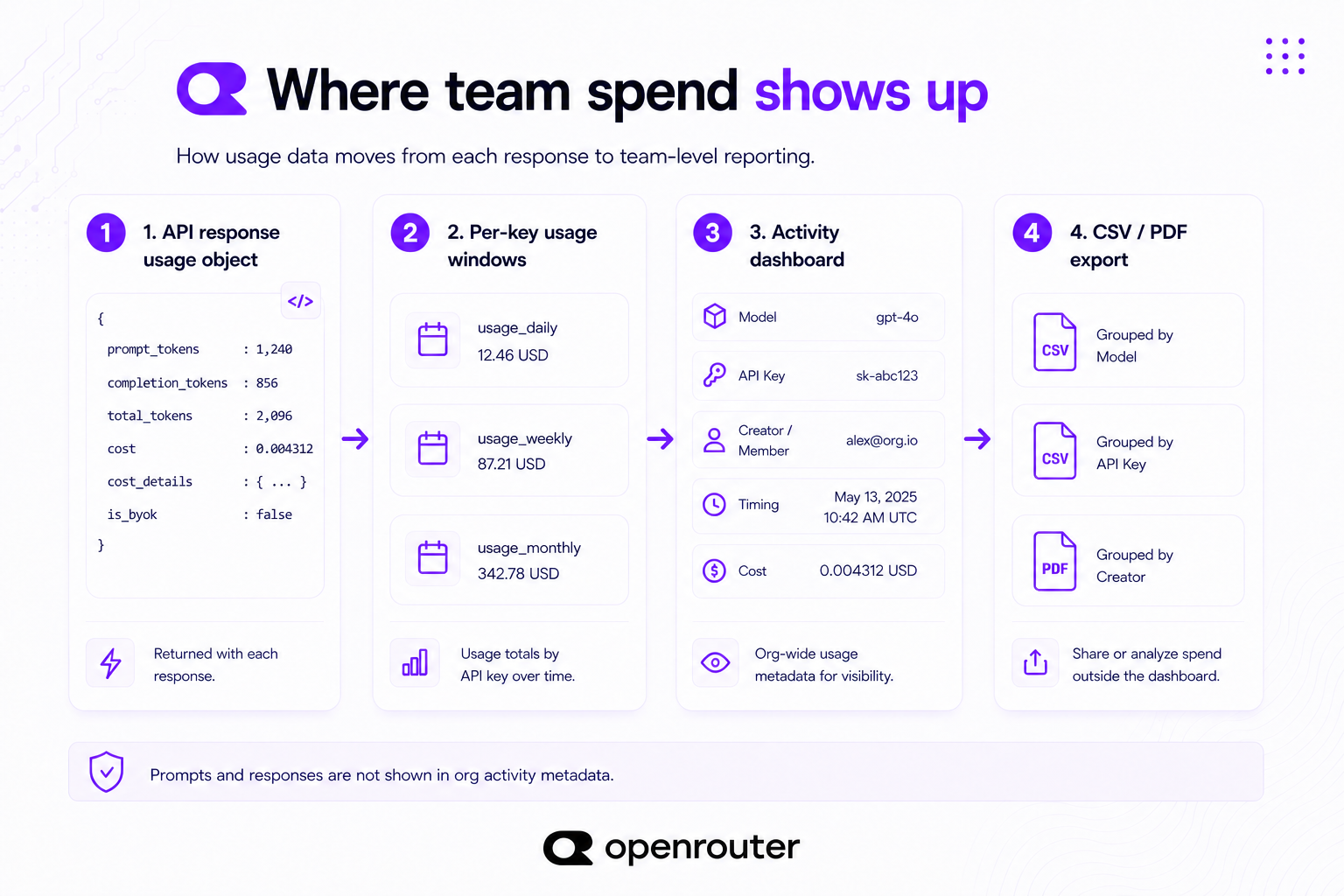
Activity ダッシュボードは、他のすべての管理機能の基盤となるレポート機能です。すべての API 応答にはトークン数とコストを含む usage オブジェクトが含まれており、各キーからは日次・週次・月次の利用合計を確認できます。組織内では、Activity ダッシュボードでメンバー全体の利用状況を一覧でき、モデル別、API キー別、あるいは作成者(組織メンバー)別にエクスポートも可能です。これにより、「誰がどのモデルにいくら使ったか」を把握できます。
組織内で利用する際に知っておくべき点として、アクティビティフィードには全メンバーの利用メタデータが表示される ことが挙げられます。ここに表示されるのはモデル名、コスト、利用タイミングだけで、プロンプトやレスポンスの内容は含まれません。また、各メンバーが自分の活動のみをフィルタリングして表示することもできません。これは共有された責任感の醸成には寄与しますが、組織内でのプライバシーを期待していたチームにとっては思わぬ結果となる可能性があります。
補足として、キーやアカウントを追加してもレート制限(1 秒あたりのリクエスト数など)が引き上げられるわけではありません。レート制限と支出制限は別個の概念です。詳細は レート制限のリファレンス をご確認ください。
チームに合った管理機能を選ぶには
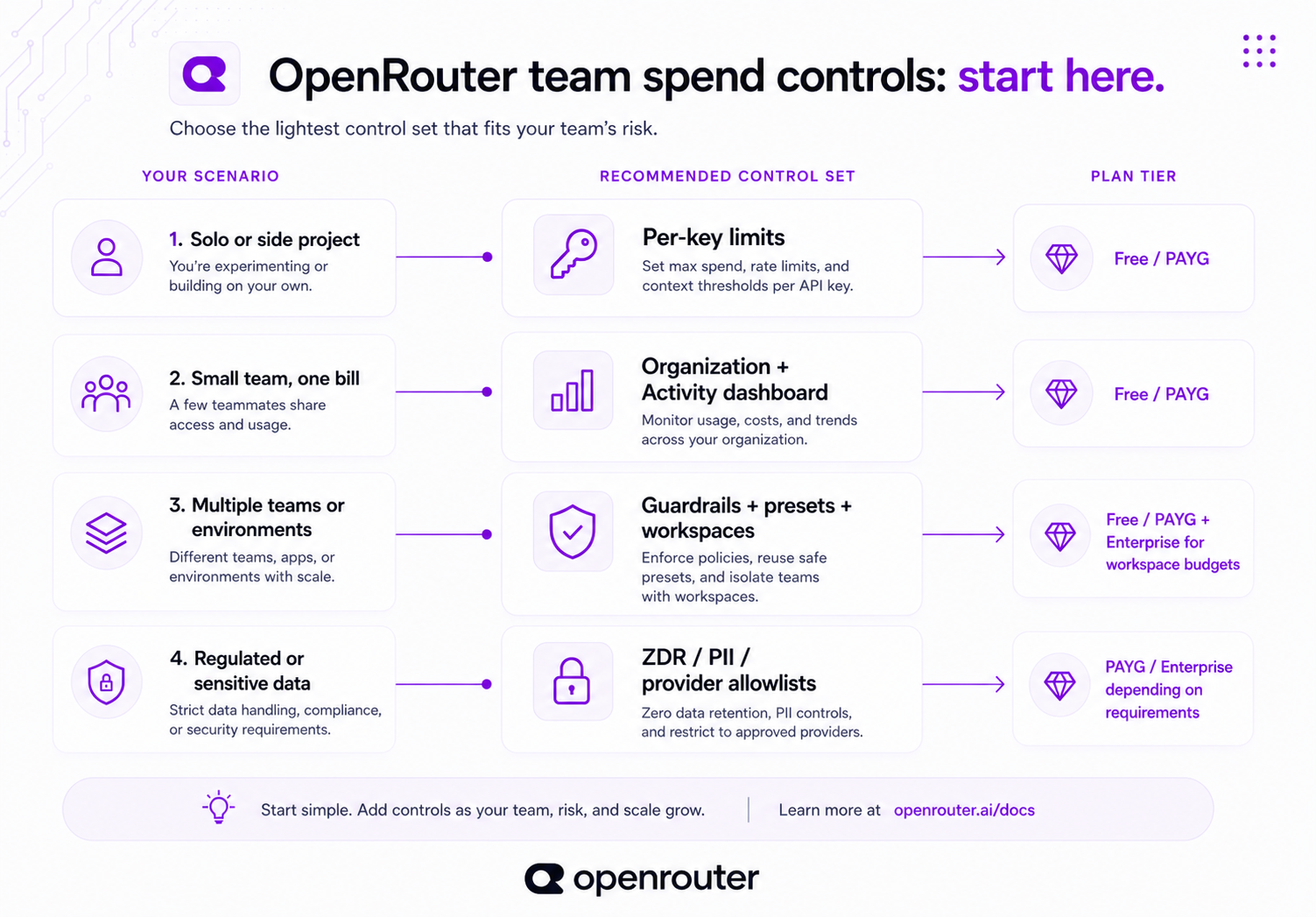
以下の管理機能の中から、ご自身の状況に最も適したものを選ぶための判断基準をご紹介します。基本的には、リスクを完全にカバーできる範囲で最も安価な選択肢から検討してください。特別な事情がない限り、全環境に対する厳格な上限(ハードキャップ)が必要な場合のみ、Enterprise ワークスペースの予算管理機能を利用してください。
- 個人利用やサイドプロジェクトの場合。 キーごとのクレジット限度額を設定し、月ごとにリセットするだけで十分です。
小規模チーム(10 人以下)の場合、共有プール、キーごとの制限、そして誰がいくら使っているかを確認できる「Activity」ダッシュボードを備えた組織設定が有効です。特定のメンバーのアクセス権限や予算を別枠にしたい場合は、ガードレールを追加してください。
複数のチームが存在する場合や、ステージング環境と本番環境を分ける必要がある場合も同様です。ワークスペースを使って環境を分離し、メンバーやキーごとに予算制限を設定します。さらに、使用可能なモデルのホワイトリスト(許可リスト)や設定を標準化するプリセットを活用しましょう。Enterprise プランを利用している場合は、ワークスペースごとの予算管理も可能です。
規制対象となるデータや機密情報を扱う場合、モデルグループごとに ZDR を備えたガードレール、PII(個人識別情報)フィルタ、プロバイダーのホワイトリストを設定してください。当社は SOC 2 Type 2 に準拠していますが、HIPAA のビジネスアソシエイト契約(BAA)は提供していません。そのため、BAA が必須となる医療データ処理ワークロードには、現時点では対応できません。
現在のチーム規模や状況がどうであれ、まずはシンプルに始めるのがおすすめです。まずはキーごとの制限を設定し、チームの拡大やコンプライアンス要件の強化が必要になった段階で、ガードレールやワークスペース予算を順次追加してください。
よくある質問
OpenRouter で API キーごとに支出上限は設定できますか?
はい。すべての API キーには、クレジット単位の limit と、日次・週次・月次のいずれかで設定可能な limit_reset を設定できます。これは無料プランでも有料プランでも利用可能です。制限を超えたリクエストは拒否され、残高は GET /api/v1/key エンドポイントで確認できます。
チーム全体の支出上限をどう設定すればよいですか?
プランによって対応が異なります。無料プランや従量課金プランでは、各メンバーまたは API キーに予算制限(ガードレール)を設定できます。各メンバーとキーには個別の予算が割り当てられ、その上限を超えたリクエストは 403 エラーで拒否されます。一方、Enterprise プランでは、ワークスペース全体の予算を一度に設定して制限することが可能です。
チームが利用可能なモデルを制限することはできますか?
はい、ガードレールの「モデル許可リスト(モデル・アロウリスト)」と「プロバイダー許可リスト」を通じて可能です。許可リストを空にすると、すべてのモデルが利用可能になります。複数のガードレールが同時に適用される場合、各許可リストの共通部分のみが有効となるため、最も厳しい制限が優先されます。
組織メンバーは他者の利用状況を閲覧できますか?
組織内では、「アクティビティフィード」を通じて、すべてのメンバーの利用メタデータ(使用したモデル、コスト、時間帯)を全メンバーが確認できます。ただし、プロンプトやレスポンスの内容は保存されていないため、リクエストの中身が可視化されることはありません。また、組織コンテキスト内でのフィルタリング機能はなく、自分のアクティビティのみを抽出して表示することはできません。
OpenRouter の組織に所属できる人数の上限は?
組織のメンバー数は最大 10 名までです。これを超える必要がある場合は、お気軽にお問い合わせください。
チームごとのコスト配分機能はありますか?
現時点では、メンバーレベルでの対応が可能です。「アクティビティダッシュボード」から、作成者(組織メンバー)ごとに集計した利用データをエクスポートできます。各 API キーについても、日次・週次・月次の合計利用額を報告しています。ただし、サブチーム単位でのコスト配分機能は現在提供されていません。
OpenRouter は予算に達する前にアラートを送信してくれますか?
まだ対応していません。上限に達するとリクエストは 403 エラーとなり、事前にメールや Webhook で警告が届くことはありません。現在のステータスはダッシュボードで確認できます。これは API キーごとの制限、ガードレール予算、ワークスペースの予算すべてに適用されます。
OpenRouter は医療チーム向けに HIPAA に準拠していますか?
現時点では、HIPAA ビジネスアソシエイト契約(BAA)は提供していません。SOC 2 Type 2 の認証を取得しているため、BAA の締結が必要な医療データ処理を行う場合は、その特定のワークロードに対して別の対応経路が必要です。
原文を表示
Your team’s AI bill is the total of every key each engineer holds. One developer creates a key for a side experiment. Another wires a few keys into a CI pipeline. Someone else pastes a token into a notebook, gets the prototype working, and forgets the key is still active.
None of that is careless on its own, but add it up and the bill gets hard to explain. OpenRouter has 6 controls that bring order to it, and this article walks through each one, the team it suits, and the plan it needs.
The controls layer on top of each other. So start with the cheapest one that covers your risk, and only add more when you need them. When two controls overlap, the stricter one applies. Allowlists intersect and the lower budget blocks first.
What’s the fastest way to govern team AI spend on OpenRouter?
Pick the cheapest control that fits your team’s risk, then layer up. A small team often only needs per-key limits plus the Activity dashboard on day 1.
Each control does one of three jobs. Budgets and per-key limits decide how much can be spent. Model and provider allowlists decide what it can be spent on. The Activity dashboard shows who spent it. The 6 controls split across those three jobs and work together, so you rarely need all 6 at once.
The control comparison table
Read down from the top. The controls that block spend come first, and the ones that track it come last. All of them are available on free and pay-as-you-go plans except workspace budgets, which need Enterprise.
| Control | What it caps or restricts | Where it’s set | Who can set it | Plan tier | Blocks or tracks |
|---|---|---|---|---|---|
| Per-key credit limit | Total credits one API key can spend | Dashboard or Management API | Key owner | Free / PAYG | Blocks (rejects over limit) |
| Guardrails | Budget + model/provider allowlist + privacy, per member or key | Settings › Privacy | Account owner (org admin in an organization) | Free / PAYG | Blocks (403 at budget cap) |
| Workspace budgets | Total spend for a whole workspace | Workspace settings or Management API | Organization admin | Enterprise | Blocks (403 at limit) |
| Presets | The model, routing, and config a request uses | Presets settings | Organization member (admin to share org-wide) | Free / PAYG | Tracks (a default, not a hard cap) |
| Organizations and roles | Who holds spending authority; shared credit pool | Organization settings | Org admin | Free / PAYG | Tracks (structure, not a cap) |
| Activity dashboard | Nothing; it reports | Activity page | All organization members (visibility) | Free / PAYG | Tracks (usage + export) |
A practical setup usually pairs at least one blocking control with one reporting control. For example, a production service key gets a monthly limit, and the Activity dashboard tells you whether that service is actually where the spend is going. If one developer needs a tighter model allowlist or budget than everyone else, add a guardrail for that member.
What are you actually paying for?
Before you set up any controls, it helps to know what the spend actually is. We don’t mark up provider pricing, so the price in the model catalog is what inference costs. The platform fee is charged when you buy credits (5.5% on card top-ups for standard pay-as-you-go, minimum $0.80), not on each request. A request that fails doesn’t bill at all.
So there’s no hidden markup to police. The job of these controls is simply to cap how much real inference your team runs.
The model catalog lists the per-model rates you’ll be capping.
Bring-your-own-key (BYOK) spend behaves differently
BYOK spend doesn’t always count where you’d expect, so you’ll want to check this before you build controls around it. When you route through your own provider keys, we charge a 5% fee on the model cost, waived for the first 1 million BYOK requests per month.
Both workspace budgets and guardrail budgets count only OpenRouter credit spend by default, so if your team runs mostly on its own provider keys, a budget covers less of the bill than it looks like it does. Each has an Include BYOK spend setting (include_byok_in_budgets) you can turn on so BYOK inference counts toward the limit too.
Making each request cheaper is a separate topic from capping your team’s spend. For that, see provider routing for cost and prompt caching.
How do you cap spend on a single API key?
A per-key limit is the simplest hard cap. It limits one API key, and you don’t need an organization to use it.
Use it when you want to cap one engineer, service, environment, prototype, or contractor key. A staging key might get a small daily limit. A production service key might get a larger monthly one. A temporary evaluation key might reset weekly, so the experiment stops spending after the review ends.
You can set limits in the dashboard or through the Management API, which can create, rotate, update, and disable keys. That means an internal provisioning flow can issue every key with a limit from day one instead of relying on someone to add one later.
The weakness is that a per-key limit caps the key, not the person. If one person owns 5 keys, each with its own daily limit, they can spend the sum of all 5. The key doesn’t know about the others. Per-key limits also say nothing about which models or providers a caller can use.
Start with per-key limits. When you need a rule that follows a person, or one that combines a budget with model, provider, or privacy restrictions, move on to guardrails.
How do guardrails control budgets, models, and privacy?
A guardrail is a policy that follows a person or a key.
One guardrail can contain a budget limit, a model allowlist, a provider allowlist, Zero Data Retention rules, prompt-injection and jailbreak detection, sensitive-info handling, and custom regex filters. Assign it to an organization member and it becomes the baseline for all of that member’s keys. Or assign a guardrail directly to a single API key for tight control.
Use a guardrail when “cap this key” isn’t enough and the rule you actually want is “this person can only use these models, within this budget, under these privacy rules.”
Platform teams usually reach this point because different groups need different things. One group at your organization uses frontier models in production, where reasoning accuracy matters more than price; another runs batch jobs that depend on high volume and can work with cheaper models; a third team needs to handle inputs that may contain sensitive information and needs ZDR. Guardrails let you set those rules once instead of asking every application team to write policy into their code.
We follow one simple layering rule: stricter always wins. In the diagram, the layers included in a request are your account’s settings, your workspace’s defaults, the guardrail assigned to a member’s account, and the guardrail assigned directly to an API key. All layers combine into one effective request policy.
When more than one guardrail applies to a request, its access is limited by the strictest rules. Model and provider allowlists work on the same basis. For example, if the account baseline allows for 10 models but the API-key guardrail allows only three of those models, the key gets three models, not ten. The same applies for provider allowlists. For ZDR, if any layer turns it on for a model group, it’s on.
When multiple layers set a sensitive-info filter, they all apply, and if one of those filters blocks a request while another redacts it, the blocking rule wins. Budgets are checked separately too. If a team sets a member-level budget and a key-level budget, they don’t merge into one pool, which means a request has to pass both budgets.
For guardrails that control budgets, enforcement is per-user and per-key, and not shared. That means a guardrail budget applies independently to each member and key that you assign it to. If you give the same daily budget guardrail to three members, each of those members gets that budget separately; they don’t share one big pool. When a key makes a request to OpenRouter, usage counts toward both the key’s budget and the budget of the member who owns the key.
This is the main reason to use guardrails instead of only per-key limits. With guardrails, you can very easily cap the spending of a person across all their keys, while still having the ability to tighten a limit on one key if a particular application needs a smaller cap.
A few things to know. In an organization, only admins manage guardrails (a personal account can create guardrails for its own keys too). Keep in mind that your allowlists need some upkeep as your model policy changes. And when a budget runs out, the caller gets a 403, not a warning beforehand.
When should you use a workspace budget?
Use a workspace budget when you need a hard cap on an entire workspace, no matter how many keys live inside it. Set a USD limit for a daily, weekly, monthly, or lifetime window, and OpenRouter blocks requests with a 403 at the limit. This caps the whole environment at once, so you don’t have to police every key inside it.
Plan tier restrictions
Workspace budgets are an Enterprise feature, and they are created and managed by your organization’s admins. Per-key limits and guardrails work on both free and PAYG plans, but workspace budgets don’t. If you’re not on Enterprise, a per-member guardrail budget is how you cap your team’s spend instead.
How workspaces fit
A workspace keeps one team’s setup separate from another’s. Each workspace has its own keys, guardrails, BYOK, routing, presets, plugins, observability, members, and budgets. However, billing, management keys, and privacy settings live at the account level, and Activity and Logs are account-level views that you can filter by workspace. Because of this, a workspace budget effectively caps everything routed through that workspace at once, and only an admin can create or delete a workspace.
A few limits to know about:
- Each shorter window must have a smaller budget. A lifetime budget must be bigger than a monthly one, which must be bigger than a weekly one, which must be bigger than a daily one.
- BYOK requests. Requests that use your own provider key (BYOK), and thus don’t spend any OpenRouter credits, don’t count toward the budget by default. Enable the workspace’s Include BYOK spend setting to count them.
- Requests already in flight. Requests that are already in flight when a budget is hit will be allowed to finish. So actual spend can run slightly over before the next request is blocked.
- No email or webhook alerts yet. Callers will get a 403 when a request is blocked, and you can check the state of your budget by navigating to your workspace settings.
For the full set of rules and implementation details, see the workspace budgets documentation and the enterprise quickstart.
Can a preset control what a team spends?
Not directly. Presets set the defaults for what a request does, but don’t automatically put a cap on what it costs. That’s why they sit below the three hard caps above them: per-key limits, guardrail budgets, and workspace budgets.
A preset is a named configuration, referenced as @preset/slug, that can hold a model choice, fallback models, provider routing, a system prompt, and generation parameters. Instead of hard-coding those choices in every service, teams point requests at a shared preset and change the configuration in one place.
A lot of wasted AI spend starts with stale configuration. One service pins an expensive model for a task that no longer needs it. Another forgets to sort providers by price. A third keeps an old prompt that burns tokens on context nobody uses. Presets give platform teams one place to fix the default.
For example, a team could create a “support-triage” preset that uses a cost-appropriate model, sets provider: { "sort": "price" }, and keeps the system prompt consistent across apps. When the team needs to change the model or routing policy, it can update the preset instead of shipping code across multiple services.
The limit is that presets guide behavior rather than enforce it. A request can override any preset value by sending its own parameters. So presets are good for standardizing well-behaved applications, not for stopping a caller who sends different parameters.
How do organizations and roles control who can spend?
An organization puts everyone’s spend into one shared credit pool and decides who controls it. All members draw from central billing. Only admins can buy credits and set billing, provider, and privacy configuration. Members create their own keys and see only their own.
Create an organization when more than one or two people share AI spend and you want one bill and one set of admins.
There are two roles, Admin and Member. Admins hold the spending authority, and members work within it. There are no finer-grained permissions for sub-teams. Org-wide presets and guardrails let admins set defaults that apply to the whole organization.
Organizations have some limitations you should know about:
- An organization caps at 10 members - contact support to push the limits higher.
- Transferring personal credits into an organization is self-serve from the credits page, with eligibility rules (account and membership age, recently purchased credits, and cooldowns). Organizations billed by invoice can’t receive transfers.
- You can’t convert a personal account into an organization.
- Isolation inside an organization comes from workspaces, not roles. Each workspace gets its own keys, guardrails, and budgets while the org keeps one bill.
What can the Activity dashboard show about team spend?
The Activity dashboard is the reporting layer under every other control. Every API response includes a usage object with token counts and cost, plus each key exposes daily, weekly, and monthly usage totals. And in an organization, the Activity dashboard shows usage across members, with exports grouped by Model, API Key, or Creator (the org member). That’s where you find out who spent what on which model.
One thing to know: in organization context, the activity feed shows every member’s usage metadata to every member. That covers model, cost, and timing, but never prompts or responses. Members can’t scope the feed to just their own activity, which is good for shared accountability but can surprise teams expecting privacy inside a shared org.
One aside: adding more keys or accounts doesn’t raise your rate limits. Rate limits are a separate topic from spend limits; see the rate-limits reference.
Which controls fit your team?
Here’s a decision heuristic to match the controls below to your situation. Default to the cheapest one that fully covers the risk, unless there’s a reason not to. Only reach for Enterprise workspace budgets when you truly need a hard cap on a whole environment. Each line below is one decision:
- Solo or side project. A per-key credit limit with a monthly reset is all you need.
- Small team, one bill (under 10 people). An organization for the shared pool, per-key limits, and the Activity dashboard to see who’s spending what. Add a guardrail when one person’s access or budget needs to differ.
- Multiple teams, or staging-versus-prod. Workspaces to keep them separate, a guardrail per member or key for budgets, a model allowlist, and presets to standardize configuration. Add workspace budgets if you’re on Enterprise.
- Regulated or sensitive data. Guardrails with ZDR per model group, PII filters, and a provider allowlist. We’re SOC 2 Type 2 compliant but don’t offer a HIPAA business associate agreement (BAA), so a health-data workload that needs a BAA isn’t a fit for that specific requirement today.
Whatever your team looks like today, start simple. Set per-key limits now, and add guardrails and workspace budgets when team size or compliance actually calls for them.
Frequently asked questions
Can I set a spending limit per API key on OpenRouter?
Yes. Every API key can have a limit in credits and a limit_reset of daily, weekly, or monthly on any plan, free or paid. Requests past the limit get rejected, and you can read the remaining balance through GET /api/v1/key.
How do I cap spend for a whole team?
It depends on your plan. On free and pay-as-you-go plans, assign a guardrail with a budget to each member or key. Each member and key gets its own budget, and requests past it get a 403. On Enterprise, a workspace budget caps an entire workspace at once.
Can I restrict which models my team can use?
Yes, through a guardrail’s model allowlist (and a provider allowlist alongside it). An empty allowlist means all models are permitted. When multiple guardrails apply, the allowlists intersect, so the strictest one wins.
Can organization members see each other’s spend?
In an organization, the Activity feed shows all members’ usage metadata (model, cost, and timing) to all members. We don’t store prompts or responses, so the content of requests is never visible. The feed can’t be scoped to just your own activity in org context.
How many people can be in an OpenRouter organization?
Organizations are capped at 10 members. If you need more than that, let us know!
Does OpenRouter have per-team cost attribution?
At the moment, yes, but only at the member level. The Activity dashboard exports usage grouped by Creator (the org member), and each key reports daily, weekly, and monthly totals. There is no per-sub-team attribution.
Does OpenRouter alert me before I hit a budget?
Not yet. When you hit a cap, requests get a 403, and there’s no email or webhook warning beforehand. You can check current status in the dashboard. This applies to per-key limits, guardrail budgets, and workspace budgets alike.
Is OpenRouter HIPAA compliant for a healthcare team?
We don’t offer a HIPAA business associate agreement (BAA) today. We are SOC 2 Type 2 compliant, so for a health-data workload that requires a BAA, you’ll need a different path for that specific workload.
関連記事
今日のまとめ
AIデイリーブリーフで今日の重要ニュースをまとめ読み