Python でファイルに書き込む方法:初心者向けガイド
本文の状態
日本語全文を表示中
詳細モードで約9分の本文を読めます。
同じ出来事の情報源
この情報源を基点に整理
KDnuggets
KDnuggets が公開した記事で、Python を使用する初心者がファイルにデータを書き込む基本的な手順とコード例を解説している。
Source Article
元記事を日本語で読む
本文に関係しない購読案内、埋め込み通知、サイト内プロモーションは除いています。
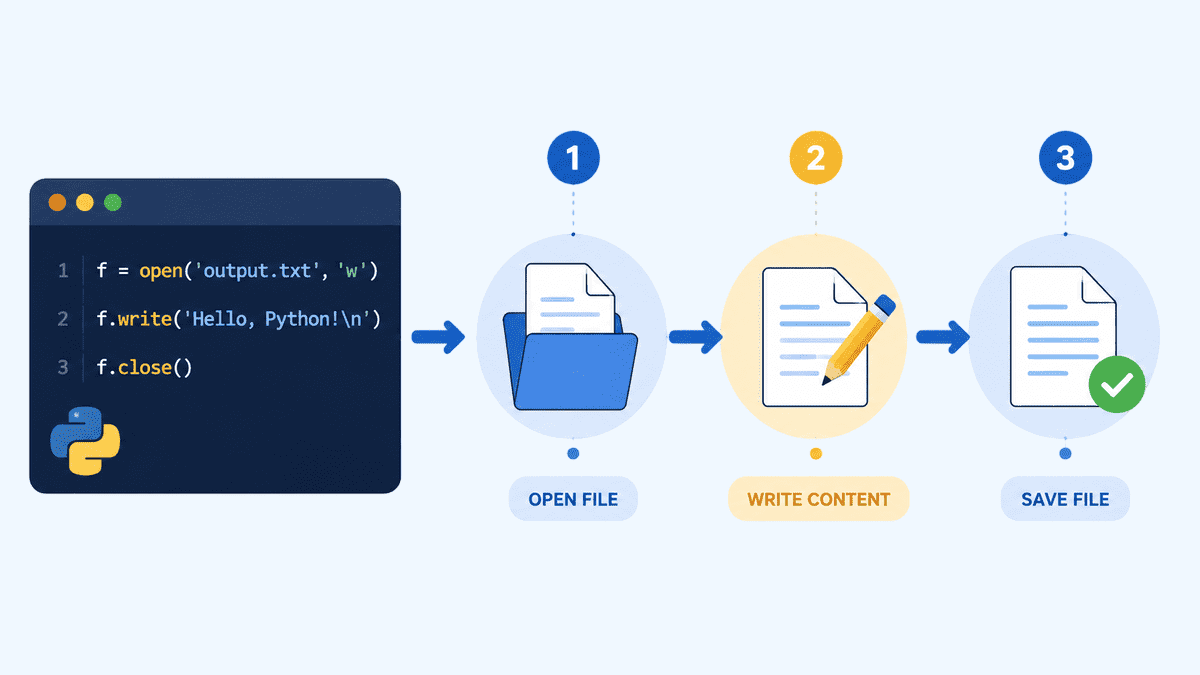 image**
# イントロダクション
ファイルへの書き込みは、Python で必須のスキルです。これにより、プログラムが停止した際にデータが失われることなく、永続的にデータを保存できます。結果、ログ、レポート、ユーザー入力、設定、構造化データの保存にファイル保存機能を利用できます。
このガイドでは、テキストファイルの作成方法、複数行の書き込み、コンテンツの追加、フォルダとの連携、CSV 形式および JSON 形式でのデータ保存方法を学びます。また、最も一般的なファイルモードである w(書き込み)、a(追記)、x(排他書き込み)、r(読み取り)と、それぞれをいつ使用すべきかも学習します。
このガイドを終える頃には、結果、レポート、ログ、構造化データをファイルに保存する Python プログラムを作成できるようになります。
# 最初のテキストファイルの作成
ファイルに書き込む最も簡単な方法は、Python の組み込み関数である open()(オープン)関数を使用することです。
w モードは書き込みモードを意味します。ファイルが存在しない場合、Python がそれを作成します。ファイルが既に存在する場合、Python は既存の内容を置き換えます。
file = open("message.txt", "w")
file.write("Hello, this is my first file written with Python.")
file.close()
このコードを実行すると、Python はノートブックまたはスクリプトと同じフォルダに message.txt という名前のファイルを作成します。
保存された内容を確認するために、ファイルを再度読み取ることができます。
file = open("message.txt", "r")
content = file.read()
file.close()

print(content)
出力:
Hello, this is my first file written with Python.
# with open(): より良い方法
ファイルを手動で開いて閉じることも可能ですが、推奨されるアプローチは with open() を使用することです。
これにより、コードブロックが終了した後に自動的にファイルが閉じられます。これはよりクリーンで安全であり、実際の Python プロジェクトでも一般的に使用されています。
with open("message.txt", "w") as file:
    file.write("This file was written using with open().")

with open("message.txt", "r") as file:
    content = file.read()

print(content)
出力:
This file was written using with open().
with open() を使用するのがベストプラクティスである理由は、ファイルを手動で閉じることを忘れる必要がないからです。
# ファイルモードの理解
ファイルを開く際、モードは Python にそのファイルに対して何を行いたいのかを指示します。
モード
意味
w
ファイルへの書き込み。新しいファイルを作成するか、既存のファイルを上書きします。
a
ファイルへの追記。既存の内容を削除せずに末尾に内容を追加します。
x
新しいファイルの作成。ファイルが既に存在する場合は失敗します。
r
ファイルの読み取り。ファイルが存在しない場合は失敗します。
ファイルへの書き込みには、最も一般的なモードとして w と a が挙げられます。新しいファイルを作成するか既存の内容を置き換えたい場合は w を使用し、ファイルの末尾に新しい内容を追加したい場合は a を使用します。
# 複数行の書き込み
改行文字 \n を追加することで、複数の行を書き込むことができます。
with open("notes.txt", "w") as file:
    file.write("Line 1: Learn Python\n")
    file.write("Line 2: Practice file handling\n")
    file.write("Line 3: Build small projects\n")
ファイルの読み取り:
with open("notes.txt", "r") as file:
    print(file.read())
出力:
Line 1: Learn Python
Line 2: Practice file handling
Line 3: Build small projects
リストの文字列をファイルに書き込むには、writelines() メソッド(原語:writelines)も使用できます。
tasks = [
    "Write Python code\n",
    "Run the notebook\n",
    "Check the output file\n"
]

with open("tasks.txt", "w") as file:
    file.writelines(tasks)
ファイルの読み込み:
with open("tasks.txt", "r") as file:
    print(file.read())
出力結果:
Write Python code
Run the notebook
Check the output file
重要な注意点として、writelines() メソッドは自動的に改行を追加しないため、\n を明示的に含める必要があります。
# ファイルへの追記
ファイルの既存内容を置き換えずに、末尾に新しい内容を追加したい場合もあります。
その場合は、追記モード(a)を使用します。
with open("journal.txt", "w") as file:
    file.write("Day 1: I started learning Python file handling.\n")

with open("journal.txt", "a") as file:
    file.write("Day 2: I learned how to append text to a file.\n")
ファイルの読み込み:
with open("journal.txt", "r") as file:
    print(file.read())
出力結果:
Day 1: I started learning Python file handling.
Day 2: I learned how to append text to a file.
ログ、ジャーナル、レポート、または新しい情報を継続的に追加したいファイルを取り扱う場合、追記モードは非常に有用です。
# ファイルの安全な作成
新しいファイルを作成しつつ、既存のファイルを上書きしたくない場合は、x モードを使用します。
このモードは、ファイルが存在しない場合にのみファイルを作成します。ファイルが既に存在する場合は、Python は FileExistsError を発生させます。
try:
    with open("new_file.txt", "x") as file:
        file.write("This file was created using x mode.")
    print("File created successfully.")
except FileExistsError:
    print("The file already exists, so Python did not overwrite it.")
ファイルが存在しない場合、以下のような出力が表示されます。
File created successfully.
ファイルが既に存在する場合は、以下のような出力が表示されます。
The file already exists, so Python did not overwrite it.
これは、既存のファイルを誤って上書きされないように保護したい場合に役立ちます。
ファイルパスの扱い
デフォルトでは、Python はノートブックやスクリプトが実行されている同じフォルダにファイルを保存します。
特定のフォルダ内にファイルを保存したい場合は、pathlib を使用できます。**
from pathlib import Path

output_folder = Path("output")
output_folder.mkdir(exist_ok=True)

file_path = output_folder / "summary.txt"

with open(file_path, "w") as file:
    file.write("This file was saved inside the output folder.")

print(f"File saved to: {file_path}")
出力:
File saved to: output/summary.txt
次に、このファイルを読み取ります。
with open("output/summary.txt", "r") as file:
    print(file.read())
出力:
This file was saved inside the output folder.
mkdir(exist_ok=True) メソッドは、フォルダが存在しない場合にそのフォルダを作成します。フォルダが既に存在する場合は、Python はエラーを発生させません。
CSV ファイルの書き込み
CSV ファイルは、行と列のような表形式データを保存するために有用です。これらは通常、Excel や Google スプレッドシートなどのスプレッドシートツールで開かれます。
Python で CSV ファイルを作成するには、csv** モジュールを使用します。
import csv

students = [
    ["Name", "Score"],
    ["Ayesha", 92],
    ["Bilal", 85],
    ["Sara", 88]
]

with open("students.csv", "w", newline="") as file:
    writer = csv.writer(file)
    writer.writerows(students)
CSV ファイルの読み込み:
with open("students.csv", "r") as file:
    print(file.read())
出力:
Name,Score
Ayesha,92
Bilal,85
Sara,88
newline="" 引数は、特に Windows 環境で CSV ファイルを書き込む際に不要な空行を回避するのに役立ちます。
JSON ファイルの書き込み
JSON は、構造化データを保存するための別の一般的な形式です。辞書、API の応答、設定ファイル、ネストされたデータによく使用されます。
Python で JSON ファイルを作成するには、json** モジュールを使用します。
import json

profile = {
    "name": "Ayesha",
    "role": "Data Analyst",
    "skills": ["Python", "SQL", "Excel"],
    "active": True
}

with open("profile.json", "w") as file:
    json.dump(profile, file, indent=4)
JSON ファイルの読み込み:
with open("profile.json", "r") as file:
    print(file.read())
出力:
{
    "name": "Ayesha",
    "role": "Data Analyst",
    "skills": [
        "Python",
        "SQL",
        "Excel"
    ],
    "active": true
}
indent=4 引数を使用すると、JSON ファイルが読みやすくなります。
# よくある初心者の間違い
**
Python でファイルに書き込む際に初心者が犯しがちないくつかの間違いを以下に挙げます。
ミス
何が起きるか
修正方法
ファイルを閉じるのを忘れる
変更が正しく保存されない可能性がある
with open() を使用する
w を使う代わりに a を使わない
既存の内容が削除されてしまう
追加する場合は a を使用する
\n(改行文字)を忘れる
テキストが1 行にまとまってしまう
改行文字を追加する
存在しないフォルダに書き込む
Python がエラーを発生させる
先にフォルダを作成する
非文字データを直接書き込む
TypeError が発生する可能性がある
値を文字列に変換するか、CSV/JSON を使用する
# まとめ
ファイルへの書き込みは、最も有用な初心者の Python スキルの一つです。私はまだ工学部の 2 学期にプログラミングコンテストに参加した際、ファイルを保存する方法がわからず約 1 時間無駄にしたことを覚えています。もしこれがこれほど簡単だと知っていれば、勝てたかもしれません。
ファイルの保存機能は、ログの保存、プログラム出力の保存、レポート作成、ユーザーデータの保管、そして JSON のような形式を使用して単純なデータベースの読み書きを行うことなどを可能にします。最も素晴らしい点は、Python のファイル処理がネイティブであり、高速で、特別な設定なしですぐに使えることです。
ほとんどのタスクでは、with open() を使用してください。これによりファイルが自動的に閉じられます。w はファイルへの書き込みや上書きに、a は新しいコンテンツの追加に、x は既存のファイルを置き換えずに安全に新しいファイルを作成するために使用します。
原文を表示
**
# Introduction
Writing to files is an essential Python skill. It lets you save data permanently instead of losing it when your program stops. You can use file saving to store results, logs, reports, user input, settings, and structured data.
In this guide, you will learn how to create text files, write multiple lines, append content, work with folders, and save data in CSV and JSON formats. You will also learn the most common file modes, including w, a, x, and r, and when to use each one.
By the end, you will be able to write Python programs that save results, reports, logs, and structured data to files.
# Writing Your First Text File
The simplest way to write to a file is to use Python's built-in open() function.
The w mode means write mode. If the file does not exist, Python creates it. If the file already exists, Python replaces its existing content.
file = open("message.txt", "w")
file.write("Hello, this is my first file written with Python.")
file.close()After running this code, Python creates a file named message.txt in the same folder as your notebook or script.
You can read the file back to check what was saved.
file = open("message.txt", "r")
content = file.read()
file.close()
print(content)Output:
Hello, this is my first file written with Python.# Using with open(): The Better Way
Although you can manually open and close files, the recommended approach is to use with open().
This automatically closes the file after the code block finishes. It is cleaner, safer, and commonly used in real Python projects.
with open("message.txt", "w") as file:
file.write("This file was written using with open().")
with open("message.txt", "r") as file:
content = file.read()
print(content)Output:
This file was written using with open().Using with open() is best practice because you do not need to remember to close the file manually.
# Understanding File Modes
When opening a file, the mode tells Python what you want to do with it.
| Mode | Meaning |
|---|---|
w | Write to a file. Creates a new file or overwrites an existing file. |
a | Append to a file. Adds content to the end without deleting existing content. |
x | Create a new file. Fails if the file already exists. |
r | Read a file. Fails if the file does not exist. |
For writing files, the most common modes are w and a. Use w when you want to create a new file or replace existing content. Use a when you want to add new content to the end of a file.
# Writing Multiple Lines
You can write multiple lines by adding the newline character \n.
with open("notes.txt", "w") as file:
file.write("Line 1: Learn Python\n")
file.write("Line 2: Practice file handling\n")
file.write("Line 3: Build small projects\n")Read the file:
with open("notes.txt", "r") as file:
print(file.read())Output:
Line 1: Learn Python
Line 2: Practice file handling
Line 3: Build small projectsYou can also use writelines() to write a list of strings to a file.
tasks = [
"Write Python code\n",
"Run the notebook\n",
"Check the output file\n"
]
with open("tasks.txt", "w") as file:
file.writelines(tasks)Read the file:
with open("tasks.txt", "r") as file:
print(file.read())Output:
Write Python code
Run the notebook
Check the output fileOne important thing to remember is that writelines() does not automatically add line breaks. You need to include \n yourself.
# Appending to a File
Sometimes you do not want to replace the existing content in a file. Instead, you may want to add new content to the end.
For this, use append mode: a.
with open("journal.txt", "w") as file:
file.write("Day 1: I started learning Python file handling.\n")
with open("journal.txt", "a") as file:
file.write("Day 2: I learned how to append text to a file.\n")Read the file:
with open("journal.txt", "r") as file:
print(file.read())Output:
Day 1: I started learning Python file handling.
Day 2: I learned how to append text to a file.Append mode is useful when you are working with logs, journals, reports, or any file where you want to keep adding new information.
# Creating Files Safely
If you want to create a new file but avoid overwriting an existing one, use x mode.
This mode creates a file only if it does not already exist. If the file already exists, Python raises a FileExistsError.
try:
with open("new_file.txt", "x") as file:
file.write("This file was created using x mode.")
print("File created successfully.")
except FileExistsError:
print("The file already exists, so Python did not overwrite it.")If the file does not exist, you may see:
File created successfully.If the file already exists, you may see:
The file already exists, so Python did not overwrite it.This is useful when you want to protect existing files from being accidentally replaced.
# Working with File Paths
By default, Python saves files in the same folder where your notebook or script is running.
If you want to save files inside a specific folder, you can use pathlib**.
from pathlib import Path
output_folder = Path("output")
output_folder.mkdir(exist_ok=True)
file_path = output_folder / "summary.txt"
with open(file_path, "w") as file:
file.write("This file was saved inside the output folder.")
print(f"File saved to: {file_path}")Output:
File saved to: output/summary.txtNow read the file:
with open("output/summary.txt", "r") as file:
print(file.read())Output:
This file was saved inside the output folder.The mkdir(exist_ok=True) call creates the folder if it does not already exist. If the folder already exists, Python does not raise an error.
# Writing CSV Files
**
CSV files are useful for saving tabular data, such as rows and columns. They are commonly opened in spreadsheet tools like Excel or Google Sheets.
To write a CSV file in Python, use the csv** module.
import csv
students = [
["Name", "Score"],
["Ayesha", 92],
["Bilal", 85],
["Sara", 88]
]
with open("students.csv", "w", newline="") as file:
writer = csv.writer(file)
writer.writerows(students)Read the CSV file:
with open("students.csv", "r") as file:
print(file.read())Output:
Name,Score
Ayesha,92
Bilal,85
Sara,88The newline="" argument helps avoid extra blank lines when writing CSV files, especially on Windows.
# Writing JSON Files
**
JSON is another common format for saving structured data. It is often used for dictionaries, API responses, configuration files, and nested data.
To write JSON files in Python, use the json** module.
import json
profile = {
"name": "Ayesha",
"role": "Data Analyst",
"skills": ["Python", "SQL", "Excel"],
"active": True
}
with open("profile.json", "w") as file:
json.dump(profile, file, indent=4)Read the JSON file:
with open("profile.json", "r") as file:
print(file.read())Output:
{
"name": "Ayesha",
"role": "Data Analyst",
"skills": [
"Python",
"SQL",
"Excel"
],
"active": true
}The indent=4 argument makes the JSON file easier to read.
# Common Beginner Mistakes
**
Here are some common mistakes beginners make when writing files in Python.
| Mistake | What Happens | How to Fix It |
|---|---|---|
| Forgetting to close the file | Changes may not be saved properly | Use with open() |
Using w instead of a | Existing content gets deleted | Use a when appending |
Forgetting \n | Text appears on one line | Add newline characters |
| Writing to a missing folder | Python raises an error | Create the folder first |
| Writing non-string data directly | Python may raise a TypeError | Convert values to strings or use CSV/JSON |
# Wrapping Up
Writing to files is one of the most useful beginner Python skills. I still remember joining a programming competition in my second semester of engineering and wasting almost an hour trying to figure out how to save a file. If I had known it was this simple, I might have won.
File saving helps you store logs, save program output, create reports, keep user data, and even read and write simple databases using formats like JSON. The best part is that Python's file handling is native, fast, and works out of the box.
For most tasks, use with open() because it automatically closes the file for you. Use w to write or overwrite a file, a to append new content, and x to create a new file safely without replacing an existing one.
Abid Ali Awan** (@1abidaliawan) is a certified data scientist professional who loves building machine learning models. Currently, he is focusing on content creation and writing technical blogs on machine learning and data science technologies. Abid holds a Master's degree in technology management and a bachelor's degree in telecommunication engineering. His vision is to build an AI product using a graph neural network for students struggling with mental illness.
今日のまとめ
AIデイリーブリーフで今日の重要ニュースをまとめ読み