JetBrains IDE に GitHub Copilot がネイティブエージェントとして統合
本文の状態
日本語全文を表示中
詳細モードで約2分の本文を読めます。
同じ出来事の情報源
この情報源を基点に整理
JetBrains AI Blog
JetBrains と GitHub の提携により、Copilot が IDE 内のネイティブエージェントとして統合され、設定不要で利用可能となり、OAuth 認証と別個のサブスクリプションが必要となる。
AI深層分析を開く2026年8月4日 17:30
AI深層分析
キーポイント
IDE 内でのネイティブ統合の実現
JetBrains と GitHub の提携により、Copilot がエージェントピッカーにネイティブとして組み込まれ、ACP Registry を介さずに IDE で直接利用可能となる。
認証とサブスクリプションの要件
GitHub アカウント経由の OAuth 認証のみが採用され、JetBrains AI ユーザーは Copilot の機能を利用するために別途 GitHub Copilot サブスクリプションを保持する必要がある。
利用開始手順と CLI コマンド
AI チャットからエージェントピッカーを選択してログインするだけで利用を開始でき、/remote や /chronicle といった CLI スラッシュコマンドも AI チャット内で直接使用可能となる。
モデル選択と IDE の更新
専用ログインフローとモデルピッカーが提供され、特定の Copilot モデルを選択できるが、この機能を利用するには IDE の更新が必要である。
重要な引用
Copilot was previously accessible via the ACP Registry, but this integration takes things further.
JetBrains AI users will need an active GitHub Copilot subscription to use this integration. It is not included with your JetBrains AI subscription.
編集コメントを表示
編集コメント
開発ツールの統合において、サブスクリプションの分離という明確なビジネスモデルを示しつつ、UX の向上を優先した戦略である。開発者は利用開始前に契約状況の確認が必要となるが、設定の手間がなくなる点は実務効率に直結する改善だ。
Source Article
元記事を日本語で読む
本文に関係しない購読案内、埋め込み通知、サイト内プロモーションは除いています。
JetBrains と GitHub の深い協力関係から生まれたこの統合により、Copilot はエージェントピッカーにネイティブとして組み込まれ、毎日使っている IDE 内でより安定したエージェント体験を提供します。
ACP レジストリからネイティブな体験へ
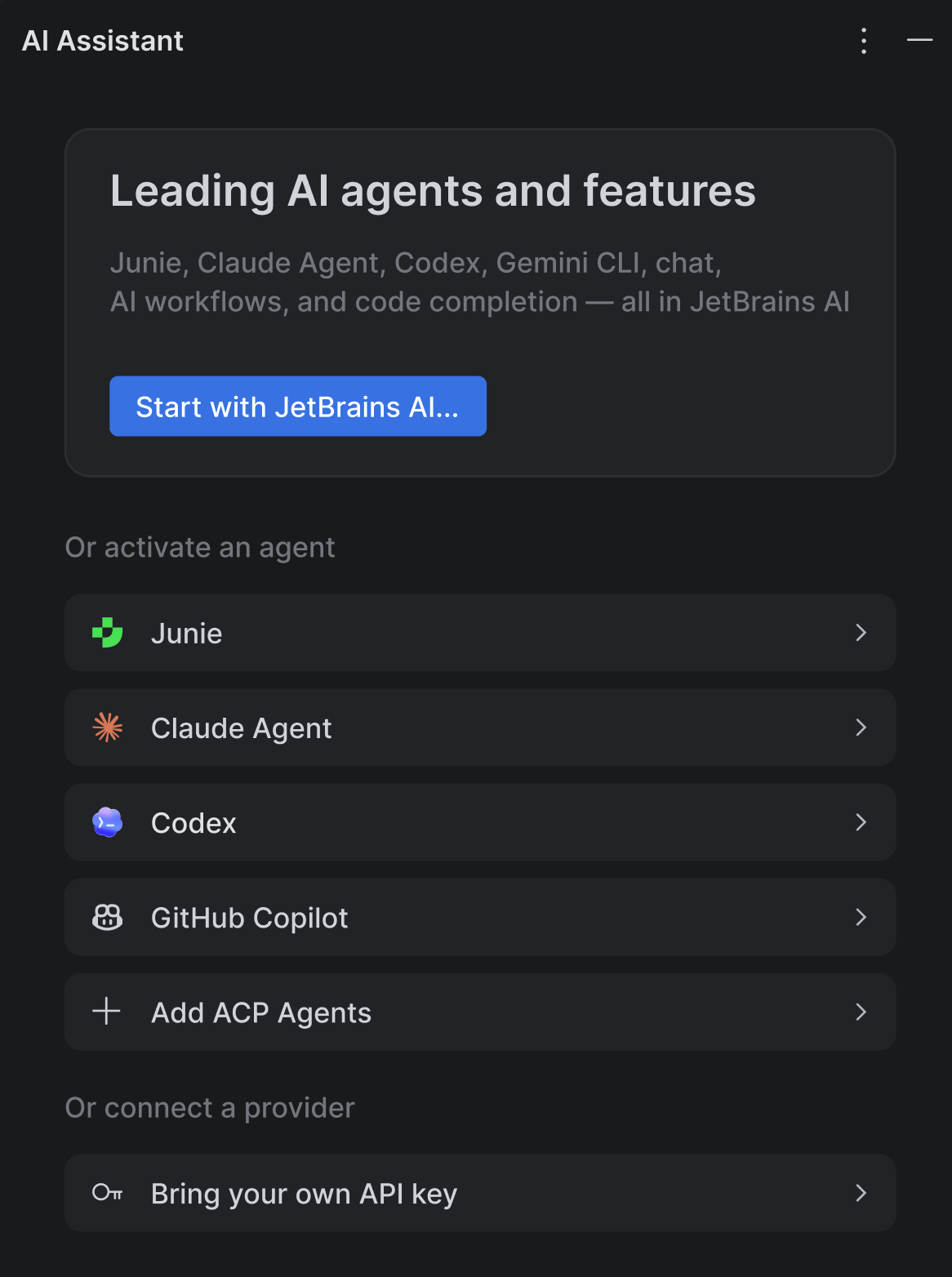
Copilot は従来、ACP レジストリを通じてアクセス可能でしたが、今回の統合によってさらに進化しました。JetBrains と GitHub は緊密に連携し、より信頼性が高く、徹底的にテストされ、IDE 内でデフォルトで利用可能なエージェント体験を構築しました。ACP を介したセットアップや設定は不要です。Copilot はすぐに使える状態で用意されています。
核心的な変化はまさにこれです。安定性と可用性の向上により、セットアップに費やす時間が減り、開発に集中できる時間が増えます。統合の一環として、Copilot CLI のスラッシュコマンド /remote や /chronicle も AI チャット内で直接利用可能になりました。
Microsoft Build で発表された通り、今回のパートナーシップを通じて、GitHub Copilot と JetBrains を組み合わせた体験を今後も継続して提供していきます。
認証:知っておくべきこと
Copilot の認証は、GitHub アカウントを経由した OAuth によるもののみです。実務上、これは以下のような意味を持ちます。
別々のサブスクリプションが必要:JetBrains AI ユーザーは、この統合を利用するためにアクティブな GitHub Copilot サブスクリプションが必要です。これは JetBrains AI のサブスクリプションには含まれていません。
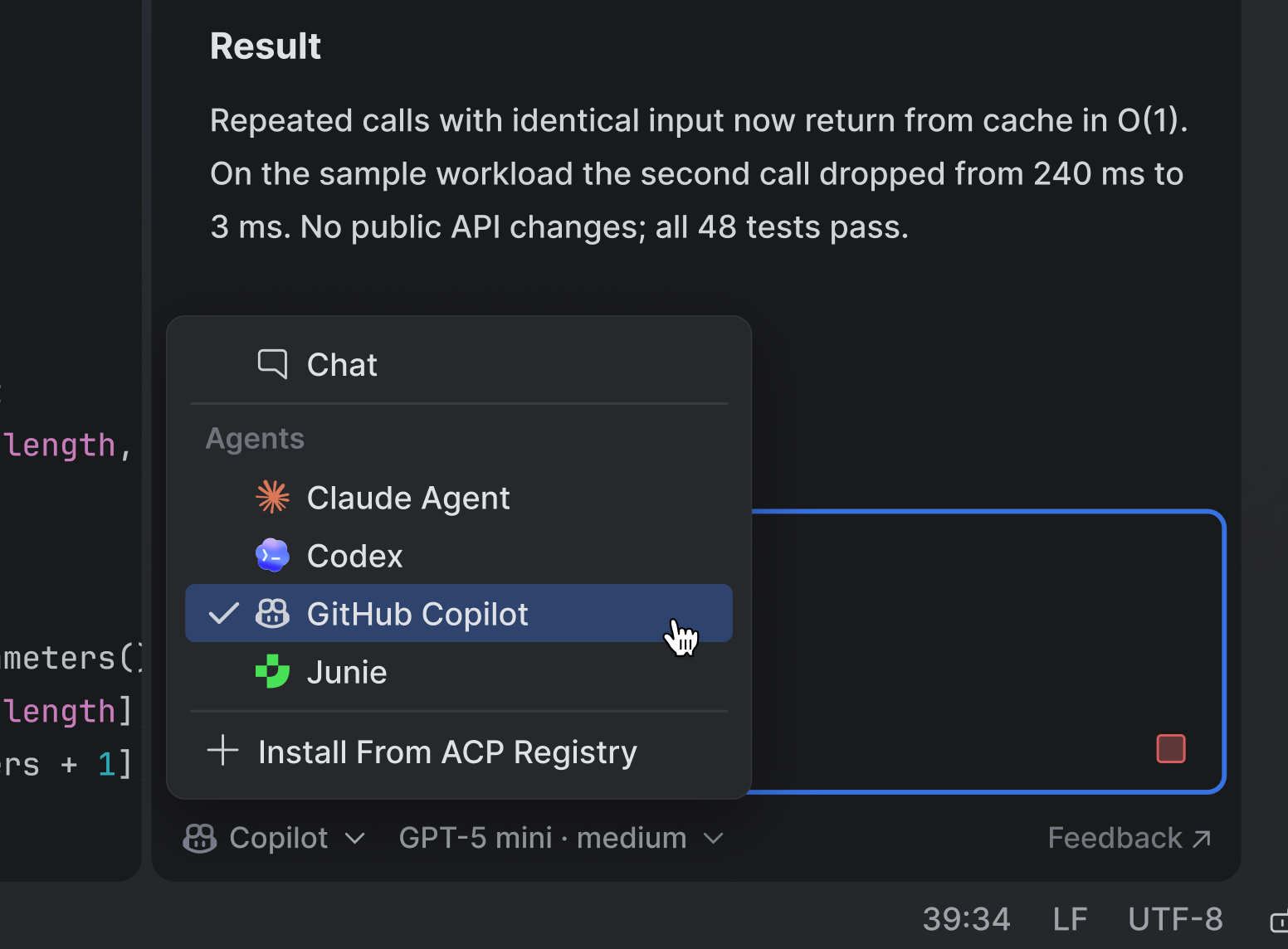
ログインとモデル選択:専用のログインフローとモデルピッカーが用意され、使用する Copilot モデルを自分で選べるようになります。ただし、この機能を利用するには IDE を最新版に更新する必要があります。

IDE で Copilot の利用を開始する
JetBrains IDE 内で AI チャットを開き、エージェントピッカーメニューから「GitHub Copilot」を選択します。その後、OAuth ログインの指示に従って GitHub アカウントを接続してください。
AI チャットが初めての場合は、IDE 右上にある JetBrains AI ウィジェットを開き、「Let's Go」をクリックして、AI Assistant プラグインのインストール手順に従ってください。
原文を表示
Born out of a deep partnership between JetBrains and GitHub, this integration makes Copilot native in the agent picker and delivers a more stable agent experience directly in the IDE you already use every day.
From ACP Registry to native experience
Copilot was previously accessible via the ACP Registry, but this integration takes things further. JetBrains and GitHub have worked closely together to build an agent experience that is more reliable, thoroughly tested, and available by default inside your IDE. There’s no need to set up or configure anything via ACP — Copilot is just there, ready to use.
The core change is exactly that: greater stability and availability. You spend less time setting things up and more time building. As part of the integration, Copilot CLI slash commands like /remote and /chronicle are also available directly in AI chat.
As announced at Microsoft Build, we will continue to deliver more GitHub Copilot × JetBrains experiences through this partnership.
Authentication: What you need to know
Copilot authenticates exclusively via OAuth through your GitHub account. Here’s what that means in practice:
Separate subscription required: JetBrains AI users will need an active GitHub Copilot subscription to use this integration. It is not included with your JetBrains AI subscription.
Login and model picker: A dedicated login flow and model picker will be available, giving you control over which Copilot model you use. Note you need to update your IDE to access this functionality.
Get started with Copilot in your IDE
Open AI chat in your JetBrains IDE, navigate to the agent picker menu, and select GitHub Copilot. From there, follow the OAuth login prompt to connect your GitHub account.
If you’re new to the AI chat, open the JetBrains AI widget in the top-right corner of your IDE, click Let’s Go, and follow the instructions to install the AI Assistant plugin.
News to Guide
ニュースの次に確認する
発表内容を、現在の料金や仕様と照らし合わせられる関連ガイドです。
今日のまとめ
AIデイリーブリーフで今日の重要ニュースをまとめ読み