LM Studio の AI エージェント「Bionic」がスキル機能に対応
本文の状態
日本語全文を表示中
詳細モードで約3分の本文を読めます。
同じ出来事の情報源
この情報源を基点に整理
LM Studio Blog
LM Studio の Bionic エージェントが Agent Skills 標準規格に対応し、Web からのインストールや対話による作成が可能になり、既存の Codex や Claude 製スキルも利用できるようになった。
AI深層分析を開く2026年8月18日 04:41
AI深層分析
キーポイント
Agent Skills 標準規格への対応
Bionic エージェントが業界標準である Agent Skills(SKILL.md ファイル)形式をサポートし、知識や反復タスクをショートカットとして扱う仕組みを導入した。
スキルの作成と活用機能
ユーザーは完了した作業に基づいてスキルを作成するよう指示したり、Bionic と共同で新しいスキルを開発したりでき、作成後は @ 記号で呼び出せるようになる。
他アプリとの相互運用性
Web から直接スキルをインストールできるほか、Codex や Claude など他のアプリケーションで作成された既存のスキルも Bionic で利用可能になった。
@記法によるスキル参照
チャットで「@」文字を入力するとファイルまたはスキルの参照パレットが表示され、Bionic がスキルファイルを調査して行動を決定する。
他アプリのスキル利用設定
設定から他のアプリ(Codex, Claude Code など)で既に持っているスキルを管理し、表示対象や無効化を選択できる。
重要な引用
Bionic now supports using, installing, and creating agent skills.
Skills are a way to capture specific knowledge, a capability, or a repeatable task in a sort of shortcut—using an industry standard called Agent Skills (SKILL.md files).
Once the skill is created, you will be able to invoke it with the @ syntax.
"The simplest way to use a skill is to type the @ character, which brings up the file or skill reference palette."
編集コメントを表示
編集コメント
LM Studio が Agent Skills という標準規格への対応を強化したことは、AI エージェントの相互運用性を高める上で重要な一歩である。特に他社製スキルの利用が可能になった点は、エコシステムの拡大とユーザー利便性の向上に寄与する。
Source Article
元記事を日本語で読む
本文に関係しない購読案内、埋め込み通知、サイト内プロモーションは除いています。
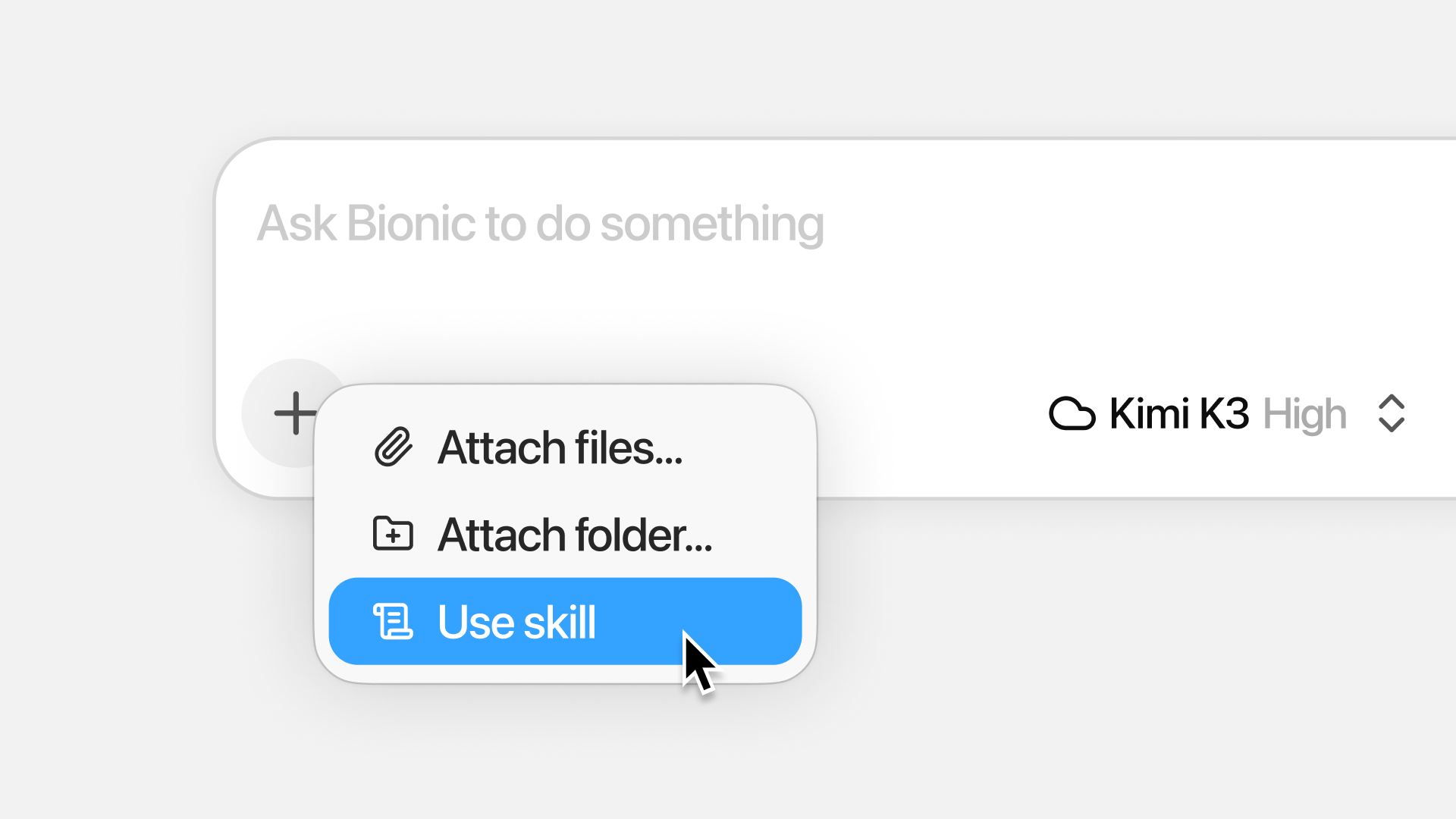
Bionic において、スキルの利用・インストール・作成が可能になりました。
スキルは、特定の知識や機能、反復可能なタスクを「ショートカット」として取り込む仕組みです。業界標準である Agent Skills(SKILL.md ファイル)という形式を採用しています。
Bionic エージェントは、標準フォーマットのスキルを利用できます。Web からスキルをインストールしたり、会話からスキルを作成したり、Codex や Claude といった他のアプリですでに持っているスキルを活用したりすることが可能です。
スキルの作成
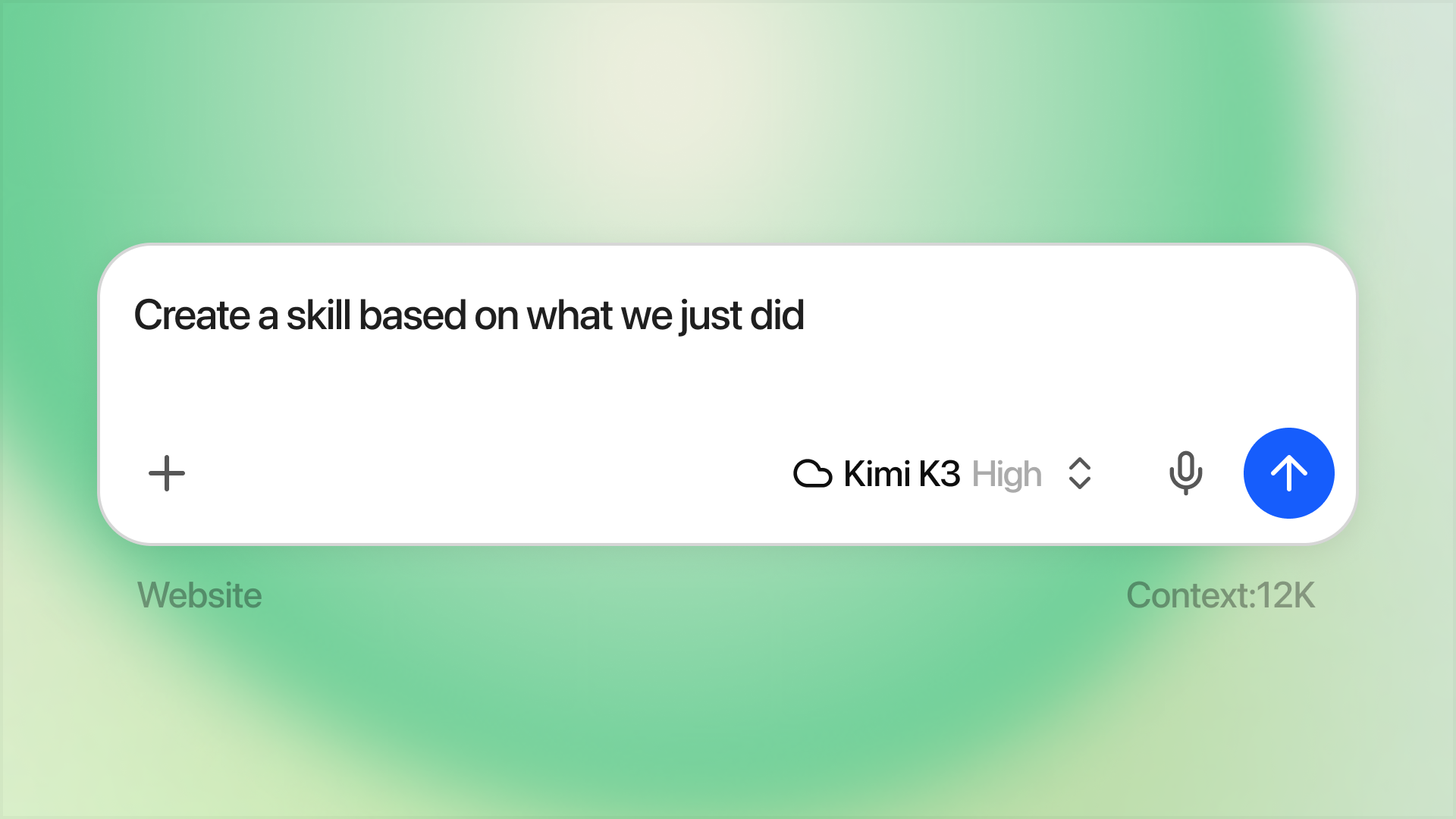
Bionic は、あなたの代わりにスキルを作成できます。ただ尋ねるだけです。主に 2 つのパターンがあります。
1つ目は、直前に完了したタスクに基づいてスキルを作成する方法です。もう 1 つは、新しい何かについて Bionic と一緒に検討し、スキルを共同で作り上げる方法です。
例えば、Bionic を使って作業を完了させ、その結果が非常に良好だったとします。次に、その作業方法を再利用可能な形で記録したいと考えた場合、それがスキルの活用ケースとして最適です。「直前にやったことを元にスキルを作成して」と Bionic に尋ねてください。Bionic は確認質問を行い、その後あなたのためにスキルを作成してくれます。スキルが作成されると、@ 構文を使ってそれを呼び出せるようになります。使用するモデルによっては、あなたが明示的に指示しなくても、Bionic が自動的にスキルを利用してくれる場合もあります。
スキルの利用
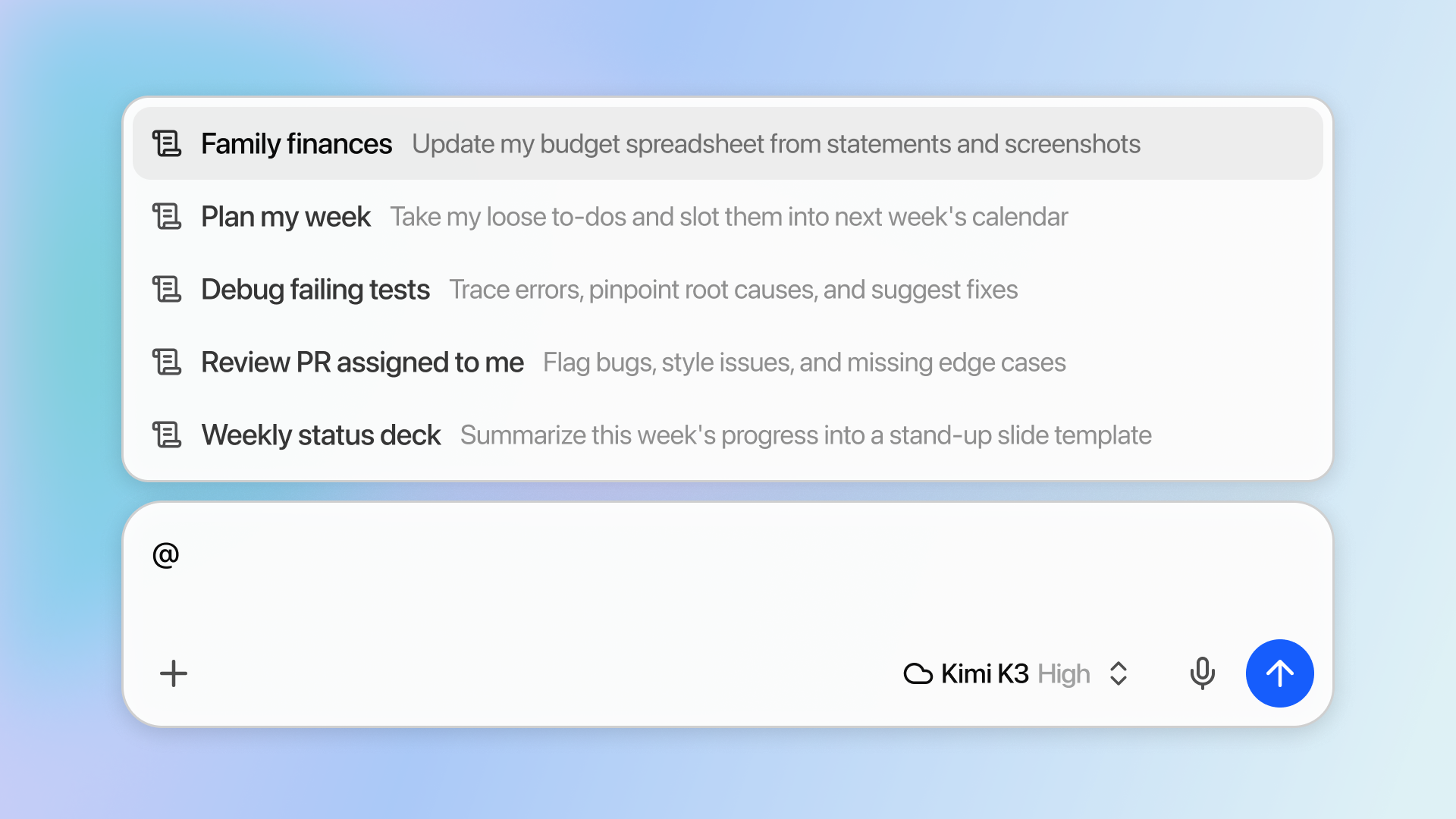
@ 記号を使ってスキルセレクターを表示します
スキルを使う最も簡単な方法は、@ 文字を入力することです。これによりファイルまたはスキルの参照パレットが表示されます。チャットでスキルを参照すると、Bionic がそのスキルファイルを解析し、適切なアクションを実行します。
他のアプリのスキルを使用する(Codex, Claude Code)
既存の他のアプリにあるスキルも Bionic で利用できるようになりました。[設定] > [スキル] > [他のアプリからのスキル] に移動して、Bionic に見せたいスキルを管理できます。特定のスキルは ••• メニューから無効化することも可能です。
スキルのインストール
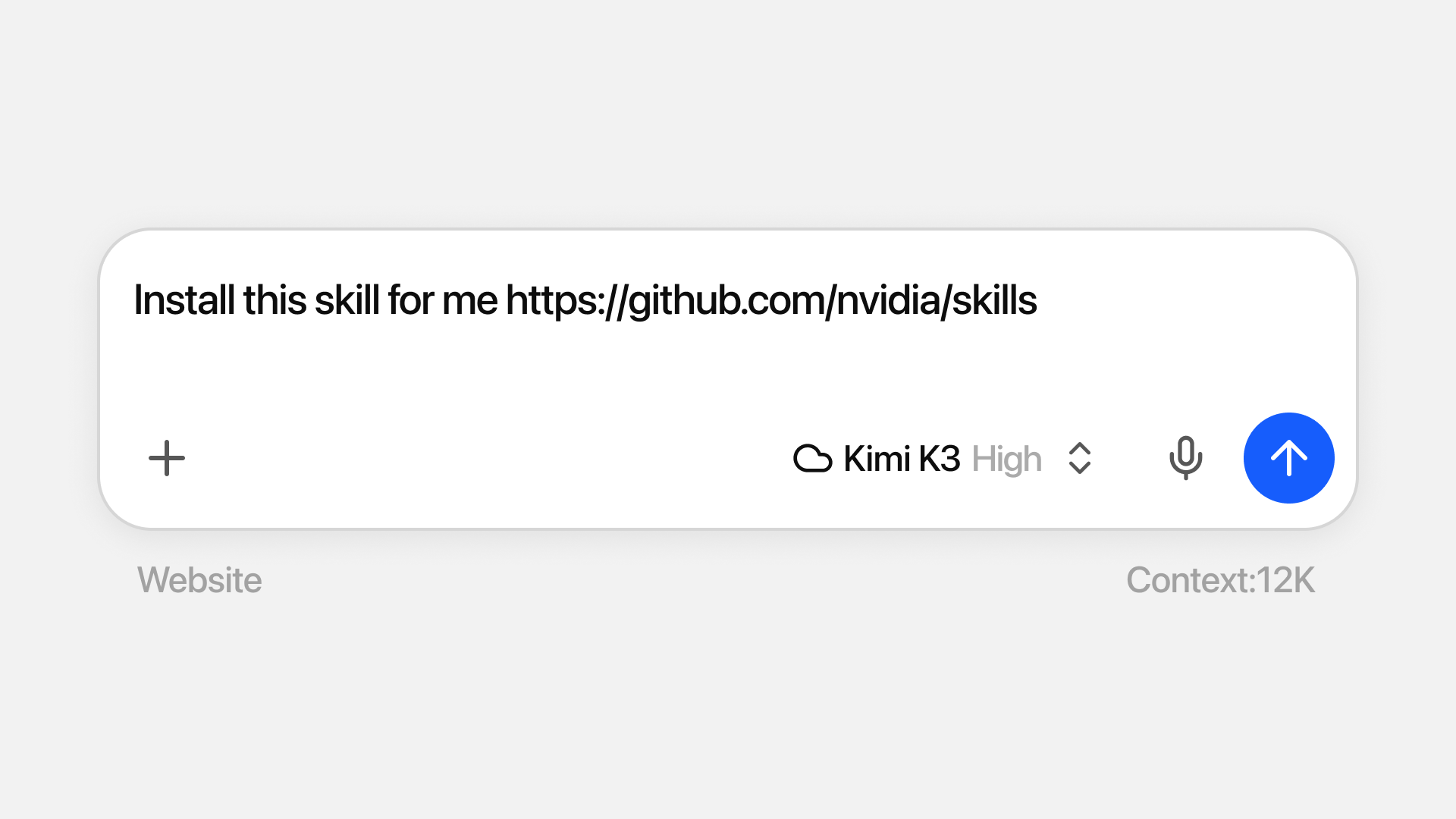
スキル作成と同様に、Bionic 自身にインストールを依頼するのが最も簡単な方法です。エージェントに URL を渡してインストールを頼むか、@Install Skill を呼び出してください。
あるいは、SKILL.md ファイルが用意されている場合は、[設定] > [スキル] にファイルを置くだけで、エージェントがそのファイルを利用できるようになります。
原文を表示
Bionic now supports using, installing, and creating agent skills.
Skills are a way to capture specific knowledge, a capability, or a repeatable task in a sort of shortcut—using an industry standard called Agent Skills (SKILL.md files).
The Bionic agent can use skills in the standard format: install skills from the web, create skills from a conversation, and use skills you already have in other apps like Codex and Claude.
Create Skills
Bionic can create skills for you—just ask! Consider a couple of patterns: one is creating a skill based on a task you just completed. Another is workshopping and creating a skill together with Bionic for something new.
Suppose that you've worked with Bionic to get something done, and it worked really well. Now you want to capture the way you've done it in a reusable way. This is a great use case for skills: ask Bionic something like, “Create a skill based on what we just did.” Bionic will ask clarifying questions and then create the skill for you. Once the skill is created, you will be able to invoke it with the @ syntax. Depending on the model you use, Bionic might be able to automatically use a skill without you even asking.
Use Skills
Use the @ syntax to bring up the skill selector
The simplest way to use a skill is to type the @ character, which brings up the file or skill reference palette. When you reference skills in the chat, Bionic will inspect the skill file and decide how to act.
Use skills from other apps (Codex, Claude Code)
We shipped support for using skills you already have in other apps. Head to Settings > Skills > Skills from other apps and manage which skills you want to be visible to Bionic. You can disable certain skills in the ••• menu.
Install Skills
Similar to creating skills, the best way to install skills is by asking Bionic to do it for you. Give the agent a URL and ask it to install the skill, or invoke @Install Skill.
Alternatively, if you have a SKILL.md file ready, you can just drop it in Settings > Skills and make it available to your agent to use.
関連記事
今日のまとめ
AIデイリーブリーフで今日の重要ニュースをまとめ読み