Codexの操作方法
本文の状態
日本語全文を表示中
詳細モードで約4分の本文を読めます。
同じ出来事の情報源
この情報源を基点に整理
OpenAI News
Codexの利用者は、サイドバーを操作してChatGPTのチャットのように「スレッド」を作成し、プロジェクト作業を開始します。
Continue in AI NEW LAB
このニュースを、実務の判断につなげる
AI NEW LABで、試したことや先に確認したい条件を共有できます。まずはログインなしで読めます。
AI NEW LABで論点を見るSource Article
元記事を日本語で読む
本文に関係しない購読案内、埋め込み通知、サイト内プロモーションは除いています。
Codexを開くと、サイドバーメニュー、プロジェクト、設定、チャットウィンドウといういくつかの主要な要素が表示されます。すべてをすぐに理解する必要はありませんが、ここでは基本を押さえていきます。
サイドバーでは、スレッド(thread)、プロジェクト、ツール間を移動できます。作業のほとんどは新しいスレッドを作成することから始まります。Codexを使用する際、「スレッド」(thread)をChatGPTの「チャット」と同じように考えてください。単独で存在するスレッドもあれば、プロジェクト内にネスト(入れ子)されたスレッドもあります。
New threadを選択して開始します。既存のプロジェクトを関連付けて選択することも、新しいプロジェクトを作成することも、単独の会話として残すこともできます。
過去のタスクやプロジェクトを検索するには、Searchを使用します。
Plugins(プラグイン)は、Codexにより具体的な作業を行えるようにするものです。これらについてはPlugins & skillsで詳しく解説します。Codexに反復可能なプロセスに従わせたり、他のツールと連携させたい場合に便利です。
Projects(プロジェクト)は作業を整理し、タスクをグループ化する仕組みです。Codexでは、プロジェクトは該当する一連のタスクを実行するコンピュータ上のフォルダとリンクされています。ローカルで作業する場合、Codexはそのフォルダ内のファイルに対してのみ変更を加えます。異なるファイルグループを扱う必要がある場合は、新しいProjectを作成してください。プロジェクトフォルダは必ずしも開始時にファイルを含む必要はありません;作成するすべての新しいファイルを格納する指定されたフォルダとして機能すれば十分です。
Settings(設定)では、権限、パーソナライズ、およびコンピュータがスリープ状態でもCodexが作業を継続できるかどうかといった設定を制御できます。初心者向けに確認すべき重要な設定がいくつかあり、これらはSettings sectionで解説しています。
Codexのスレッドは、ChatGPTの会話と非常に似ています。自然な言葉で双方向にやり取りできます。完璧なプロンプト(prompt)や技術的な指示は必要ありません。Codexに何を望んでいるか、どのファイルを使用すべきか、「完了」の状態がどうあるべきかを伝えてください。
大きな違いは、Codexが作業中にアクションを実行できる点です。タスクと権限に応じて、ファイルの検査、新規ファイルの作成、文書の編集、情報の整理、または何かの構築を行うことがあります。
Note: コンピュータがスリープ状態になると、Codexの実行が停止する場合があります。長時間かかるタスクを実行する予定がある場合は、設定でこれを変更できます。
何かの指示を忘れた場合でも、Codexを停止して最初からやり直す必要はありません。新しい指示を入力し、Steerを選択することで、実行中の処理を軌道修正できます。
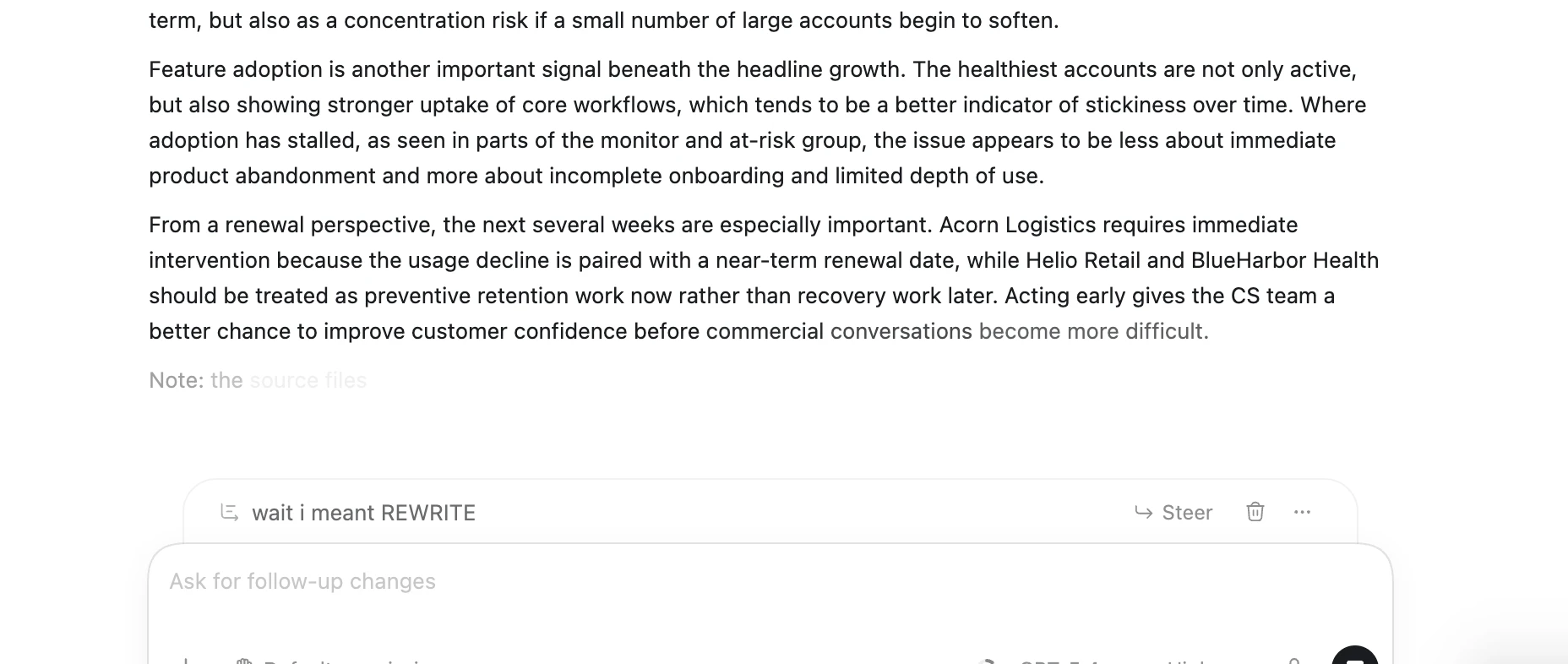
例えば、作業中の分析から1つの段落を削除するようCodexに指示したつもりが、実際にはその段落を*書き換え*たかったとします。処理中であっても、本当に伝えたかった内容を入力し、Steerを選択すれば、Codexはそれに合わせて作業を調整します:
また、複数のCodexタスクを同時に実行することも可能です。実際、多くのユーザーがそのように利用しています。例えば、あるスレッド(thread)でスプレッドシート(spreadsheet)の整理を行っている間に、別のスレッドがプロジェクトトラッカー(project tracker)の下書きを作成することもできます。新しいタスクを開始しても、すでに実行中の他のタスクを中断することはありません。
原文を表示
When you open Codex, you’ll see a few core elements: a sidebar menu, projects, settings, and a chat window. You don’t need to understand everything right away, but we’ll cover the basics here.
The sidebar is where you navigate between threads, projects, and tools. Most of your work will begin by creating a new thread. When you’re using Codex, think of a “thread” the same way you would think of a “chat” in ChatGPT. You can have a thread which stands on its own, or a thread which is nested within a project.
Select New thread to begin. You can select an existing project to associate it with, create a new project, or leave it as a standalone conversation.
Search to find previous tasks and projects.
Plugins help Codex do more specific work. We will discuss these in more depth in Plugins & skills. They are useful when you want Codex to follow a repeatable process or connect to another tool.
Projects are how you organize your work and where you group tasks together. In Codex, a project is linked to a folder on your computer where you are conducting that set of tasks. When working locally, Codex will only make changes to files within that folder. When you need to work with a different group of files, create a new Project. Project folders don’t necessarily need to have any files within them to begin; they can simply be the designated folder where any new files you create will live.
Settings let you control things like permissions, personalization, and whether Codex can keep working while your computer sleeps. There are a few important settings for beginners to look at, which we discuss in the Settings section.
A thread in Codex works a lot like a conversation in ChatGPT. You can talk back and forth in plain language. You do not need a perfect prompt or technical instructions. Tell Codex what you want, what files it should use, and what “done” should look like.
The big difference is that Codex can take action while it works. Depending on your task and permissions, it may inspect files, create new files, edit documents, organize information, or build something for you.
Note: Codex may stop running if your computer goes to sleep. If you plan to run a task which might take awhile, you can change this in settings.
If you forget to mention something, you do not have to stop Codex and start over. Type in your new instruction and select Steer to course correct while it is working.
For example, let’s say I told Codex to remove a paragraph from an analysis I’m working on, but I actually meant to *rewrite* that paragraph. While it’s working, I can type in what I really meant, select Steer, and Codex will adjust its work accordingly:
You can also run multiple Codex tasks at the same time. In fact, most users do. For example, one thread could clean up a spreadsheet while another drafts a project tracker. Starting new tasks won’t interrupt other tasks that are already running.
News to Guide
ニュースの次に確認する
発表内容を、現在の料金や仕様と照らし合わせられる関連ガイドです。
今日のまとめ
AIデイリーブリーフで今日の重要ニュースをまとめ読み