Amazon QuickでAI搭載の従業員オンボーディングエージェントを構築
AWSのAmazon Quickを活用し、ナレッジベースとアクション連携機能で新入社員の質問対応やコンプライアンス追跡を自動化する、コード不要のAIオンボーディングエージェント構築方法を紹介する記事です。
キーポイント
オンボーディング課題の解決
企業は新入社員のオンボーディングで一貫性とコンプライアンス維持に苦労しており、手動タスクが生産性を遅らせ、新入社員は最初の1ヶ月で潜在生産性の一部しか発揮できない。
Amazon Quickの概要
Amazon Quickはフルマネージドなエージェントサービスで、HR部門がコード不要でオンボーディングエージェントを作成でき、新入社員の質問に答え、コンプライアンスを追跡し、チケットを自動的に解決する。
主要コンポーネント
Quickはナレッジベース(外部・内部ソースからのインデックス化コンテンツ)、アクションコネクタ(HRシステムとの安全な統合)、スペース(チーム中心の資産整理環境)の3つの統合コンポーネントで構成される。
実用的な応用例
ServiceNowでのIT機器リクエスト作成、Slackでの歓迎メッセージ送信、プロジェクト管理ツールでのオンボーディングワークフロー更新など、実際のアクションを自動化できる。
重要な引用
Organizations lose substantial amounts of time per day per new hire during onboarding, with new employees typically reaching only a fraction of their potential productivity in the first month.
Quick transforms employee onboarding from scattered documents and manual processes into an intelligent, connected experience.
A knowledge base serves as a single searchable repository, so new hires get comprehensive answers from multiple sources instead of searching through disconnected files.
Actions (action connectors) – Secure, permission-aware integrations that enable AI agents to take real action in HR onboarding scenarios—creating ServiceNow IT equipment requests, sending Slack welcome messages to team channels, or updating onboarding workflows in project management tools—rather than just providing links to forms.
影響分析・編集コメントを表示
影響分析
この記事は、AIエージェント技術の実用的な企業応用例を示しており、特にHRオペレーションの自動化における具体的な価値提案を提供している。AWSプラットフォーム上での実装方法を詳細に説明することで、技術的実現可能性を明確にし、企業のAI導入障壁を下げる効果が期待できる。
編集コメント
AWSの自社サービス紹介というPR要素はあるが、AIエージェントの具体的な企業応用例として実用的な情報を提供しており、HRテック分野の実装参考として価値がある。
大企業では、多くの新入社員を一度にオンボーディング(業務開始手続き)することに課題を抱えることがよくあります。人事(HR)チームは、書類処理や福利厚生・ポリシーに関する繰り返し質問への対応など、生産性の遅延につながる手動タスクに多くの時間を費やしています。新規採用者が多い組織では、これらの手順により、オンボーディングの一貫性とコンプライアンス(法令遵守)の維持が困難になります。組織は、オンボーディング期間中、新規採用者1人あたり毎日多大な時間を失っており、新入社員は最初の月に潜在生産性の一部しか発揮できないのが一般的です。Amazon Quick は、完全に管理されたエージェントサービスです。これにより、人事部門はノーコードでオンボーディングエージェントを作成でき、新入社員からの質問に回答し、既存のツール全体でコンプライアンスを追跡し、チケットを自動的に処理することで、新入社員が手動作業を減らしてより迅速に業務に慣れることを支援できます。
この投稿では、Quick を使用してカスタム HR オンボーディングエージェントを構築する方法を紹介します。組織のプロセスを理解し、HR システムに接続し、新入社員からの質問への回答や書類完了状況の追跡などの一般的なタスクを自動化するエージェントを設定する方法を示します。このソリューションはオンボーディングワークフローに合わせて調整できるため、新入社員は一貫した回答を得られ、HR チームはルーチンな問い合わせに対応するために費やしていた時間を取り戻すことができます。
Amazon Quick の主要コンポーネント
Quick は、以下の統合されたコンポーネントを通じて、散在する文書や手動プロセスからなる従業員オンボーディングを、インテリジェントで接続された体験へと変革します:
- ナレッジベース – SharePoint、OneDrive、Confluence などの外部ソースからのインデックス付きコンテンツに加え、社内ウェブサイト、ファイルアップロード、Amazon Simple Storage Service (Amazon S3) バケットなどの内部コンテンツも含まれます。ナレッジベースは単一の検索可能なリポジトリとして機能するため、新規入社は複数のソースから包括的な回答を得ることができ、断片化されたファイルを検索する必要がありません。
- アクション(アクションコネクタ) – 安全で権限を認識する統合により、AI エージェントは HR オンボーディングのシナリオで実際のアクションを実行できます。フォームへのリンクを提供するだけでなく、ServiceNow の IT 機器リクエストの作成、チームチャネルへの Slack ウェルカムメッセージの送信、プロジェクト管理ツールでのオンボーディングワークフローの更新などが可能です。
- スペース – ファイル、ビジネスインテリジェンスアーティファクト(ダッシュボードやトピックなど)、ナレッジベース、アクションなどのチーム中心のアセットを整理し、チームコラボレーションのための共有制御を提供する集中環境です。
Quick を活用すれば、HR チームは知識へのアクセスと自動化タスクを組み合わせた専門的なオンボーディングアシスタントを作成できます。即時のサポートには組み込みシステムエージェント(「マイ アシスタント」)を使用するか、IT セットアップや福利厚生の加入など一般的なリクエストを自動的に処理し、会社のポリシーに精通した専用 HR オンボーディングアシスタントなど、組織固有のオンボーディングニーズに合わせてカスタムチャットエージェントを作成できます。
ソリューションの概要
このソリューションでは、Quickのカスタムチャットエージェントを使用して、従業員のオンボーディングを支援します。エージェントがない場合、HR担当者は各ステップの調整のためにWiki、SharePoint、チケット管理システム、チャット、メールを切り替える必要があります。Quickを使用すると、エージェントはHRスペースから最新のチェックリストを表示し、承認された表現で回答し、アクションを通じてリクエストを起票し、関係者に通知し、従業員に次のステップを示します。確認情報やステータスはHRツール内に保持され、エージェントはアクションまたはフローを通じてそれらを読み取ったり更新したりします。以下の図はソリューションのアーキテクチャを示しています。

ソリューションの実装には、以下の高レベルのステップが含まれます:
- Quickでチャットエージェントを作成する。
- HRスペースをアタッチし、ナレッジソースをリンクする。
- アクションを追加する。
- 実際の質問とタスクでテストし、従業員に共有する。
Quickは、このオンボーディングソリューションを支援するために2種類のチャットエージェントを提供します:システムチャットエージェント(「マイアシスタント」)とカスタムチャットエージェントです。システムチャットエージェント(「マイアシスタント」)は、Amazon Quickコンソールにデフォルトで表示され、ユーザーがアクセス権限を持つリソースを使用して質問をしたりタスクを完了したりするのを支援します。ユーザーは複数の方法でシステムエージェントと対話できます:
- 一般知識を選択することで、エージェントに内蔵されたナレッジベースを用いて一般的な質問を行うことができます。
- チャット内で直接ファイル(会話あたり最大20件)をアップロードし、分析や質問に利用できます。
- 3つのモードから選択して会話の範囲を制御します:「すべてのデータとアプリ」(アクセス可能なすべてのリソースを検索)、「一般知識」(内蔵されたナレッジベースのみを使用)、「特定のデータとアプリ」(特定のスペース、ダッシュボード、トピック、ナレッジベース、またはアクションをターゲットに指定)。例えば、ユーザーは従業員ハンドブックをアップロードして「リモートワークポリシーは何ですか?」と質問したり、HR(人事)スペースを選択して「健康保険プランにはどう登録すればよいですか?」と質問したりできます。システムエージェントは設定不要ですぐに利用可能であり、選択されたスコープと利用可能なリソースに基づいて回答を適応させます。
カスタムエージェントは、ビジネスニーズに特化した専用アシスタントを構築するのに役立ちます。動作(目的、トーン、回答形式)を設定し、根拠のある回答を提供するためにダッシュボード、トピック、ナレッジベースを備えたスペースを接続し、Jira、Slack、ServiceNow、Salesforce、Outlook、Teamsなどのツールでタスクを実行できるようにアクションコネクタをリンクします。カスタムエージェントは特定のユーザーやグループと共有できます。カスタムエージェントには以下の機能があります:
- ユースケース固有のレスポンス – 特定のビジネスワークフローや要件に合わせて、エージェントのペルソナとレスポンススタイルを定義します。
- 参照文書によるガイダンス – 一貫したメッセージングと特定のステップのフォローアップのためのプロセスガイドとして機能する、レスポンステンプレートとなる特定の文書をアップロードします。
- 包括的なデータ統合 – エージェントにスペースをリンクし、分析用のダッシュボード、構造化されたデータセットのトピック、外部の非構造化文書リポジトリであるナレッジベース、追加情報としてスペースに直接アップロードされたローカルファイルなど、検索可能なコンテンツや知識ソースの異なるタイプへのアクセス権限を与えます。これにより、エージェントは組織内の権限構造内で関連するさまざまなデータを使用して質問に回答できます。
- 自動化されたアクション – アクションコネクタを追加し、ユーザーがチャットから直接 Jira チケットの作成、Slack メッセージの送信、Salesforce の更新、ServiceNow リクエストの開くなどを行えるようにします。
- コラボレーション – 同僚とエージェントをテスト、改良、共有します。管理者は、ユーザーサブスクリプションとカスタム権限を通じて、誰がエージェントの作成とカスタマイズを行えるかを制御できます。
Quick 全体で一般的な支援のためにシステムチャットエージェントを使用することも、HR オンボーディングなどのワークフローに特化したカスタムエージェントを作成することもできます。後者の場合、指示を定義し、HR スペースまたはナレッジベースをアタッチし、リクエストと通知のためのアクションを有効にします。
次のセクションでは、エージェントの設定と共有を行うHR管理者、およびエージェントを使用してオンボーディングタスクを完了する従業員の2つのペルソナを用いて、このソリューションを実装する手順を追っていきます。
前提条件
開始する前に、以下のステップを完了していることを確認してください。
- AWS アカウントを作成します。詳細については、「AWS アカウントの作成」を参照してください。
- Quick へのアクセス権限があることを確認します。
- アクションの設定とナレッジベースの作成には、Amazon Quick Enterprise サブスクリプションが少なくとも 1 つ必要です。共有エージェントのみを使用するユーザーは、Amazon Quick Professional サブスクリションで構いません。
- Atlassian Cloud のはじめにへ移動し、無料サイトを作成します。Free プラン(最大 10 ユーザー)で Confluence と Jira の両方を選択します。
Confluence で、HR コンテンツを保存するための「HR Onboarding」スペースを作成します。
- Jira で、エージェントが「アクションの追加」セクションでアクセスや機器のリクエストに使用できるシンプルな HR オンボーディングプロジェクトを作成します。
- HR オンボーディングワークショップ資料ページから ZIP ファイルをダウンロードします。
- ZIP ファイル内の HR ドキュメントフォルダから、以下のファイルを HR Onboarding Confluence スペースにアップロードします:
employee_handbook.pdf
- leave_policy.pdf
- onboarding_checklist.pdf
- performance_review_guidelines.pdf
- public_holidays.csv(オプション。後ほどレポートや分析に使用)
もし貴社がすでに企業用の Confluence サイトを使用している場合、Confluence 管理者から追加のアクセス権限を要求しない限り、スペースの作成やサンプルファイルのアップロード権限がない可能性があります。管理者による変更を待たずに Quick の価値を体験したい場合は、この投稿に従うために別の Atlassian Cloud サイトを使用してください。
実装手順
この手順では、エージェントの設定と共有を行うHR管理者と、エージェントを通じてオンボーディングタスクを完了する従業員の2つのペルソナを使用します。
HR管理者
以下のシーケンス図は、HR管理者がQuick内でHRオンボーディングエージェントを作成し、構成し、共有する方法を示しています。
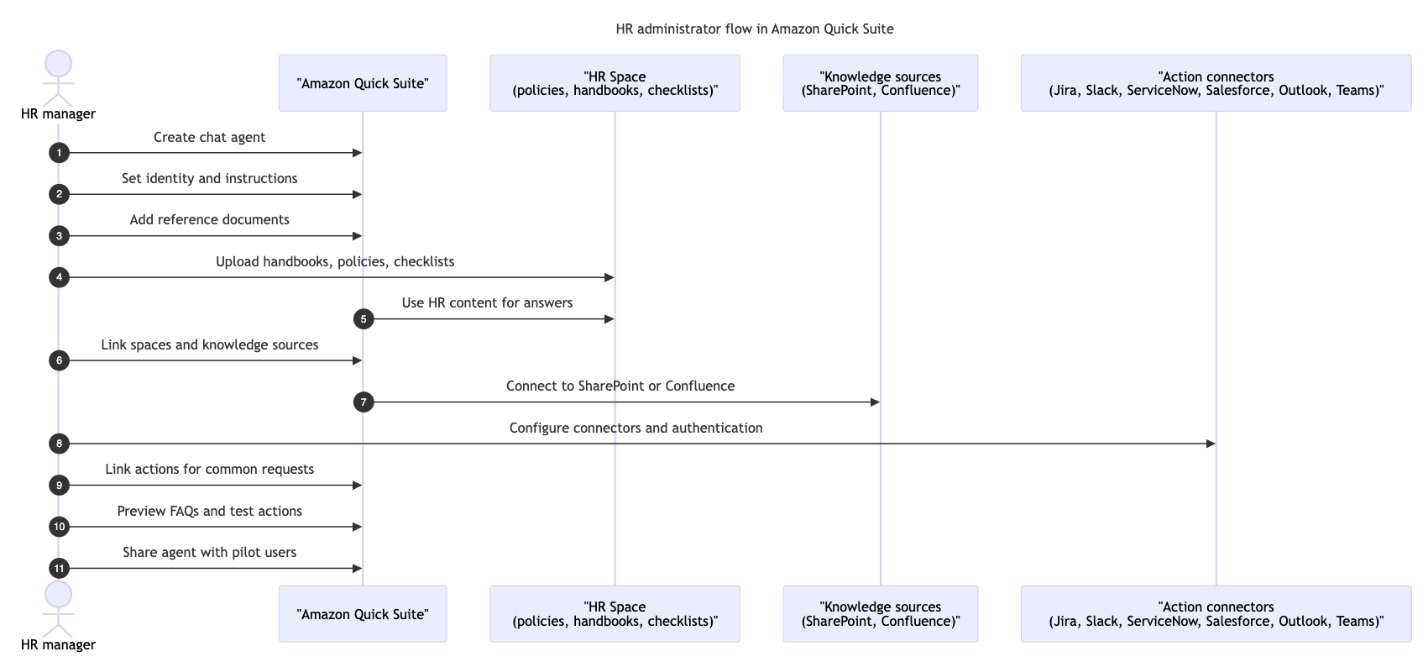
チャットエージェントの作成
まず、チャットエージェント自体を作成します。これにより、新入社員が質問を行い、オンボーディングのガイダンスを受けるための単一の場所となります。
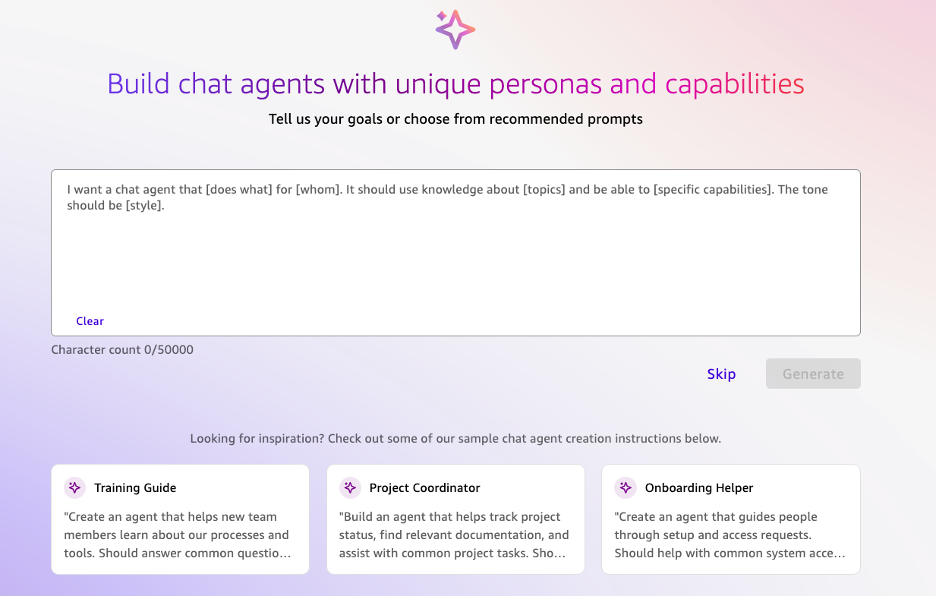
- Quickコンソールで、ナビゲーションペインの[Chat agents]を選択し、次に[Create]を選択します。
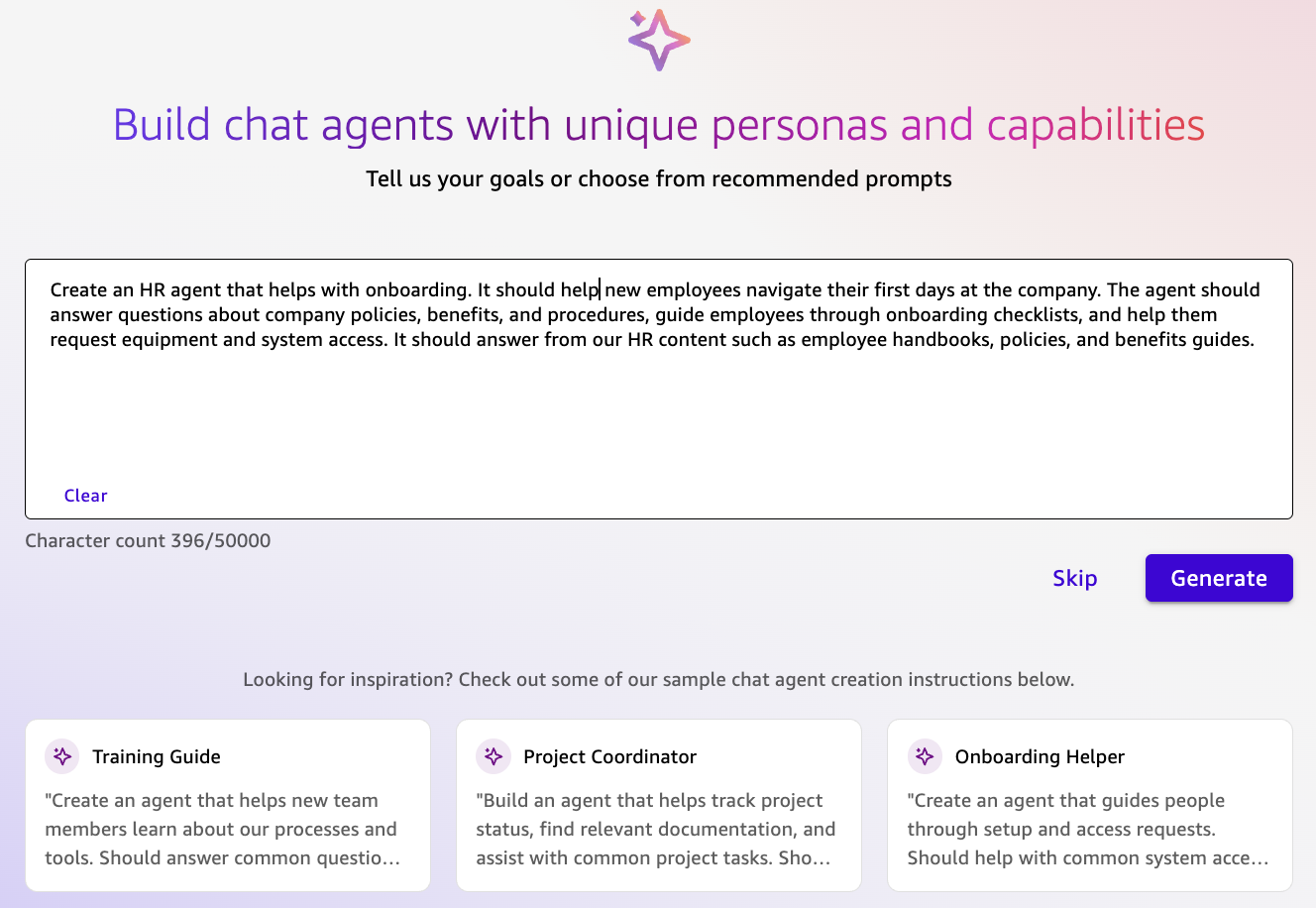
- エージェントに実行してほしい内容を記述した、シンプルな自然言語プロンプトを入力します(例:「新入社員のためのHRオンボーディングの質問や機器リクエストをサポートする」)。
Quickは、プロンプトを自動的に詳細なペルソナとレスポンス指示に展開し、利用可能なリソースをスキャンして、関連するスペースとアクションコネクターをエージェントにリンクします。
- 生成されたエージェントの構成を確認し、必要に応じて調整します。セッション内でバージョンを保存するためにプレビューを更新してください。
- 満足できたら、[Launch chat agent]を選択します。
動作の構成
次に、エージェントがどのように応答すべきかを定義し、そのトーン、範囲、およびガードレールがあなたのHRポリシーやHRブランドと一致するようにします:
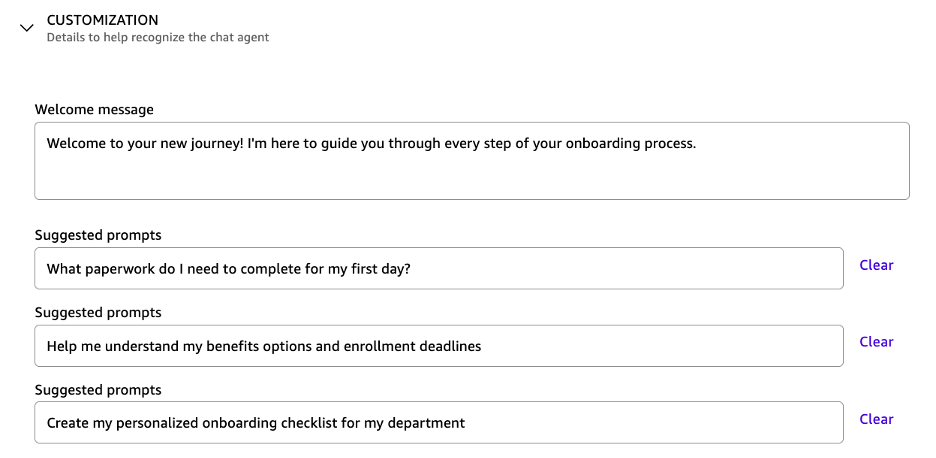
- エージェントのメタデータ – ユーザーがチャットエージェントを適切に見つけ、使用できるよう、エージェントの名前、説明、ウェルカムメッセージ、およびスタータープロンプトを更新します。これらの要素は第一印象となり、ユーザーがHRアシスタントと効果的に対話する方法をガイドします。
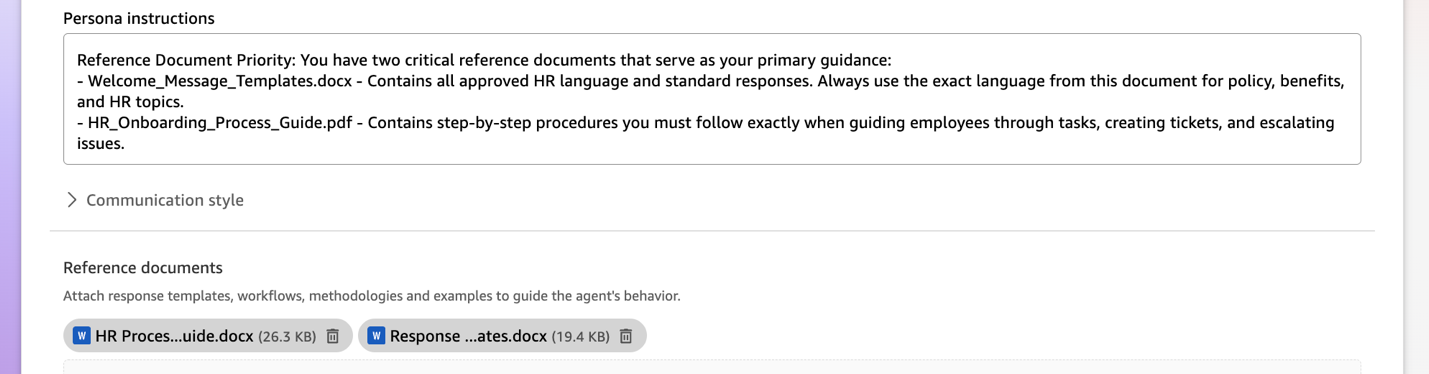
- エージェントの指示 – 前のステップから自動生成されたペルソナ指示、応答形式、トーン、および長さ設定を確認し更新します。システム生成の入力は堅固な基盤を提供しますが、組織固有のHRコミュニケーションスタイルや要件に合わせて微調整できます。
- 参照ドキュメント – エージェントの動作に対する最高優先度の指示を提供する特定のガイダンスドキュメントをアップロードします。これらの参照ドキュメントは指定通りに従われますが、動作や目標に関する高レベルのガイダンスを提供するために指示フィールドを使用できます。
HRナレッジの接続
これで、HRナレッジソースをエージェントに接続し、独自の言語を創作するのではなく、承認されたハンドブックやポリシーに基づいて回答するようにします:
- 就業規則、ポリシー、チェックリストを保持する既存のHRスペースを作成するか選択します。エージェントの知識スコープをHR関連の内容に特化して構成することで、回答が適切な範囲内に留まり、組織の無関係なデータにアクセスしないことを保証します。
- 以下のファイルをスペースにアップロードするために「ファイルのアップロード」を選択します:
従業員ハンドブックおよびポリシー文書
- メリット情報およびFAQ文書
- トレーニング資料およびガイド
- SharePointやWikiなどの知識ソースをリンクします。
- 構成済みのスペースをエージェントにリンクし、根拠のある回答のためにこの承認された検索可能なコンテンツにアクセスできるようにします。

アクションの追加
エージェントが質問に回答できるようになったら、HRツール(チケット、リクエスト、通知など)での作業をトリガーできるようにアクションを追加します:
- Actions カードを開き、「Link actions」を選択します。
- すでに設定済みのアクションコネクタから選択します。HR オンボーディングのユースケースでは、Jira(チケットの作成と更新用)、ServiceNow(インシデント管理用)、Microsoft Outlook(メール送信用)などのツールが含まれます。
必要な OAuth 詳細情報で設定されたアクションコネクタのみをエージェントにリンクできるため、エンドユーザーはチャット中に個別に認証する必要があります。参照ドキュメントとペルソナ指示を更新し、特定のアクションコネクタをいつ呼び出すかを指定してください。例えば、「従業員が機器の申請を行った場合、ServiceNow コネクタを使用してハードウェア要求チケットを作成する」または「アクセスの申請については、IT-Access プロジェクトで優先度を『Normal』に設定した Jira チケットを作成する」といった指示です。
カスタマイズ、テスト、共有
最後に、ウェルカムメッセージと提案されたプロンプトでエージェントをカスタマイズします。現実的なシナリオを使用してエージェントをテストし、体験を調整してから、パイロットグループと共有することで、広範な展開前に HR がワークフローを検証できるようにします。プレビューチャットを使用して、実際の質問やタスクでテストしてください。
準備ができたらエージェントを起動すると、プライベート利用のためにあなたの個人ライブラリに保存されます。他のユーザーと共有する場合は、共有を選択し、ビューアーとしてエージェントを使用できるユーザーやユーザーグループを追加します。また、チームの他のユーザーをオーナーに選んで、あなたと一緒にエージェントを編集およびテストすることもできます。HRマネージャーは、ナビゲーションペインの共有オプションを使用して、特定のチームメンバーやグループへのアクセス権を付与することで、カスタムエージェントを新入社員と共有できます。
従業員
以下のシーケンス図は、従業員がオンボーディングエージェントを使用して必須タスクを完了し、Day 1(初日)の進捗状況を一元管理する方法を示しています。
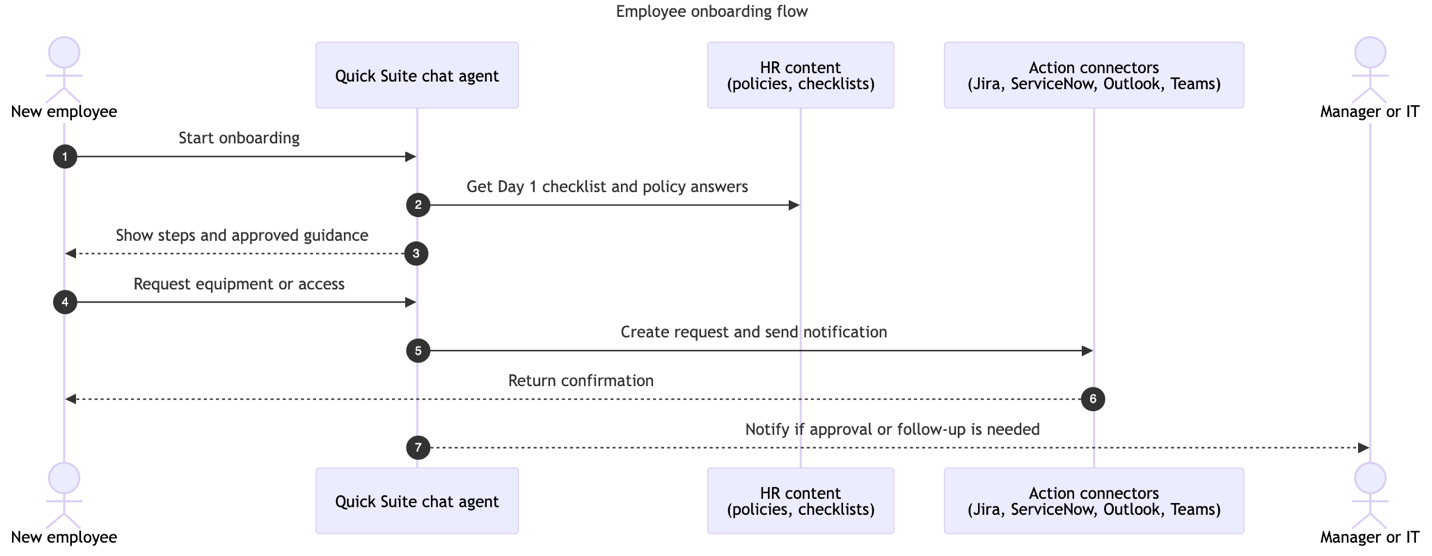
オンボーディングエージェントの使用
エージェントが公開され、従業員に対してビューアーとして共有されると、HRから提供されたリンク(例えばDay 1のメールやHRポータル内)またはQuick内のチャットエージェント一覧から開くことができます。その後、以下のように使用します:
- 従業員は、リンクまたはチャットエージェント一覧から共有のHRオンボーディングエージェントを開き、新しい「Day 1」会話を開始します。
- エージェントはHRオンボーディングスペースからの最新のオンボーディングチェックリストを表示し、必要なフォーム、トレーニング、社内ページへのリンクを提供するため、従業員は手順を順に進めることができます。
- 従業員は平易な言葉でポリシーや給付に関する質問を行い、エージェントはHRオンボーディングスペースおよび接続されたHRナレッジソースからのコンテンツを使用して回答するため、応答はHRが承認した表現と一致します。
- この構成では、従業員が機器やアプリケーションへのアクセスを要求した場合、エージェントはJiraアクションコネクタ(action connector)を使用してHRオンボーディングプロジェクトにイシューを作成し、イシューキーとリンクを返します。これにより、本番環境のHRシステムに触れることなく、リクエストをエンドツーエンドで確認できます。
- I-9確認、税務フォーム、直接預け入れなど機密性の高いステップの場合、エージェントはチャット内で文書を集めるのではなく、適切なHRシステムまたは安全なポータルに従業員を誘導するため、機密データは正しい場所に留まります。
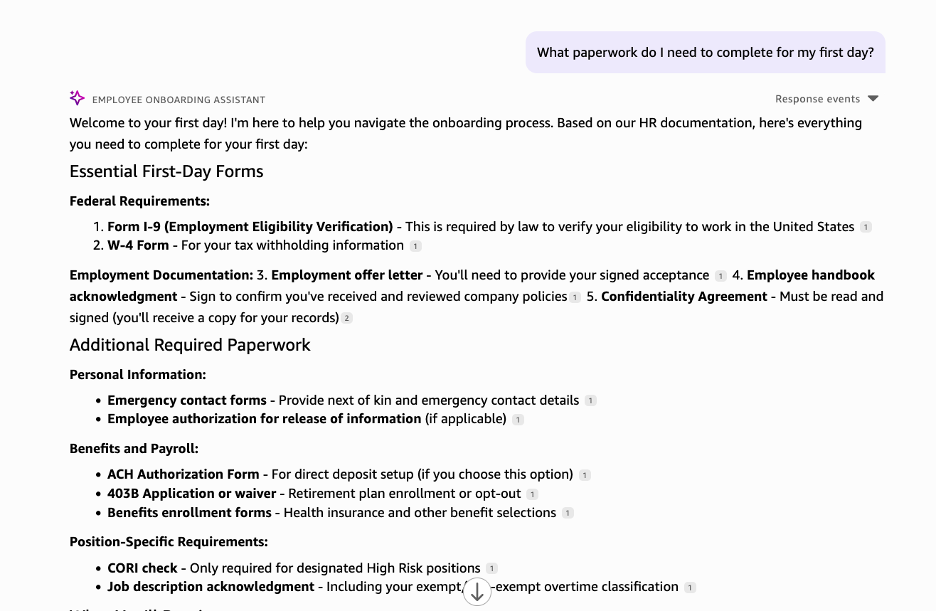
従業員にとって、この体験はシンプルです。単一のチャットを開き、1 日目のチェックリストを確認し、自然な言語で質問を行い、エージェントがリクエストを起動して適切なシステムへ誘導するのを待ちます。メール、ポータル、チケットのやり取りに追われるのではなく、次のステップが明確なガイド付き会話のようなオンボーディング体験になります。
これで、サンプルの HR 文書を含む HR Onboarding Confluence スペースを設定し、Quick でカスタムオンボーディングエージェントを作成し、その動作を構成し、HR 知識を接続し、リクエスト用の Jira アクションを追加しました。この設定は、新規採用者や HR パートナーの小規模グループに対して概念実証(Proof of Concept)として使用でき、さらにコンテンツの追加、アクションの追加、またはパフォーマンスレビューやポリシー更新などの他の HR ワークフロー用の新しいスペースの追加によって拡張することができます。
ガイドラインと安全性
Quick にはチャットエージェント用の組み込みの安全機能とコンテンツ制御が含まれているため、アカウントのデフォルト設定を使用してこの投稿の手順を進めることができます。概念実証の一部としてポリシー制御を実験したい場合は、エージェントが回避すべきブロックされた単語やフレーズの小さなリストを追加することもできます。
原文を表示
Enterprises often struggle to onboard new team members at scale. Human resources (HR) teams spend time on manual tasks that delay productivity, such as processing documents to answering repeated questions about benefits and policies. For organizations with many new hires, these steps make it harder to keep onboarding consistent and compliant. Organizations lose substantial amounts of time per day per new hire during onboarding, with new employees typically reaching only a fraction of their potential productivity in the first month. Amazon Quick is a fully managed agentic service. With it, HR departments can create no-code onboarding agents that answer new-hire questions, track compliance across existing tools, and clear tickets automatically so that new hires can ramp faster with less manual work.
In this post, we walk through building a custom HR onboarding agent with Quick. We show how to configure an agent that understands your organization’s processes, connects to your HR systems, and automates common tasks, such as answering new-hire questions and tracking document completion. You can adapt this solution to your onboarding workflow so new hires get consistent answers and HR teams reclaim time previously spent on routine inquiries.
Key components of Amazon Quick
Quick transforms employee onboarding from scattered documents and manual processes into an intelligent, connected experience through the following integrated components:
- Knowledge bases – Indexed content from external sources like SharePoint, OneDrive, and Confluence, as well as internal content including internal websites, file uploads, and Amazon Simple Storage Service (Amazon S3) buckets. A knowledge base serves as a single searchable repository, so new hires get comprehensive answers from multiple sources instead of searching through disconnected files.
- Actions (action connectors) – Secure, permission-aware integrations that enable AI agents to take real action in HR onboarding scenarios—creating ServiceNow IT equipment requests, sending Slack welcome messages to team channels, or updating onboarding workflows in project management tools—rather than just providing links to forms.
- Spaces – Focused environments that organize team-centered assets including files, business intelligence artifacts (such as dashboards and topics), knowledge bases, and actions with sharing controls for team collaboration.
Quick can help HR teams create specialized onboarding assistants that combine knowledge access with automated tasks. You can use the built-in system agent (“My assistant”) for immediate help or create custom chat agents tailored to your organization’s specific onboarding needs, such as a dedicated HR onboarding assistant that knows your company policies and can automatically handle common requests like IT setup or benefits enrollment.
Solution overview
This solution uses a custom chat agent in Quick for employee onboarding. Without an agent, HR might switch between wikis, SharePoint, ticketing, chat, and email to coordinate each step. With Quick, the agent presents the latest checklist from the HR space, answers with approved language, opens requests through actions, notifies stakeholders, and points the employee to the next step. Confirmations and status remain in the HR tools, and the agent reads or updates them through actions or flows. The following diagram illustrates the solution architecture.
Implementing the solution consists of the following high-level steps:
- Create the chat agent in Quick.
- Attach the HR space and link knowledge sources.
- Add actions.
- Test with real questions and tasks, then share with employees.
Quick provides two types of chat agents that facilitate this onboarding solution: the system chat agent (“My assistant”) and custom chat agents. The system chat agent (“My assistant”) – “My assistant” appears on the Amazon Quick console by default and helps users ask questions and complete tasks using resources they are allowed to access. Users can interact with the system agent in multiple ways:
- Ask general questions using the agent’s built-in knowledge by choosing General knowledge.
- Upload their own files directly in chat (up to 20 files per conversation) for analysis and questions.
- Control the conversation scope by choosing from three modes: All data & apps (searches across all accessible resources), General knowledge (uses only built-in knowledge), or Specific data & apps (targets particular spaces, dashboards, topics, knowledge bases, or actions). For example, a user might upload their employee handbook and ask, “What’s our remote work policy?” or select the HR space and ask, “How do I enroll in the health insurance plan?” The system agent is available immediately with no configuration required and adapts its responses based on the selected scope and available resources.
Custom agents help you build specialized assistants for your business needs. You configure behavior (purpose, tone, response format); attach spaces with dashboards, topics, and knowledge bases for grounded answers; and link action connectors so the agent can perform tasks in tools like Jira, Slack, ServiceNow, Salesforce, Outlook, or Teams. You can share custom agents with specific users or groups. Custom agents offer the following capabilities:
- Use case-specific responses – Define the agent’s persona and response style tailored to specific business workflows and requirements.
- Guidance through reference documents – Upload specific documents that serve as response templates for consistent messaging and process guides for following specific steps.
- Comprehensive data integration – Link spaces to the agent to give it access to different types of searchable content and knowledge sources, including dashboards for analytics, topics for structured datasets, knowledge bases for external, unstructured document repositories, and local files uploaded directly to the space for additional information. This helps the agent answer questions using different relevant data within the organization’s permission structure.
- Automated actions – Add action connectors so users can create Jira tickets, send Slack messages, update Salesforce, or open ServiceNow requests directly from chat.
- Collaboration – Test, refine, and share agents with teammates. Administrators can control who can create and customize agents through user subscriptions and custom permissions.
You can use the system chat agent for general assistance across Quick, or create a custom agent tailored to a workflow such as HR onboarding. In that case, you define instructions, attach the HR space or knowledge base, and enable actions for requests and notifications.
In the following sections, we walk through the steps to implement this solution using two personas: the HR administrator who sets up and shares the agent, and the employee who completes onboarding tasks with the agent.
Prerequisites
Before you begin, make sure you have completed the following steps:
- Create an AWS account. For more information, see Create an AWS account.
- Confirm you have access to Quick.
- At least one Amazon Quick Enterprise subscription to configure actions and create knowledge bases. Users who only use the shared agent can be on the Amazon Quick Professional subscription
- Go to Get started with Atlassian Cloud and create a free site, selecting both Confluence and Jira on the Free plan (up to 10 users).
In Confluence, create an “HR Onboarding” space to store your HR content.
- In Jira, create a simple HR onboarding project that the agent can use for access or equipment requests in the Add actions section.
- Download the ZIP file from the HR onboarding workshop materials page.
- From the HR documents folder in the ZIP file, upload the following files into your HR Onboarding Confluence space:
employee_handbook.pdf
- leave_policy.pdf
- onboarding_checklist.pdf
- performance_review_guidelines.pdf
- public_holidays.csv (optional, used later for reporting or analytics)
If your organization already uses a corporate Confluence site, you might not have permission to create spaces or upload sample files unless you request additional access from your Confluence administrator. To experience the value of Quick without waiting on admin changes, use a separate Atlassian Cloud site to follow this post.
Implementation Steps
This procedure uses two personas: the HR administrator who sets up and shares the agent, and the employee who completes onboarding tasks with the agent.
HR administrator
The following sequence diagram shows how the HR administrator creates, configures, and shares the HR onboarding agent in Quick.
Create chat agent
First, you create the chat agent itself, which becomes the single place where new hires ask questions and get guided through onboarding:
- On the Quick console, choose Chat agents in the navigation pane, then choose Create.
- Enter a simple natural language prompt describing what you want your agent to do (for example, “Help new employees with HR onboarding questions and equipment requests”).
Quick will automatically expand your prompt into a detailed persona and response instructions and scan your available resources to link relevant spaces and action connectors to the agent.
- Review the generated agent configuration and refine as needed, updating the preview to save your versions within the session.
- Choose Launch chat agent when you are satisfied.
Configure behavior
Next, you shape how the agent should respond so its tone, scope, and guardrails match your HR policies and HR brand:
- Agent metadata – Update the agent’s name, description, welcome message, and starter prompts to help users discover and use the chat agent properly. These elements serve as the first impression and guide users on how to interact effectively with your HR assistant.
- Agent instructions – Review and update the automatically generated persona instructions, response format, tone, and length settings from the previous step. The system-generated inputs provide a solid foundation, but you can fine-tune to match your organization’s specific HR communication style and requirements.
- Reference documents – Upload specific guidance documents that provide the highest priority instructions for agent behavior. These reference documents will be followed as prescribed while you can use the instruction fields to provide high-level guidance on behavior and goals.
Connect HR knowledge
Now you connect your HR knowledge sources so the agent answers from approved handbooks and policies instead of inventing its own language:
- Create or choose an existing HR space that holds handbooks, policies, and checklists. By configuring the agent’s knowledge scope to focus specifically on HR-related content, you make sure responses stay within appropriate boundaries and don’t access unrelated organizational data.
- Choose Upload files to upload files to the space, including:
Employee handbooks and policy documents
- Benefits information and FAQ documents
- Training materials and guides
- Link knowledge sources such as SharePoint or a wiki.
- Link the configured space to your agent so it can access this approved searchable content for grounded responses.
Add actions
After the agent can answer questions, you add actions so it can also trigger work in your HR tools, such as tickets, requests, and notifications:
- Open the Actions card and choose Link actions.
- Select from available action connectors that you have already configured. For the HR onboarding use case, this could include tools such as Jira (to create and update tickets), ServiceNow (to manage incidents), or Microsoft Outlook (to send emails).
Only action connectors configured with the necessary OAuth details can be linked to the agent, so end-users can authenticate individually during their chat. Update your reference documents and persona instructions to specify when to invoke specific action connectors. For example: “When an employee requests equipment, use the ServiceNow connector to create a hardware request ticket,” or “For access requests, create a Jira ticket in the IT-Access project with priority set to ‘Normal.’”
Customize, test, and share
Finally, customize the agent with a welcome message and suggested prompts. You can test the agent with realistic scenarios, tune the experience, and share it with a pilot group so HR can validate the workflow before broad rollout. Test with real questions and tasks using the preview chat.
When you’re ready, launch the agent, and it will be available in your personal library for private use. To share with others, choose Share and add users and user groups as viewers to use the agent. You can also select other users from your team to be owners to edit and test the agent along with you. HR managers can share the custom agent with new employees by using the sharing options in the navigation pane to grant access to specific team members or groups.
Employee
The following sequence diagram shows how an employee uses the onboarding agent to complete required tasks and track their Day 1 progress in one place.
Use the onboarding agent
After the agent is published and shared with employees as viewers, they can open it from the link HR provides (for example, in their Day 1 email or HR portal) or from the chat agents list in Quick, and then use it as follows:
- The employee opens the shared HR onboarding agent from the link or from the chat agents list and starts a new Day 1 conversation.
- The agent shows the latest onboarding checklist from the HR Onboarding space and provides links to required forms, training, and internal pages so the employee can move through the steps in order.
- The employee asks policy or benefits questions in plain language, and the agent answers using content from the HR Onboarding space and connected HR knowledge sources so responses match HR-approved language.
- In this setup, when the employee requests equipment or application access, the agent uses a Jira action connector to create an issue in the HR onboarding project and returns the issue key and link so you can see the request end to end without touching production HR systems.
- For sensitive steps such as I-9 verification, tax forms, or direct deposit, the agent directs the employee to the appropriate HR system or secure portal instead of collecting documents in chat so sensitive data stays in the right place.
As an employee, the experience is simple: they open a single chat, see their Day 1 checklist, ask questions in natural language, and let the agent open requests and point them to the right systems. Instead of juggling emails, portals, and tickets, onboarding feels like a guided conversation where each next step is clear.
You have now set up the HR Onboarding Confluence space with sample HR documents, created a custom onboarding agent in Quick, configured its behavior, connected HR knowledge, and added Jira actions for requests. You can use this setup as a proof of concept with a small group of new hires or HR partners, then extend it by adding more content, additional actions, or new spaces for other HR workflows such as performance reviews or policy updates.
Guardrails and safety
Quick includes built-in safety and content controls for chat agents, so you can follow along with this post using the default settings in your account. If you want to experiment with policy controls as part of this proof of concept, you can also add a small list of blocked words or phrases so the agent avoids
関連記事
今日のまとめ
AI日報で今日の重要ニュースをまとめ読み