Amazon BedrockにおけるClaudeツール使用によるカスタムエンティティ認識の高速化
本文の状態
日本語全文を表示中
詳細モードで約7分の本文を読めます。
同じ出来事の情報源
この情報源を基点に整理
AWS Machine Learning Blog
Amazonは、AWSのBedrockプラットフォームでClaudeのツール使用機能を活用し、非構造化データからカスタムエンティティを効率的に抽出するソリューションを発表した。
Source Article
元記事を日本語で読む
本文に関係しない購読案内、埋め込み通知、サイト内プロモーションは除いています。
業界を問わず、企業は共通の課題に直面しています。それは、膨大な非構造化データから価値ある情報を効率的に抽出する方法です。従来のアプローチでは、多くの場合、リソースを集中的に消費するプロセスと柔軟性に欠けるモデルが課題でした。この記事では、画期的なソリューションを紹介します。大規模言語モデル(LLM)の力を活用し、大規模なセットアップやトレーニングを必要とせずに、動的で適応性の高いエンティティ認識を実行するAmazon BedrockのClaude Tool useです。
この記事では、以下の内容について説明します:
- Claude Tool use(関数呼び出し)の概要と仕組み
- 自然言語プロンプトを用いて構造化データを抽出するClaude Tool useの使用方法
- Amazon Bedrock、AWS Lambda、Amazon Simple Storage Service(S3)を利用したサーバーレスパイプラインの構築方法
- 様々なドキュメントタイプに対応する動的エンティティ抽出の実装方法
- AWSのベストプラクティスに沿った本番環境対応ソリューションのデプロイ方法
Claude Tool use(関数呼び出し)とは?
Claude Tool use(関数呼び出しとも呼ばれます)は、外部の関数やツールを定義して呼び出すことでClaudeの能力を拡張する強力な機能です。この機能により、必要に応じてClaudeがアクセスし利用できる、事前に定義されたツール群を提供し、その機能性を高めることができます。
Amazon BedrockにおけるClaude Tool useの仕組み
Amazon Bedrockは、Anthropicなどの業界リーダーが提供する高性能な基盤モデル(FM)を利用できる、フルマネージド生成AIサービスです。Amazon Bedrockは、ClaudeのTool use機能の実装を非常に簡単にします:
- ユーザーは、名前、入力スキーマ、説明を含む一連のツールを定義します。
- 1つ以上のツールの使用が必要となる可能性のあるユーザープロンプトが提供されます。
- Claudeはプロンプトを評価し、ユーザーの質問やタスクに対処するために有用なツールがあるかどうかを判断します。
- 該当する場合、Claudeは使用するツールとその入力内容を選択します。
ソリューション概要
この記事では、Amazon BedrockのClaude Tool useを使用して、運転免許証からカスタムフィールドを抽出する方法を実演します。このサーバーレスソリューションは、ドキュメントをリアルタイムで処理し、従来のモデルトレーニングを必要とせずに、氏名、日付、住所などの情報を抽出します。
アーキテクチャ
当社のカスタムエンティティ認識ソリューションは、サーバーレスアーキテクチャを採用し、ドキュメントを効率的に処理するとともに、Amazon BedrockのClaudeモデルを用いて関連情報を抽出します。このアプローチにより、複雑なインフラストラクチャ管理を最小限に抑えつつ、スケーラブルなオンデマンド処理能力を実現します。
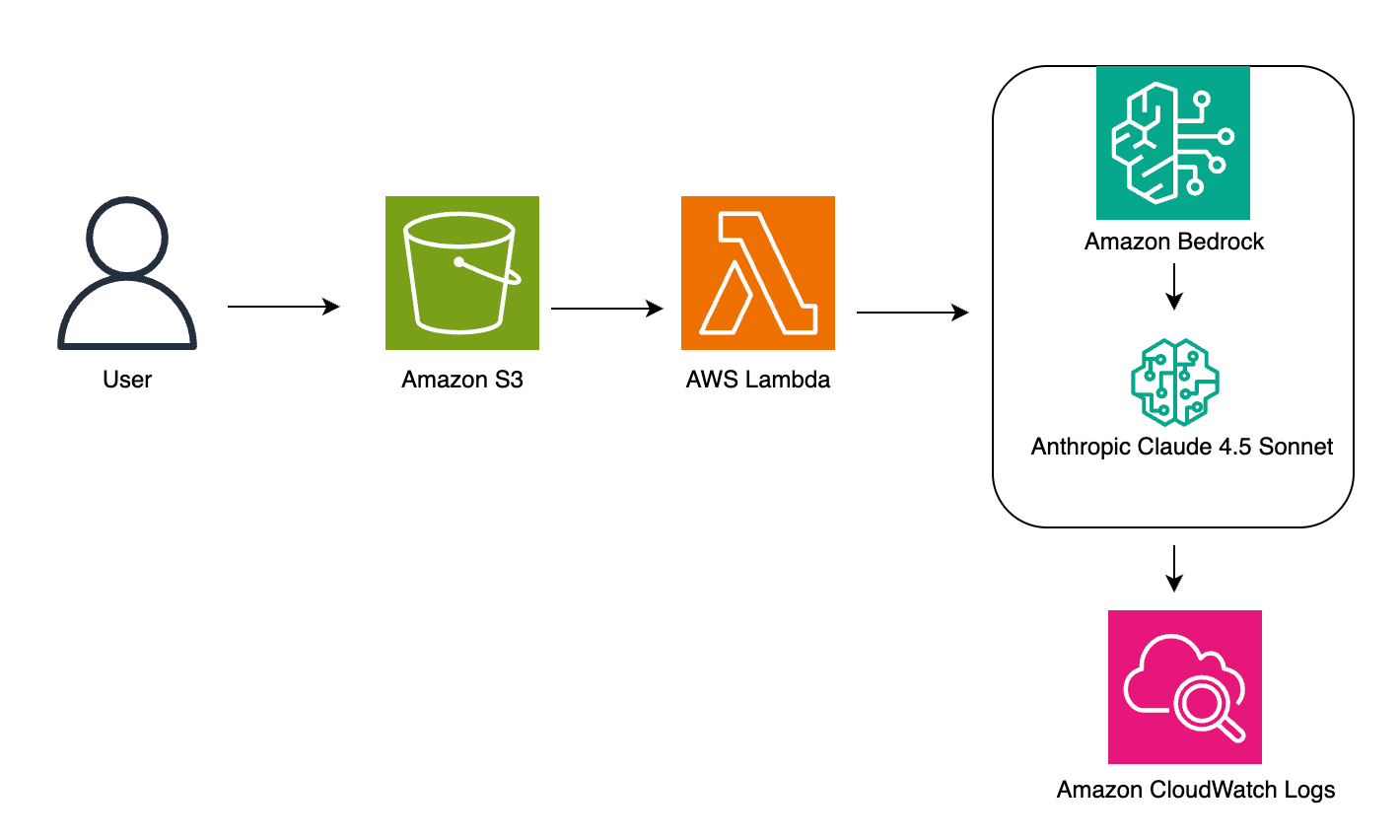
ソリューションのアーキテクチャは、シームレスなパイプラインを構築するために複数のAWSサービスを組み合わせています。処理の流れは以下の通りです:
- ユーザーが処理対象のドキュメントをAmazon S3にアップロードします。
- S3 PUTイベント通知がAWS Lambda関数を起動します。
- Lambdaがドキュメントを処理し、Amazon Bedrockに送信します。
- Amazon Bedrockがエンティティ抽出のためにAnthropic Claudeを呼び出します。
- 結果は監視のためにAmazon CloudWatchにログ出力されます。
以下の図は、これらのサービスが連携する様子を示しています:
アーキテクチャコンポーネント
- Amazon S3: 入力ドキュメントを保存します。
- AWS Lambda: ファイルアップロード時に起動され、プロンプトとデータをClaudeに送信し、結果を保存します。
- Amazon Bedrock (Claude): 入力を処理し、エンティティを抽出します。
- Amazon CloudWatch: ワークフローのパフォーマンスを監視、ログ記録します。
前提条件
- Amazon Bedrockへのアクセス権限を持つAWSアカウント
- Amazon Bedrock、AWS Lambda、Amazon S3にアクセスするためのIdentity and Access Management(IAM)権限
- PythonとJSONの基本的な知識
- Amazon BedrockにおけるClaudeモデルへのアクセス権
- Claudeモデル用のクロスリージョン推論プロファイルの設定
ステップバイステップ実装ガイド:
この実装ガイドでは、Amazon Bedrockおよび関連するAWSサービスを使用してサーバーレスドキュメント処理ソリューションを構築する方法を説明します。以下の手順に従うことで、運転免許証などのドキュメントから情報を自動的に抽出し、手動でのデータ入力を不要にして処理時間を短縮するシステムを作成できます。数件のドキュメントであれ数千件のドキュメントであれ、このソリューションは自動的にスケールしてニーズに対応し、データ抽出の一貫した正確性を維持します。
- 環境のセットアップ(10分)
a. 入力用のソースS3バケットを作成します(例:driver-license-input)。
b. IAMロールと権限を設定します:
- Lambda関数の作成(30分)
このLambda関数は、新しい画像がS3バケットにアップロードされると自動的に起動します。画像を読み取り、base64でエンコードし、Tool use APIを使用してAmazon Bedrock経由でClaude 4.5 Sonnetに送信します。
この関数は、デモンストレーション目的でextract_license_fieldsという単一のツールを定義しています。ただし、ツール名とスキーマはユースケースに基づいて定義可能です。例えば、保険証券データ、IDカード、業務用フォームの抽出などが考えられます。Claudeは、プロンプトの関連性と入力構造に基づいて、ツールを呼び出すかどうかを動的に選択します。
ツール呼び出しの判断をClaudeに委ねるため、"tool_choice": "auto"を使用しています。本番環境のユースケースでは、決定論的な動作を確保するために、"tool_choice": {"type": "tool", "name": "your_tool_name"}をハードコードすることが望ましい場合があります。
a. AWS Lambdaコンソールにアクセスします
- 「関数の作成」を選択します。
- 「一から作成」を選択します。
- ランタイムを「Python 3.12」に設定します。
- 「関数の作成」を選択します。
b. Lambdaのタイムアウト設定
- Lambda関数の設定で、「設定」タブの「一般設定」をクリックします。
- 「編集」をクリックします。
- 「タイムアウト」を、デフォルトの3秒から少なくとも30秒に増やします。大きな画像を処理する場合は1〜2分に設定することを推奨します。
- 「保存」を選択します。
注記:この調整は、高解像度画像の処理や多数のフィールド抽出において、Claudeによる画像処理にLambdaのデフォルトタイムアウト時間よりも長い時間がかかる可能性があるため重要です。特定のユースケースに合わせてこの設定を調整するため、CloudWatch Logsで関数の実行時間を監視してください。
c. lambda_function.pyコードファイルに以下のコードを貼り付けます:
原文を表示
Businesses across industries face a common challenge: how to efficiently extract valuable information from vast amounts of unstructured data. Traditional approaches often involve resource-intensive processes and inflexible models. This post introduces a game-changing solution: Claude Tool use in Amazon Bedrock which uses the power of large language models (LLMs) to perform dynamic, adaptable entity recognition without extensive setup or training.
In this post, we walk through:
- What Claude Tool use (function calling) is and how it works
- How to use Claude Tool use to extract structured data using natural language prompts
- Set up a serverless pipeline with Amazon Bedrock, AWS Lambda, and Amazon Simple Storage Service (S3)
- Implement dynamic entity extraction for various document types
- Deploy a production-ready solution following AWS best practices
What is Claude Tool use (function calling)?
Claude Tool use, also known as function calling, is a powerful capability that allows us to augment Claude’s abilities by establishing and invoking external functions or tools. This feature enables us to provide Claude with a collection of pre-established tools that it can access and employ as needed, enhancing its functionality.
How Claude Tool use works with Amazon Bedrock
Amazon Bedrock is a fully managed generative artificial intelligence (AI) service that offers a range of high-performing foundation models (FMs) from industry leaders like Anthropic. Amazon Bedrock makes implementing Claude’s Tool use remarkably straightforward:
- Users define a set of tools, including their names, input schemas, and descriptions.
- A user prompt is provided that may require the use of one or more tools.
- Claude evaluates the prompt and determines if any tools could be helpful in addressing the user’s question or task.
- If applicable, Claude selects which tools to utilize and with what input.
Solution overview
In this post, we demonstrate how to extract custom fields from driver’s licenses using Claude Tool use in Amazon Bedrock. This serverless solution processes documents in real-time, extracting information like names, dates, and addresses without traditional model training.
Architecture
Our custom entity recognition solution uses a serverless architecture to process documents efficiently and extract relevant information using Amazon Bedrock’s Claude model. This approach minimizes the need for complex infrastructure management while providing scalable, on-demand processing capabilities.
The solution architecture uses several AWS services to create a seamless pipeline. Here’s how the process works:
- Users upload documents into Amazon S3 for processing
- An S3 PUT event notification triggers an AWS Lambda function
- Lambda processes the document and sends it to Amazon Bedrock
- Amazon Bedrock invokes Anthropic Claude for entity extraction
- Results are logged in Amazon CloudWatch for monitoring
The following diagram shows how these services work together:
Architecture components
- Amazon S3: Stores input documents
- AWS Lambda: Triggers on file upload, sends prompts and data to Claude, stores results
- Amazon Bedrock (Claude): Processes input and extracts entities
- Amazon CloudWatch: Monitors and logs workflow performance
Prerequisites
- AWS account with Amazon Bedrock access
- Identity and Access Management (IAM) permissions to access Amazon Bedrock, AWS Lambda, and Amazon S3
- Basic familiarity with Python and JSON
- Access to the Claude model in Amazon Bedrock
- Set up a cross-region inference profile for Claude models
Step-by-step implementation guide:
This implementation guide demonstrates how to build a serverless document processing solution using Amazon Bedrock and related AWS services. By following these steps, you can create a system that automatically extracts information from documents like driver’s licenses, avoiding manual data entry and reducing processing time. Whether you’re handling a few documents or thousands, this solution can scale automatically to meet your needs while maintaining consistent accuracy in data extraction.
- Setting Up Your Environment (10 minutes)
Create source S3 bucket for the input (for example, driver-license-input).
- Configure IAM roles and permissions:
{
     "Version": "2012-10-17",
     "Statement": [
       {
         "Effect": "Allow",
         "Action": "bedrock:InvokeModel",
         "Resource": "arn:aws:bedrock:*::foundation-model/*", "arn:aws:bedrock:*:111122223333:inference-profile/*”
       },
       {
         "Effect": "Allow",
         "Action": "s3:GetObject",
         "Resource": "arn:aws:s3:::amzn-s3-demo-bucket/*"
       }
     ]
}- Creating the Lambda function (30 minutes) This Lambda function is triggered automatically when a new image is uploaded to your S3 bucket. It reads the image, encodes it in base64, and sends it to Claude 4.5 Sonnet via Amazon Bedrock using the Tool use API.The function defines a single tool called extract_license_fields for demonstration purposes. However, you can define tool names and schemas based on your use case — for example, extracting insurance card data, ID badges, or business forms. Claude dynamically selects whether to call your tool based on prompt relevance and input structure. We’re using “tool_choice”: “auto” to let Claude decide when to invoke the function. In production use cases, you may want to hardcode “tool_choice”: { “type”: “tool”, “name”: “your_tool_name” } for deterministic behavior.
Go to AWS Lambda console
Choose Create function.
- Select Author from scratch.
- Set runtime to Python 3.12.
- Choose Create Function.
- Configure Lambda Timeout
In your Lambda function configuration, click General Configuration tab.
- Under General Configuration, click Edit
- For Timeout, increase from default 3 seconds to at least 30 seconds. We recommend setting it to 1-2 minutes for larger images.
- Choose Save. Note: This adjustment is crucial because processing images through Claude may take longer than Lambda’s default timeout, especially for high-resolution images or when processing multiple fields. Monitor your function’s execution time in CloudWatch Logs to fine-tune this setting for your specific use case.
- Paste this code in the lambda_function.py code file:
import boto3, json
import base64

def lambda_handler(event, context):
    bedrock = boto3.client("bedrock-runtime")
    s3 = boto3.client("s3")

    bucket = event["Records"][0]["s3"]["bucket"]["name"]
    key = event["Records"][0]["s3"]["object"]["key"]
    file = s3.get_object(Bucket=bucket, Key=key)

    # Convert image to base64
    image_data = file["Body"].read()
    base64_image = base64.b64encode(image_data).decode('utf-8')

    # Define tool schema
    tools = [{
        "name": "extract_license_fields",
        "input_schema": {
            "type": "object",
            "properties": {
                "first_name": { "type": "string" },
                "last_name": { "type": "string" },
                "issue_date": { "type": "string" },
                "license_number": { "type": "string" },
                "address": {
                    "type": "object",
                    "properties": {
                        "street": { "type": "string" },
                        "city": { "type": "string" },
                        "state": { "type": "string" },
                        "zip": { "type": "string" }
                    }
                }
            },
            "required": ["first_name", "last_name", "issue_date", "license_number", "address"]
        }
    }]

    payload = {
        "anthropic_version": "bedrock-2023-05-31",
        "max_tokens": 2048,
        "messages": [{
            "role": "user",
            "content": [
                {
                    "type": "image",
                    "source": {
                        "type": "base64",
                        "media_type": "image/jpeg",
                        "data": base64_image
                    }
                },
                {
                    "type": "text",
                    "text": "Extract the driver's license fields from this image."
                }
            ]
        }],
        "tools": tools
    }

    try:
        response = bedrock.invoke_model(
            modelId="global.anthropic.claude-sonnet-4-5-20250929-v1:0",
            body=json.dumps(payload)
        )

        result = json.loads(response["body"].read())

        # Print every step for debugging
        print("1. Raw Response:", json.dumps(result, indent=2))

        if "content" in result:
            print("2. Content found in response")
            for content in result["content"]:
                print("3. Content item:", json.dumps(content, indent=2))

                if isinstance(content, dict):
                    print("4. Content type:", content.get("type"))

                    if content.get("type") == "text":
                        print("5. Text content:", content.get("text"))

                    if content.get("type") == "tool_calls":
                        print("6. Tool calls found")
                        extracted = json.loads(content["tool_calls"][0]["function"]["arguments"])
                        print("7. Extracted data:", json.dumps(extracted, indent=2))

        return {
            "statusCode": 200,
            "body": json.dumps({
                "message": "Process completed",
                "raw_response": result
            }, indent=2)
        }

    except Exception as e:
        print(f"Error occurred: {str(e)}")
        return {
            "statusCode": 500,
            "body": json.dumps({
                "error": str(e),
                "type": str(type(e))
            })
}- Deploy the Lambda Function: After pasting the code, choose the Deploy button on the left side of the code editor and wait for the deployment confirmation message. Important: Always remember to deploy your code after making changes. This ensures that your latest code is saved and will be executed when the Lambda function is triggered.
- Working with Claude Tool use schemas
Amazon Bedrock with Claude 4.5 Sonnet supports function calling using Tool use — where you define callable tools with clear JSON schemas. A valid tool entry must include:
name: Identifier for your tool (e.g. extract_license_fields)
- input_schema: JSON schema that defines required fields, types, and structure
- Example Tool use definition:
[{
  "name": "extract_license_fields",
  "input_schema": {
    "type": "object",
    "properties": {
      "first_name": { "type": "string" },
      "last_name": { "type": "string" },
      "issue_date": { "type": "string" },
      "license_number": { "type": "string" },
      "address": {
        "type": "object",
        "properties": {
          "street": { "type": "string" },
          "city": { "type": "string" },
          "state": { "type": "string" },
          "zip": { "type": "string" }
        }
      }
    },
    "required": ["first_name", "last_name", "issue_date", "license_number", "address"]
  }
}]- You can define multiple tools in the tools array. Claude selects one (or none) depending on the tool_choice value and how well the prompt matches a given schema.
Use “tool_choice” : “auto” to let Claude decide.
- Use an explicit tool name to force invocation.
"tool_choice": {
   "type": "tool",
   "name": "extract_license_fields"
}
Note: The tool_choice field is optional. If omitted, Claude defaults to “auto.”
- Configure S3 Event Notification (5 minutes)
Open the Amazon S3 console.
Select your S3 bucket.
- Click the Properties tab.
- Scroll down to Event notifications.
- Click Create event notification.
- Enter a name for the notification (e.g., “LambdaTrigger”).
- Under Event types, select PUT.
- Under Destination, select Lambda function.
- Choose your Lambda function from the dropdown.
- Click Save changes.
- Testing and Validation (15 minutes)
Supported Formats: Claude 4.5 supports image inputs in JPEG, PNG, WebP, and single-frame GIF formats. Note: While this implementation currently supports only .jpeg images, you can extend support for other formats by modifying the media_type field in the Lambda function to match the uploaded file’s MIME type.
- Size and Resolution Limits:
Max image size: 20 MB
- Recommended resolution: 300 DPI or higher
- Max dimensions: 4096 x 4096 pixels
- Images larger than this may fail to process or produce inaccurate results.
- Preprocessing Tips for Better Accuracy:
Crop the image tightly to remove noise and irrelevant sections.
- Adjust contrast and brightness to ensure text is clearly legible.
- De-skew scans and ensure text is horizontally aligned.
- Avoid low-resolution screenshots or images with heavy compression artifacts.
- Prefer white backgrounds and dark text for maximum OCR clarity.
- Upload Test Image:
Open your S3 bucket
- Upload a driver’s license image (supported formats: .jpeg, .jpg).
- Note: Ensure image is clear and readable for best results.
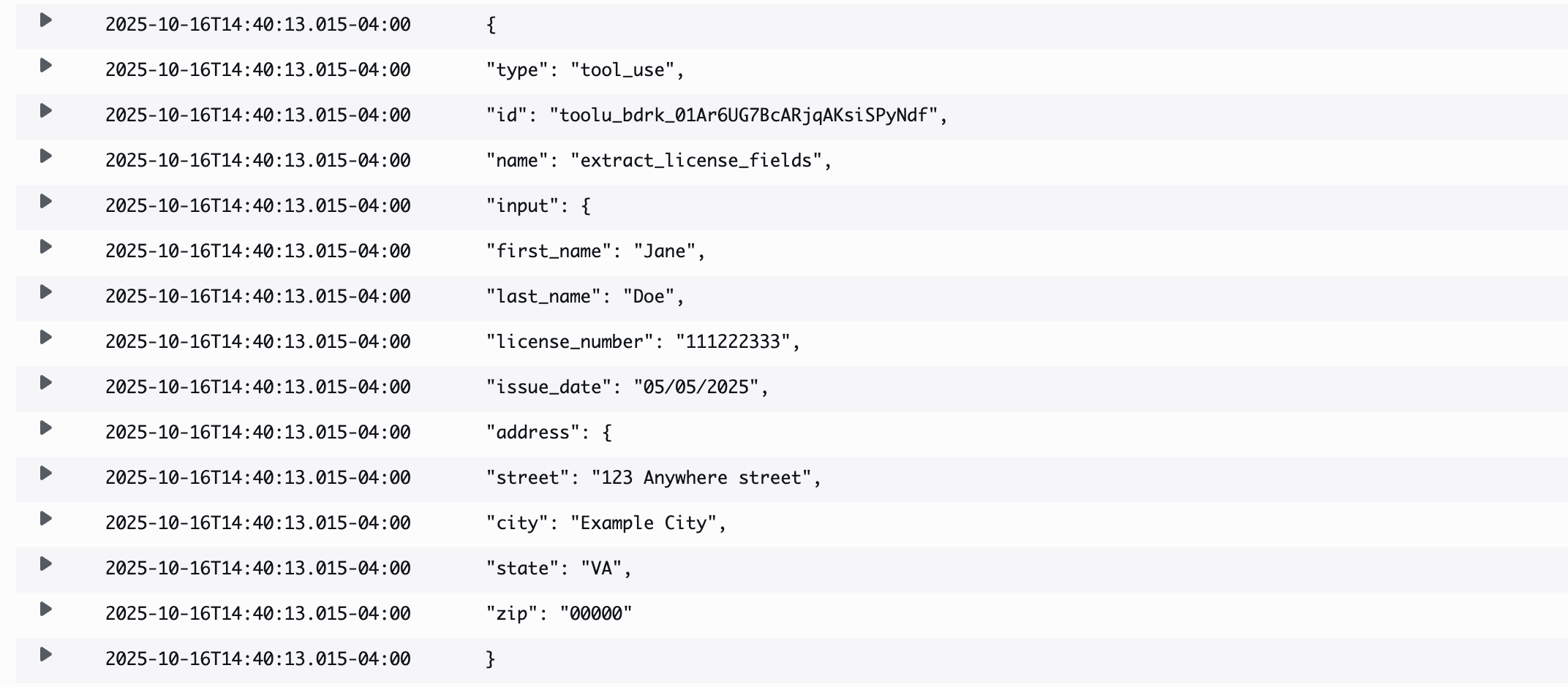
- Monitor CloudWatch Logs
Go to the Amazon CloudWatch console.
- Click on Log groups in the left navigation.
- Search for your Lambda function name invoke_drivers_license.
- Click on the latest log stream (sorted by timestamp).
- View the execution results, which shows this sample output:
{
  "type": "tool_use",
  "id": "toolu_bdrk_01Ar6UG7BcARjqAKsiSPyNdf",
  "name": "extract_license_fields",
  "input": {
        "first_name": "JANE",
        "last_name": "DOE",
        "issue_date": "05/05/2025",
        "license_number": "111222333",
        "address": {
            "street": "123 ANYWHERE STREET",
            "city": "EXAMPLE CITY",
            "state": "VA",
            "zip": "00000"
               }
           }
 }
Performance optimization
- Configure Lambda memory and timeout settings
- Implement batch processing for multiple documents
- Use S3 event notifications for automatic processing
- Add CloudWatch metrics for monitoring
Security best practices
News to Guide
ニュースの次に確認する
発表内容を、現在の料金や仕様と照らし合わせられる関連ガイドです。
今日のまとめ
AIデイリーブリーフで今日の重要ニュースをまとめ読み