各トークンからより多くを引き出す:Copilot のコンテキスト処理とモデルルーティングの改善方法
本文の状態
日本語全文を表示中
詳細モードで約13分の本文を読めます。
同じ出来事の情報源
この情報源を基点に整理
GitHub Blog
GitHub は、Copilot が計画やデバッグなど長期間にわたるエージェントタスクを遂行する際、トークンの使用効率を高めるため、コンテキストの重複削減と用途に応じた適切なモデル選択機能を強化した。
Source Article
元記事を日本語で読む
本文に関係しない購読案内、埋め込み通知、サイト内プロモーションは除いています。
Copilot が計画や編集、デバッグ、レビュー、より長いセッションにわたるツール呼び出しなど、より多くのエージェントワークを引き受けるにつれ、効率化とは単にトークン数を減らすことだけではありません。それは、トークンをどのように使うかについて賢明になることを意味します。
効率性の向上は、ターンからターンへと Copilot が繰り返す必要があるもの(コンテキスト、ツールの定義、キャッシュされた状態など)を削減することから始まります。そして、作業に適したモデルを選択することも含まれます。簡単な説明、焦点を絞った編集、複雑な複数ファイルの変更は、すべて同じように扱われるべきではありません。
私たちはこの両方に取り組んでいます:各セッションのより多くの部分がタスク自体に集中するように Copilot ハーネスを改善することと、開発者が毎回その選択をする必要なく Copilot が作業に適したモデルを選べるように Auto を拡張することです。本稿では、VS Code 用の GitHub Copilot におけるハーネスの改善点と、Copilot の各表面領域全体で Auto を拡大するための進行中の取り組みに焦点を当てます。
プロンプトキャッシングの増加とツールの遅延実行
VS Code でのより長い GitHub Copilot セッションでは、モデルのために多くの反復情報をハーネスが準備します:指示、リポジトリのコンテキスト、会話履歴、利用可能なツール、およびタスクの現在の状態です。その一部は必要ですが、他の一部はキャッシュしたり、遅延させたり、関連性が高まったときにのみ読み込んだりできます。
VS Code 用の GitHub Copilot では、2 つの改善点が主にこの役割を担っています。プロンプトキャッシングは、Copilot が繰り返し現れるプロンププ接頭辞に対してモデル状態を再利用し、毎回同じ接頭辞を再計算するのではなく効率的に処理できるようにします。ツール検索機能により、モデルは必要な時にのみツールの定義を読み込み、各ターンで完全なツールスキーマをすべてコンテキストに送信する必要がなくなります。
これはエージェントがより多くのツールを使用するようになると、その重要性が増します。セッションでは MCP ツール、ターミナルコマンド、ファイル操作、ワークスペース検索、製品固有のアクションへのアクセスが必要になる場合があります。すべての完全なツール定義を事前に読み込むと、タスクに関連するツールの数がわずかであっても、各ターンに固定コストが加算されてしまいます。ツール検索を使用すれば、Copilot は利用可能なツールセットを広範囲に保ちつつ、モデルに送信する不要なツールスキーマの量を減らすことができます。
プロンプトキャッシングやキャッシュ制御ブレークポイント、プロバイダー固有のツール検索、そしてこれらの変更が長時間実行されるエージェントセッションでどのように機能するかを含む、実装の詳細な技術解説については、VS Code の技術的深掘り記事をご覧ください。
GitHub Copilot の自動モデル選択の位置づけ
Auto は、"今このタスクに最適なモデルはどれか?" という実践的な問いに答えます。
最初のプロンプトの後、Copilot はタスクの意図と現在のモデルの健全性を基に、そのタスクに最も適したモデルを選択します。クイックな説明、集中的な編集、複数ファイルの変更など、異なる種類の作業にはすべて同じレベルの推論能力が必要とは限らないため、Auto はユーザーがモデル設定を調整する必要なく、最適な判断を下します。
評価において、単一のモデルがすべてのタスクで一貫して最良の性能を発揮することはありませんでした。多くの場合、より効率的なモデルで同じ結果に達することができ、強力なモデルが最も重要となるのは、深い推論を必要とするタスクの場合です。Auto は、どこで強い推論が結果を改善するかを学習します。タスクが必要とする場合は上流へルーティングし、そうでない場合はより効率的な状態を維持します。目標は品質とコストのトレードオフを行うことではなく、作業に最も適したモデルを使用することです。
どのようにして Auto が適切なモデルを選択するか
Auto は 2 つのシグナルを組み合わせています:現在健康で利用可能なモデルが何であるか、そして Copilot にどのような作業を依頼されているかという点です。
リアルタイムのモデルヘルス:動的エンジンがモデルの利用可能性、利用率、速度、エラー率、コストを追跡します。あるモデルがタスクを処理する能力を持っていても、それがその瞬間に最良の選択であるとは限りません。Auto は現在のシステム状況を考慮し、Copilot が能力がありかつ応答準備ができているモデルへルーティングできるようにしています。
HyDRA を用いたタスク認識型ルーティング:推論深度、コードの複雑さ、デバッグの難易度、ツールオーケストレーションの必要性などの要因を考慮するルーティングモデルです。HyDRA はタスクの品質基準を満たすことができるモデルを特定し、その中から最も適したモデルを選択します。
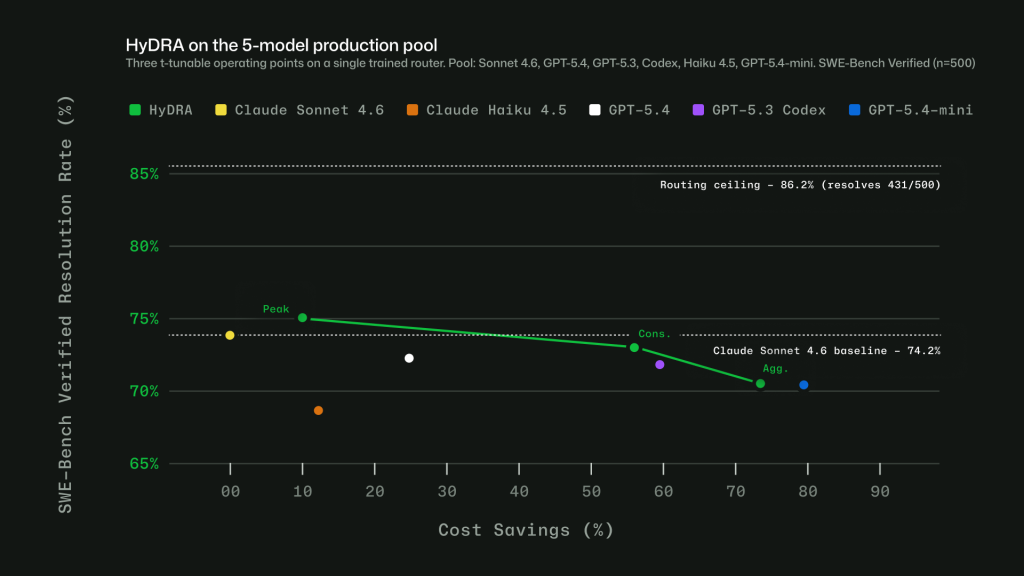 image図 1:3 つの HyDRA 動作点は調整可能性を示しています。(ピーク)は Sonnet を上回る 12.9% の節約を実現し、(集約型)は 72.5% の節約で品質をバランスさせます。
図2:HyDRA(Cons.)は、OpenRouter Autoの解決率(70.8%)と同等の結果を達成しつつ、コストは3.3倍削減しています。HyDRA(Agg.)は、Azure Foundryの両方の運用モードを上回っています。
これらのシグナルを総合的に活用することで、Auto は「一つのアプローチですべてを解決する」という画一的な手法を回避できます。重要なのは、すべてのタスクを最大規模のモデルに送るでも、すべてのタスクを最安値のモデルに送るでもなく、作業内容に適したモデルを選択することです。
実務における Auto の活用
評価においてルーティングを正しく行うことは問題の一部に過ぎません。Auto を実際のワークフローで有用なものとするためには、開発者が実際に Copilot をどのように利用しているかを考慮する必要があります。具体的には、会話の長さが伸びること、コンテキストが蓄積すること、タスクが変化すること、そして開発者が多言語で作業を行うことなどです。
キャッシュを認識したルーティング。ターンごとにモデルを切り替えることは柔軟に見えるかもしれませんが、効率性にとっては逆効果になる可能性があります。会話が同じモデルに留まる場合、プロンプトのプレフィックス(先頭部分)をキャッシュして再利用できるため、ターン間でコストを抑えられます。しかし、会話中にモデルを切り替えるとこのキャッシュが破棄され、ルーティングの変更で得られる節約分以上のコストがかかる恐れがあります。Auto はこれを回避するため、キャッシュの自然な境界点でのみルーティングを行います。具体的には、キャッシュを失うリスクがない最初のターンと、Copilot が過去のターンを要約してプロンプトプレフィックスがリセットされるコンパクション(圧縮)処理の後です。これらのポイントの間は、選択されたモデルを固定し続けることで、キャッシュの蓄積を継続させます。
言語間ルーティング。Copilot は世界中の開発者を支援しているため、ルーティングは英語以外の言語でも機能する必要があります。私たちは、CJK(中国語・日本語・韓国語)、ヨーロッパ諸語などを含む 16 の言語系統にわたる会話データを用いてルーティングモデルを訓練しました。評価では、各言語グループにおいて、ルーティングの精度は英語ベースラインから 4 ポイント以内にとどまり、統計的に有意な品質の差は見られませんでした。
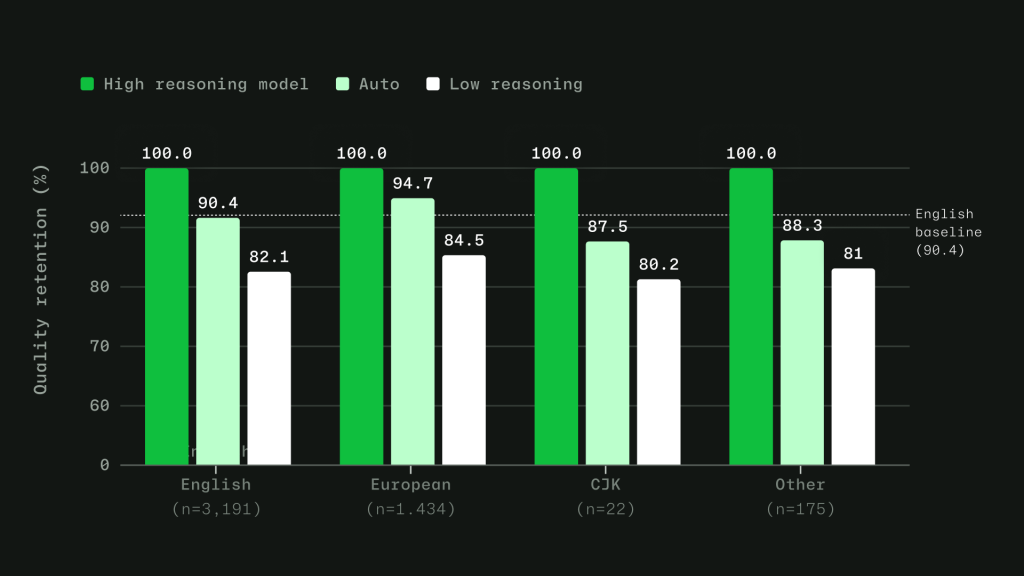 image図 3: インテリジェントなルーティングは英語ベースラインから 4 ポイント以内にとどまる。英語、ヨーロッパ諸語、CJK(中国語・日本語・韓国語)、その他の文字体系にわたるモデル評価は、19 の言語にまたがる本番環境の VS Code チャットテレメトリデータからサンプリングされた保持済み評価セットに基づいています。
エスカレーションが必要な場面を学習する。タスクを単に「簡単」または「難しい」とラベル付けするのではなく、私たちはルーティングモデルが実際にどの時点でモデル間で差が生じるかを学べるように訓練しました。各トレーニングクエリに対して、能力の低いモデルと高いモデルからの回答を、品質の次元ごとに評価します。これにより、より強力なモデルが価値を加える場面と、より効率的なモデルで同等の結果が得られる場面をルーティングモデルが学習します。長いエージェントセッションにおける文脈依存メッセージについては、元のユーザー意図、直近のアシスタント回答、会話メタデータを含む完全な多ターン会話を対象にルーティングモデルを訓練しています。
タスクの意図に基づく自動処理の拡大
タスク意図を考慮した Auto はすでに Visual Studio Code、github.com、およびモバイル版で利用可能です。これにより、コーディング、デバッグ、計画策定、ツール使用など、あなたが何に取り組んでいるかについて Copilot により多くのシグナルが提供され、タスクに応じた最適なモデル選択が可能になります。
私たちは引き続き Copilot 全体でこの体験を拡大しています。次は、タスク意図を考慮した Auto をより多くのインターフェースに導入し、チームが Auto をデフォルトとして設定できる方法をさらに追加します。
タスク意図を考慮した Auto は、Copilot CLI、GitHub App、およびその他の IDE にも登場します。
Copilot Free および Student プランは簡素化され、Auto が唯一のモデル選択オプションとして活用されます。
管理者コントロールにより、組織が Auto をデフォルトに設定したり、唯一のオプションとして強制したりできるようになります。
AI クレジットからより多くの価値を引き出す
Copilot はデフォルトでより効率的になっていますが、いくつかの習慣を心がけることで、クレジットをより長く活用できます。
まずは Auto から始めましょう。Auto は、毎回手動でモデルを選択する必要なく、あなたが何を行おうとしているかに基づいて最適なモデルを選定するため、多くのタスクに対する強力なデフォルトです。
コンテキストに焦点を当てて保ちましょう。タスクを切り替えるときは新しいセッションを開始し、必要に応じて長時間実行されるセッションをコンパクトにし、関連するコードがどこにあるかを既に知っている場合は、Copilot に使用してほしいファイルを明示してください。不必要なコンテキストを減らすことで、セッションの多くを実際の作業に充てることができます。
セッション中にモデルや設定を変更しないでください。モデル、推論レベル、コンテキストサイズ、またはツール構成を切り替えると、キャッシュの再利用が破損し、Copilot がコンテキストを再構築する原因となります。望むようにセッションを設定したら、関連する作業はまとめて行いましょう。
並列化を行う前に計画を立ててください。大規模なタスクの場合、まず Copilot に計画を立てさせるよう依頼してください。並列エージェントは、作業が本当に分割可能な場合に有用ですが、同時にクレジットも消費するため、意図的に使用するようにしましょう。
必要なツールのみを使用してください。ツールや MCP サーバーは強力ですが、広範なツールセットは余分なコンテキストを追加する可能性があります。タスクに関連するものを有効にし、不要なものは無効にしてください。GitHub Copilot のエージェントファインダーをチェックして、ツールの使用を効率化しましょう。
利用状況を確認してください。AI 利用ページでは、機能やモデル間でクレジットがどこに使われているかを確認できます。Copilot CLI では、セッションレベルの利用状況も確認できるため、作業中に高コストなパターンを特定するのに役立ちます。
完全なガイドについては、「AI クレジットを最大限に活用する方法」をご覧ください。
始めましょう
自動モデル選択は、現在サポートされているすべての Copilot 体験で利用可能です。詳しくは「自動モデル選択ドキュメント」をご覧ください。また、Copilot のディスカッションフィードバックでも意見を共有できます。
システム全体を通じて Copilot をより効率的にし、個々のモデル選択を自分で調整する必要なく、クレジットの多くが有用な作業に充てられるように継続して改善しています。
「各トークンからより多くの価値を引き出す:Copilot がコンテキスト処理とモデルルーティングをどのように改善したか」という記事は、GitHub Blog で最初に公開されました。
原文を表示
As Copilot takes on more agentic work, from planning and editing to debugging, reviewing, and calling tools across longer sessions, efficiency means more than using fewer tokens. It means being smarter about how you use them.
Increasing efficiency starts with reducing what Copilot has to repeat from turn to turn, including context, tool definitions, and cached state. It continues with choosing the right model for the job. A quick explanation, a focused edit, and a complex multi-file change should not all be treated the same way.
We are working on both: improving the Copilot harness so more of each session goes toward the task itself, and expanding Auto so Copilot can pick the model that fits the work without asking developers to make that choice every time. This post focuses on harness improvements in GitHub Copilot for VS Code and on ongoing work to expand Auto across Copilot surfaces.
Increased prompt caching and deferred tools
In longer GitHub Copilot sessions in VS Code, the harness prepares a lot of recurring information for the model: instructions, repository context, conversation history, available tools, and the current state of the task. Some of that context is needed. Some of it can be cached, deferred, or loaded only when it becomes relevant.
Two improvements in GitHub Copilot for VS Code are doing most of the work here. Prompt caching helps Copilot reuse model state for repeated prompt prefixes instead of recomputing the same prefix on every request. Tool search lets the model load tool definitions on demand, instead of sending every full tool schema into context on every turn.
That matters more as agents use more tools. A session may need access to MCP tools, terminal commands, file operations, workspace search, and product-specific actions. Loading every full tool definition up front adds fixed cost to each turn, even when only a small number of tools are relevant to the task. With tool search, Copilot can keep the available toolset broad while sending less unnecessary tool schema into the model.
For a deeper technical look at the implementation, including prompt caching, cache-control breakpoints, provider-specific tool search, and how these changes work across long-running agentic sessions, read the VS Code technical deep dive.
Where GitHub Copilot auto model selection fits in
Auto answers a practical question: which model is the best fit for this task right now?
After your first prompt, Copilot uses task intent and current model health to choose a model that best fits the task. Different kinds of work, like quick explanations, focused edits, or multi-file changes, do not all benefit from the same level of reasoning, so Auto makes that call without requiring you to tune model settings.
In our evaluations, no single model consistently performed best across tasks. In many cases, a more efficient model reached the same outcome, while stronger models mattered most when the task required deeper reasoning. Auto learns where stronger reasoning improves the result. It routes up when the task demands it and stays more efficient when it does not. The goal is not to trade quality for cost, but to use the model that best fits the work.
How Auto selects the right model
Auto combines two signals: what model is healthy and available right now, and what kind of work Copilot is being asked to do.
Real-time model health: a dynamic engine tracks model availability, utilization, speed, error rates, and cost. A model may be capable of handling a task, but that does not mean it is the best choice at that moment. Auto takes current system conditions into account so Copilot can route to a model that is both capable and ready to respond.
Task-aware routing with HyDRA: a routing model that considers factors like reasoning depth, code complexity, debugging difficulty, and tool orchestration needs. HyDRA identifies models that can meet the quality bar for the task, then chooses the best fit among them.
imageFigure 1: Three HyDRA operating points illustrate tunability: (Peak) exceeds Sonnet at 12.9% savings; (Agg.) balances quality for 72.5% savings.
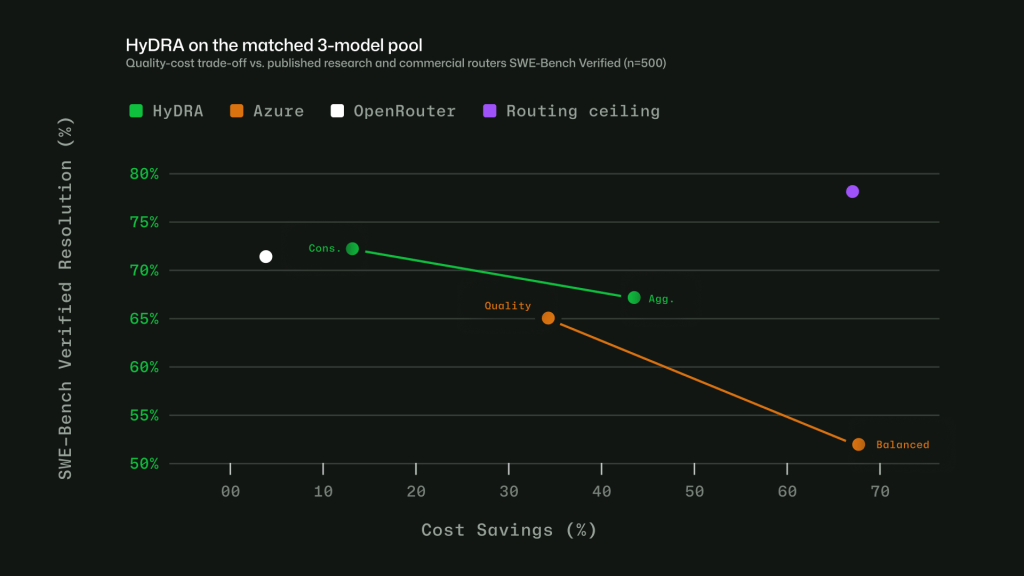 imageFigure 2: HyDRA (Cons.) ties OpenRouter Auto on resolution rate (70.8%) at 3.3x the savings. HyDRA (Agg.) outperforms both Azure Foundry operating modes.
Taken together, these signals let Auto avoid a one-size-fits-all approach. The point is not to send every task to the biggest model, or every task to the cheapest one. It is to choose the model that fits the work.
Making Auto work in practice
Getting routing right in evaluations is only part of the problem. To make Auto useful in real workflows, we also had to account for how developers actually use Copilot: conversations get longer, context builds up, tasks shift, and developers work in many languages.
Cache-aware routing. Switching models on every turn may sound flexible, but it can work against efficiency. When a conversation stays on the same model, the prompt prefix can be cached and reused across turns. Switching models mid-conversation breaks that cache, which can cost more than the routing change saves. Auto avoids that by routing at natural cache boundaries: on the first turn, when there is no cache to lose, and after compaction, when Copilot summarizes older turns and the prompt prefix resets. Between those points, the selected model stays in place so the cache can keep building.
Routing across languages. Copilot serves developers around the world, so routing has to work in languages other than English. We trained the routing model on conversations across 16 language families, including CJK, European, and others. In evaluations, routing accuracy stayed within four points of the English baseline across language groups, with no statistically significant quality gap.
imageFigure 3: Intelligent routing stays within 4 points of English baseline. Model evaluations across English, European, CJK, and other script families, based on a held out evaluation set sampled from production VS Code chat telemetry across 19 languages.
Learning when escalation matters. Instead of labeling tasks as simply “easy” or “hard,” we trained the router to learn where models actually diverge. For each training query, responses from a less capable model and a more capable model are scored across quality dimensions. The router learns when the stronger model adds value, and when a more efficient model can produce an equally good result. For context-dependent messages in longer agentic sessions, the router is trained on complete multi-turn conversations, including the original user intent, recent assistant responses, and conversation metadata.
Auto with task intent is expanding
Auto with task intent is already live in Visual Studio Code, github.com, and mobile. It gives Copilot more signal about the kind of work you are doing, whether that is coding, debugging, planning, or using tools, so it can make a better model choice for the task.
We are continuing to expand that experience across Copilot. Next, we are bringing Auto with task intent to more surfaces and adding more ways for teams to make Auto the default.
Auto with task intent is coming to Copilot CLI, GitHub App, and additional IDEs.
Copilot Free and Student plans will be simplified to leverage Auto as the only model selection option.
Admin controls will let organizations set Auto as the default or enforce Auto as the only option.
Getting more value from your AI credits
Copilot is getting more efficient by default, but a few habits can help your credits go further.
Start with Auto. Auto is the strong default for many tasks because it chooses a model based on what you are trying to do, without making you pick one manually every time.
Keep context focused. Start a new session when you switch tasks, compact long-running sessions when needed, and mention the files you want Copilot to use when you already know where the relevant code lives. Less unnecessary context means more of the session goes toward the actual work.
Avoid changing models or settings mid-session. Switching models, reasoning levels, context size, or tool configuration can break cache reuse and make Copilot rebuild context. Set up the session the way you want it, then keep related work together.
Plan before parallelizing. For larger tasks, ask Copilot to plan first. Parallel agents can be useful when work can truly be split up, but they also consume credits in parallel, so use them deliberately.
Use only the tools you need. Tools and MCP servers are powerful, but broad toolsets can add extra context. Enable what is relevant to the task and turn off what you do not need. Check out agent finder in GitHub Copilot to help streamline your tool usage.
Check your usage. Your AI usage page shows where credits are going across features and models. In Copilot CLI, session-level usage can also help you spot expensive patterns while you work.
For the full guide, see How to get more out of your AI credits.
Get started
Auto model selection is available today across supported Copilot experiences. To learn more, see the Auto model selection docs. You can also share feedback in Copilot discussions.
We are continuing to make Copilot more efficient across the system so more of your credits go toward useful work, without requiring you to tune every model choice yourself.
The post Getting more from each token: How Copilot improves context handling and model routing appeared first on The GitHub Blog.
関連記事
News to Guide
ニュースの次に確認する
発表内容を、現在の料金や仕様と照らし合わせられる関連ガイドです。
今日のまとめ
AIデイリーブリーフで今日の重要ニュースをまとめ読み