Qwen3.8-27B を Ollama と OpenCode でローカル AI コーディングエージェントとして実行
本文の状態
日本語全文を表示中
詳細モードで約5分の本文を読めます。
同じ出来事の情報源
この情報源を基点に整理
KDnuggets
Qwen3.8-27B、Ollama、OpenCode を組み合わせることで、複雑な環境構築なしにローカル AI コーディングエージェントを数コマンドで起動する方法が示される。
AI深層分析を開く2026年8月19日 01:12
AI深層分析
キーポイント
簡易セットアップの実現
従来の複雑な推論サーバー設定やエンドポイント構成を必要とせず、3 つのコマンドだけで Qwen3.8-27B をローカル AI コーディングエージェントとして起動できる。
推奨ハードウェア要件
モデルサイズが約 18GB であるため、VRAM が 24GB の GPU(例:RTX 3090)での完全なローカル実行を推奨し、不足時はシステム RAM との併用で動作する。
モデルの能力と用途
Qwen3.8-27B はコーディング、推論、ツール使用、長期ホライズンのエージェントタスクに強く、大規模なローカルコードベースでの作業に適している。
Ollamaのインストールとモデルのダウンロード
curlコマンドでOllamaをインストールし、ollama serve & ollama pull qwen3.8:27bを実行してサーバーを起動しモデルを取得する。この際、最初のターミナルはログ確認のため開いておく必要がある。
OpenCodeでのQwen3.8-27Bの起動
新しいターミナルでollama launch opencode --model qwen3.8:27bを実行すると、OpenCodeが自動的に起動してTUIが表示される。未インストールの場合はOllamaが自動でインストールを促す。
重要な引用
Running a capable 27B model as a local AI coding agent used to mean setting up inference servers, configuring endpoints, and connecting everything manually.
Qwen3.8-27B is strong at coding, reasoning, tool use, and long-horizon agentic tasks
In this guide, we will turn Qwen3.8-27B into a local AI coding agent using only three command lines in the terminal
Keep this terminal open so you can also see the server logs when the model starts running.
編集コメントを表示
編集コメント
記事は特定のモデルとツールの組み合わせによる実用性を強調しており、ローカル AI の民主化を後押しする具体的な手順を示している。技術的な詳細が省略されている部分もあるが、導入の第一歩として非常に有用なガイドラインとなっている。
Source Article
元記事を日本語で読む
本文に関係しない購読案内、埋め込み通知、サイト内プロモーションは除いています。
以前、能力の高い 27B モデルをローカル AI コーディングエージェントとして動かすには、推論サーバーのセットアップやエンドポイントの設定を手動で行い、すべてを接続する必要がありました。しかし、Qwen3.8-27B、Ollama、そして OpenCode を組み合わせることで、そのプロセスは驚くほどシンプルになりました。
Qwen3.8-27B は、私が最も試してみたいと考えているローカルモデルの一つです。このモデルは コーディング、推論、ツール利用、そして長期にわたるエージェントタスク において非常に強力であり、複雑なプロジェクトや大規模なローカルコードベースの処理に適しています。
本ガイドでは、ターミナルで コマンドをたった3つ実行するだけで Qwen3.8-27B をローカル AI コーディングエージェントとして起動する方法 を解説します。Ollama のインストール、モデルのダウンロード、OpenCode での直接起動を行い、GPU で動作していることをすぐに確認できます。
始める前に:ハードウェアの確認
Qwen3.8-27B は大規模なモデルであるため、まずお使いのマシンに十分なリソースがあるか確認してください。
Linux または NVIDIA ドライバーがインストールされた Windows では、以下のコマンドを実行します。
nvidia-smi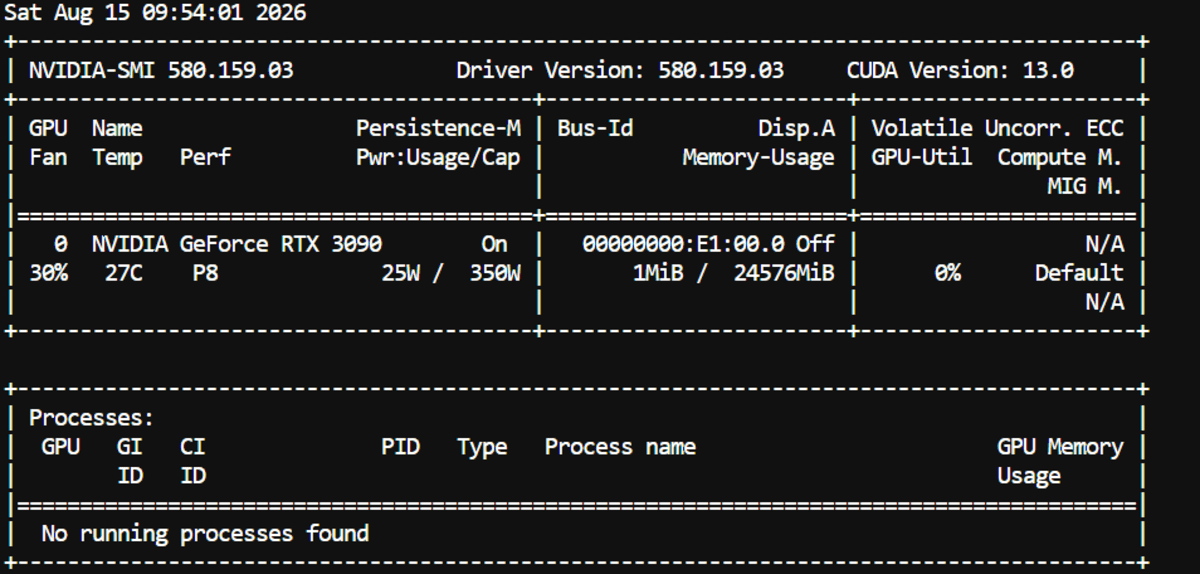
本ガイドでは、VRAM 24GB を搭載した RTX 3090 を使用します。Ollama の Qwen3.8-27B モデルは約 18GB なので、GPU に完全に収まり、コンテキストやランタイムのオーバーヘッド用に余裕も確保できます。
一般的な目安として、モデルの大半または全部を GPU 上に維持したい場合は、VRAM が 24GB あることが望ましい目標です。ただし、コンテキストウィンドウを広げると、さらに多くのメモリが必要になります。
もし GPU の VRAM が不足している場合でも、Ollama はモデルを GPU の VRAM とシステム RAM の間 に分割して動作させることができます。それでも利用は可能ですが、生成速度は低下します。
特にモデルの一部を GPU からオフロードする必要がある場合は、システム RAM を最低 32GB 用意しておくことをお勧めします。
これでハードウェアの準備が整いました。あとは Ollama のインストール、Qwen3.8-27B のダウンロード、そして OpenCode 内での起動を、ターミナルでたった 3 つのコマンドを実行するだけで完了できます。
1. Ollama のインストール
まず、モデルのローカルでのダウンロードと提供を担当する Ollama をインストールします。
curl -fsSL https://ollama.com/install.sh | sh
2. Ollama の起動と Qwen3.8-27B のダウンロード
次に、バックグラウンドで Ollama サーバーを起動し、Qwen3.8-27B モデルをダウンロードします。
ollama serve & ollama pull qwen3.8:27b
これでローカルの Ollama サーバーが起動し、モデルファイルのダウンロードが始まります。モデルの実行時にサーバーログも確認できるよう、このターミナルは閉じずに置いておいてください。
3. OpenCode で Qwen3.8-27B を起動する
新しいターミナルを開き、Qwen3.8-27B が既に選択された状態で OpenCode を起動します。
ollama launch opencode --model qwen3.8:27b
もし OpenCode がまだインストールされていない場合、Ollama から先にインストールするよう促されます。
インストールが完了すると、Qwen3.8-27B が選択された状態でOpenCode の TUI(ターミナルユーザーインターフェース)が開きます。ここから、コーディングのタスクを指示するだけで大丈夫です。
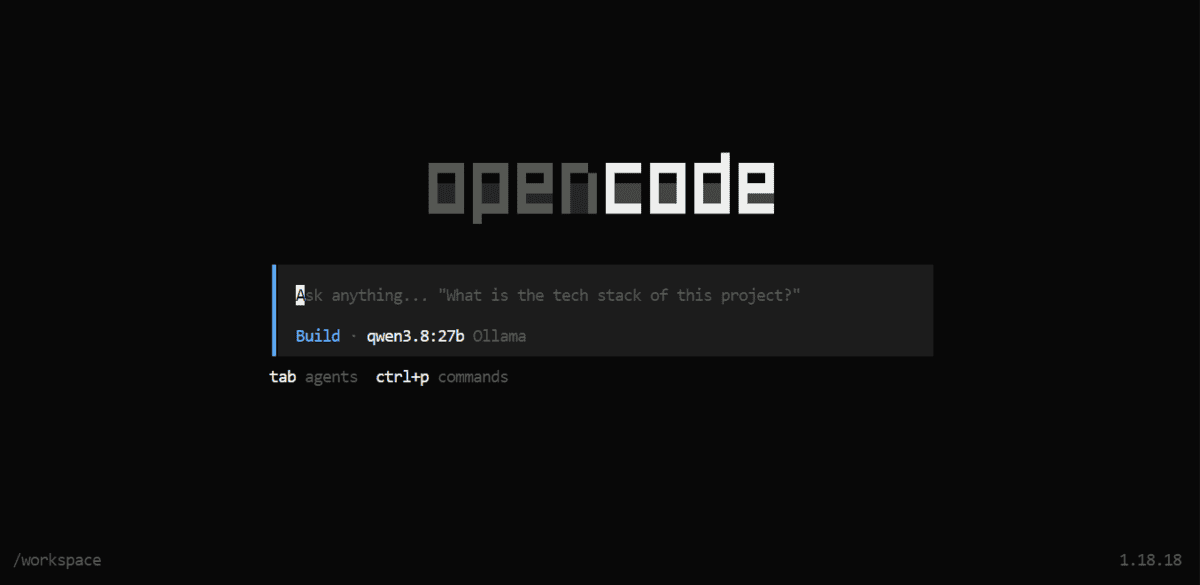
私のテストでは、簡単な Python アプリの作成を依頼しました。最初のリクエスト時は Ollama がメモリにモデルを読み込む必要があるため、少し時間がかかります。この様子は最初のターミナルで確認できます。

読み込みが完了すると、生成速度は非常に速くなります。
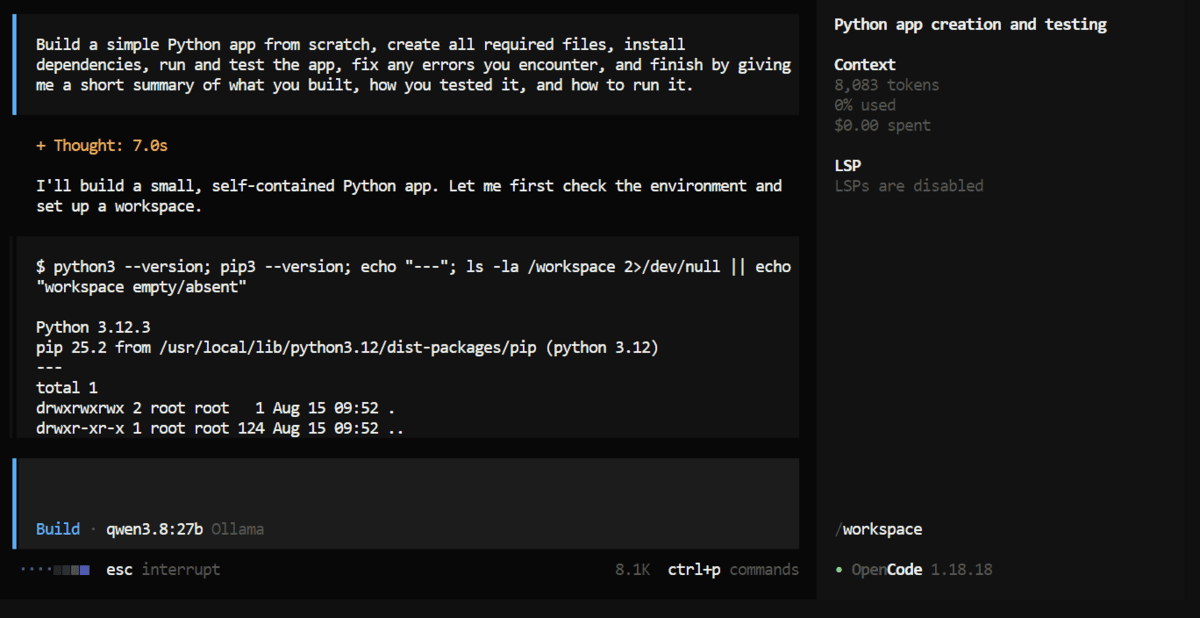
私のテストでは、この環境はアプリケーションの構築とテストを完了し、2 分未満で詳細なプロジェクトサマリーを返しました。
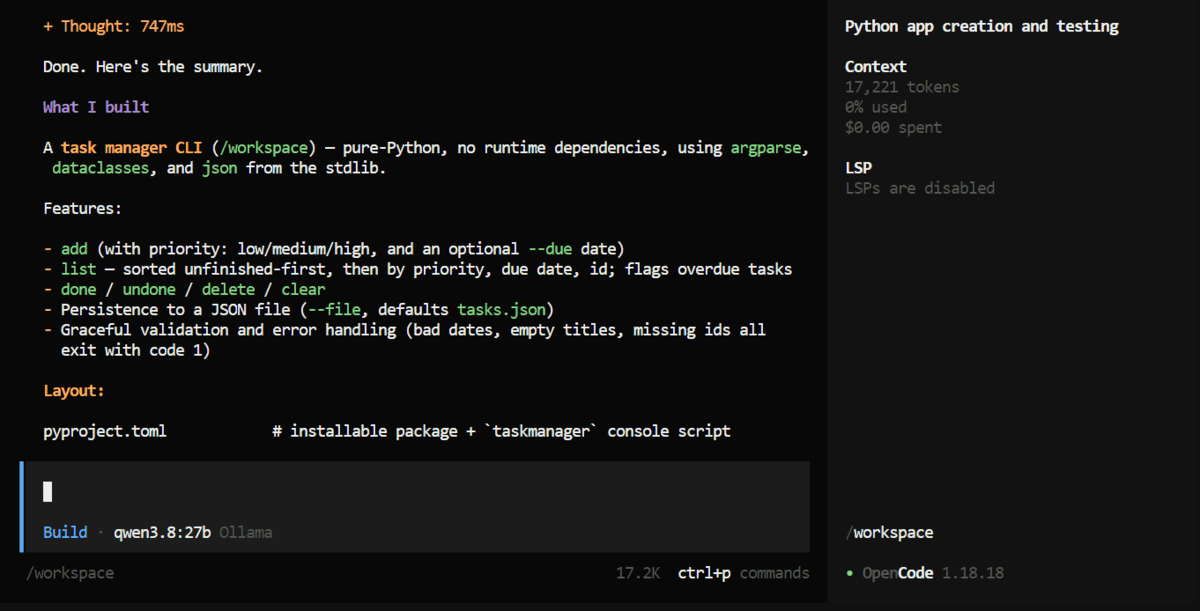
以上です。ローカルモデルの管理は Ollama が、エージェントとしてのコーディング環境は OpenCode がそれぞれ担っています。
総括
llama.cpp を好む方もいるでしょう。推論やパフォーマンスチューニング、量子化、高度な機能などについて深い制御が可能だからです。しかし、今回のガイドの主旨はそこではありません。
このセットアップは、ソースから llama.cpp をビルドしたり、サーバーを設定したり、長いコマンドライン引数で悩んだりすることなく、強力なローカルコーディングモデルを体験したい初心者や非技術者向けに設計されています。
たった3 つのコマンドを実行するだけで、Ollama のインストール、Qwen3.8-27B のダウンロードと実行、そして OpenCode 内での直接起動が可能です。
これで完了です。数分でゼロから完全なローカル AI コーディングエージェントを構築できます。
原文を表示
Running a capable 27B model as a local AI coding agent used to mean setting up inference servers, configuring endpoints, and connecting everything manually. With Qwen3.8-27B, Ollama, and OpenCode, the process is now remarkably straightforward.
Qwen3.8-27B is one of the local models I have been most excited to try. It is strong at coding, reasoning, tool use, and long-horizon agentic tasks, making it a great fit for working with complex projects and large local codebases.
In this guide, we will turn Qwen3.8-27B into a local AI coding agent using only three command lines in the terminal. We will install Ollama, download the model, launch it directly in OpenCode, and quickly verify that it is running on the GPU.
Before You Start: Checking Your Hardware
Qwen3.8-27B is a large model, so first make sure your machine has enough resources.
On Linux or Windows with NVIDIA drivers installed, run:
nvidia-smiFor this guide, we are using an RTX 3090 with 24 GB of VRAM. Ollama's Qwen3.8-27B model is around 18 GB, so it can fit entirely on the GPU while leaving some VRAM for the context and runtime overhead.
As a general rule, 24 GB of VRAM is a good target if you want to keep most or all of the model on the GPU. Increasing the context window will require additional memory.
If your GPU does not have enough VRAM, Ollama can split the model between GPU VRAM and system RAM. It will still work, but generation will be slower.
I would recommend at least 32 GB of system RAM, especially if part of the model needs to be offloaded from the GPU.
Now that the hardware is ready, we can install Ollama, download Qwen3.8-27B, and launch it inside OpenCode using just three terminal commands.
1. Installing Ollama
First, install Ollama, which will handle downloading and serving the model locally.
curl -fsSL https://ollama.com/install.sh | sh2. Starting Ollama and Downloading Qwen3.8-27B
Next, start the Ollama server in the background and download the Qwen3.8-27B model.
ollama serve & ollama pull qwen3.8:27bThis starts the local Ollama server and then downloads the model files. Keep this terminal open so you can also see the server logs when the model starts running.
3. Launching Qwen3.8-27B in OpenCode
Open a new terminal and launch OpenCode with Qwen3.8-27B already selected as the model.
ollama launch opencode --model qwen3.8:27bIf OpenCode is not installed yet, Ollama will prompt you to install it first.
Once the installation is complete, the OpenCode TUI will open with Qwen3.8-27B selected. From here, you can simply give it a coding task.
For my test, I asked it to build a simple Python application. On the first request, the model takes a little longer because Ollama has to load it into memory. You can watch this happen in the first terminal.
Once loaded, generation speed is impressive.
In my test, it built the application, tested it, and returned a detailed project summary in under two minutes.
That's it. Ollama handles the local model, while OpenCode provides the agentic coding environment.
Final Thoughts
I know some people will prefer llama.cpp because it gives you much deeper control over inference, performance tuning, quantization, and advanced features. But that is not really the point of this guide.
This setup is for beginners and non-technical users who simply want to experience a powerful local coding model without building llama.cpp from source, configuring servers, or figuring out long command-line arguments.
With just three commands, you install Ollama, download and run Qwen3.8-27B, and launch it directly inside OpenCode.
That is it. You can go from nothing to a fully local AI coding agent in just a few minutes.
Abid Ali Awan (@1abidaliawan) is a certified data scientist professional who loves building machine learning models. Currently, he is focusing on content creation and writing technical blogs on machine learning and data science technologies. Abid holds a Master's degree in technology management and a bachelor's degree in telecommunication engineering. His vision is to build an AI product using a graph neural network for students struggling with mental illness.
関連記事
News to Guide
ニュースの次に確認する
発表内容を、現在の料金や仕様と照らし合わせられる関連ガイドです。
今日のまとめ
AIデイリーブリーフで今日の重要ニュースをまとめ読み