Amazon Quick、アプリケーションに埋め込むチャットをカスタマイズ可能に
本文の状態
日本語全文を表示中
詳細モードで約15分の本文を読めます。
同じ出来事の情報源
この情報源を基点に整理
AWS Machine Learning Blog
AWS は Amazon Quick の組み込みチャット機能に対するビジュアルテーマとトーンのカスタマイズ方法を公開し、企業ブランドに合わせた一貫した体験を提供する技術的アプローチを解説している。
AI深層分析を開く2026年8月19日 02:47
AI深層分析
キーポイント
カスタマイズの二大要素
組み込みチャットのカスタマイズは、企業のブランドガイドラインに沿ったビジュアルテーマと、組織の個性を反映したトーンという2つの主要領域に分類される。
iframe 制約への対応
チャットが iframe 内でレンダリングされるため内部要素を直接スタイル変更できない場合、コンテナとレイアウトの CSS を制御し、SDK のフレームオプションでデフォルトブランド要素を除去する。
一貫した体験の実現
汎用的なチャットインターフェースが外部ツールのように見える不整合を解消し、アプリケーションの自然な一部として統合された branded experience を提供できる。
iframe の動作制御と機能拡張
frameOptions パラメータを用いて、カスタム CSS クラスの適用や読み込み時のプレースホルダー表示を可能にする。また、クリップボードアクセス権限を付与することで、ユーザーが回答のコピーや入力への貼り付けを行えるようにする。
アプリケーションデザインに合わせたコンテナスタイリング
チャットを固定されたサイドパネルとして配置し、アニメーションやシャドウ、ヘッダーのグラデーションを適用して既存のデザインシステムに統合する。カスタムクラス名を指定することで、iframe 自体の角丸処理など細部の調整も可能である。
重要な引用
"The chat interface must look and feel like a natural part of your application, not an external addition."
"Customization requirements typically fall into two key areas. The first is visual theming to match the company's brand... The second is tone to match the company's voice."
Apply a custom CSS class directly to the iframe element.
Enable clipboard access so users can copy responses or paste content into the chat input.
編集コメントを表示
編集コメント
本記事は、単なる機能追加ではなく、AI ツールを既存の業務システムにシームレスに統合するための重要な設計指針を示している。開発者は iframe の制約を理解した上で、CSS と SDK オプションを組み合わせて最適なカスタマイズを実現する必要がある。
Source Article
元記事を日本語で読む
本文に関係しない購読案内、埋め込み通知、サイト内プロモーションは除いています。
Amazon Quick の埋め込みチャット機能を使えば、Web アプリケーションに会話型 AI インターフェースを直接統合できます。ユーザーはアプリケーションから離れることなく、質問をしたりデータを探索したり、インサイトを得たりできます。
ただし、汎用的なチャットインターフェースだけだと、体験が断片的になりがちです。チャット画面は外部の付加物ではなく、アプリケーションに自然に溶け込む一部として見栄えや使い勝手が整っている必要があります。Quick のカスタマイズ機能を使えば、組織のビジュアルテーマやブランドボイスを拡張して、アプリケーションのデザインと調和させることができます。これにより、一貫性がありブランド性が保たれた体験を提供できます。
本稿では、アプリケーション内で一貫したブランド体験を実現するために、Amazon Quick 埋め込みチャットをカスタマイズするための設定オプションについて解説します。
概要
カスタマイズの要件は、主に2つの重要な領域に分類されます。1つ目は、企業のブランドに合わせたビジュアルテーマです。組織には確立されたブランドガイドラインがあり、埋め込みチャットもそのガイドラインを反映している必要があります。2つ目は、企業の声(トーン)に合わせた表現です。視覚的な一貫性だけでは不十分で、チャットのコミュニケーション方法にも、組織の個性や人格が表れるようにする必要があります。
以下の例では、財務パフォーマンスダッシュボードに埋め込まれた財務分析アシスタントを想定し、ビジュアルテーマとトーンのカスタマイズ設定方法を説明します。
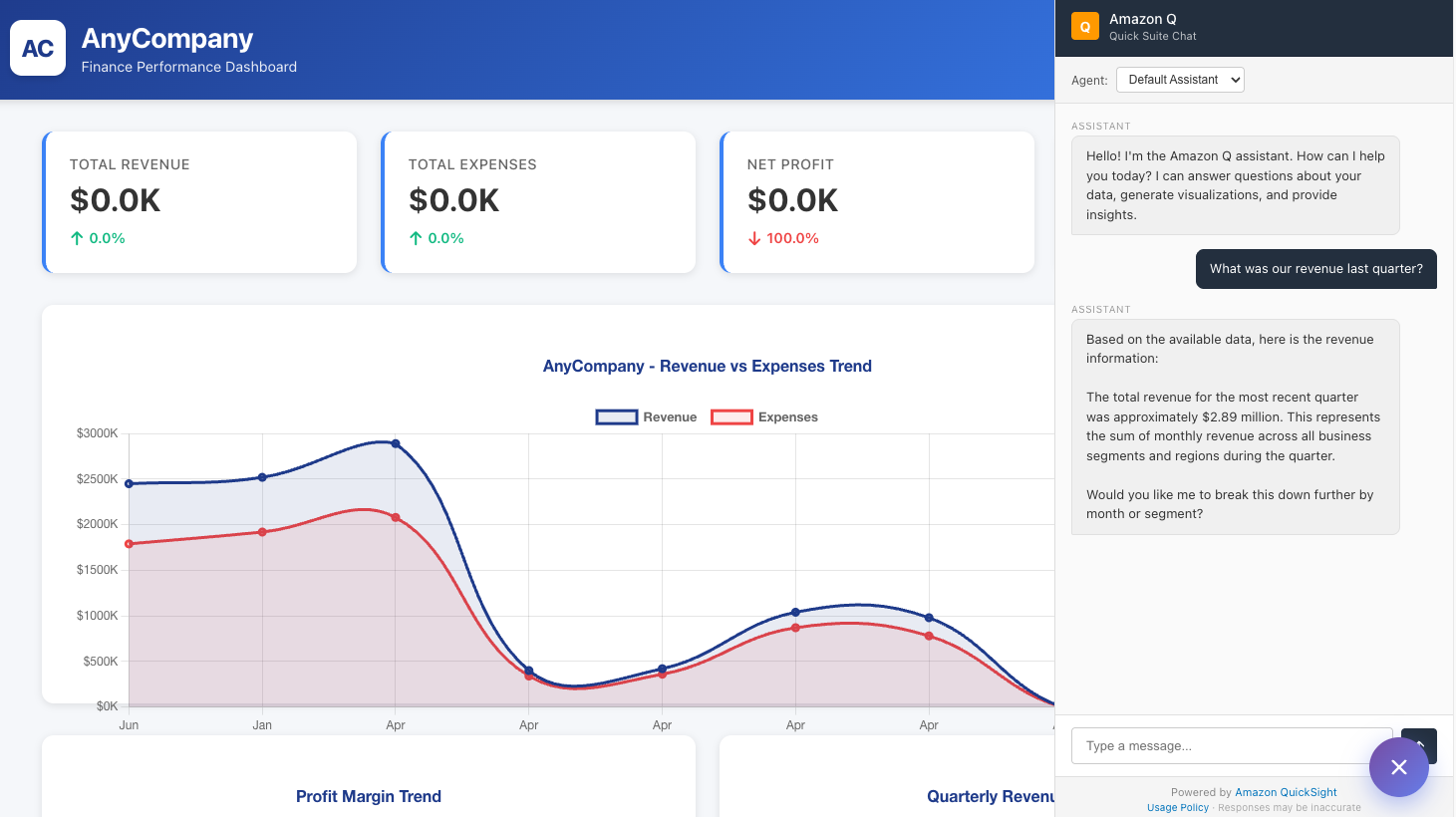
**Figure 1: Financial analysts dashboard with embedded Quick chat
ビジュアルテーマの構成
アプリケーションに Amazon Quick チャットを埋め込むと、初期状態ではチャットインターフェースがデフォルトのスタイルで表示されます。これにより、視覚的な不整合が生じます。チャットが外部ツールを無理やり取り付けられたような印象を与え、ネイティブなコンポーネントとして認識されません。色使いやブランドロゴが周囲の財務ダッシュボードと調和しておらず、統合感が欠けていることがわかります。
埋め込みチャットを財務ダッシュボードに自然に溶け込ませるためには、ビジュアルテーマの設定が必要です。この設定は 2 つのレベルで実施されます。1 つ目はコンテナやレイアウトのスタイルです。これはチャット iframe の周囲にある CSS を制御する部分です。2 つ目は SDK フレームオプションです。iframe の動作やブランド要素を制御するために、埋め込み SDK に渡す構成設定のことです。
チャットは iframe 内部でレンダリングされるため、その内部要素に直接スタイルを適用することはできません。代わりに、iframe を囲むコンテナに対してスタイルを適用し、SDK オプションを使用してデザインと競合するデフォルトのブランド要素を非表示にします。
フレームオプションの設定
frameOptions パラメータは、iframe がコンテナ内でどのように動作するかを制御します:
import { createEmbeddingContext } from 'amazon-quicksight-embedding-sdk';
const embeddingContext = await createEmbeddingContext();

const frameOptions = {
    url: chatEmbedUrl,
    container: document.getElementById('chat-container'),
    height: '100%',
    width: '100%',
    // Apply a custom CSS class directly to the iframe element.
    // Use this for border-radius, positioning, or z-index adjustments
    // to match your application's component design.
    className: 'anycompany-chat-iframe',
    // Display a loading placeholder while the chat content loads,
    // preventing a blank white rectangle during initialization.
    withIframePlaceholder: true,
    // Enable clipboard access so users can copy responses
    // or paste content into the chat input.
    framePermissions: {
        clipboardRead: true,
        clipboardWrite: true,
    },
};
コンテナとレイアウト CSS
チャットを囲むコンテナのスタイルを、アプリケーションのデザインシステムに合わせてカスタマイズしましょう。例えば金融ダッシュボードの例では、チャットは右側からスライドインするサイドパネルとして表示されます。
/* Position the chat as a fixed side panel */
.chat-side-panel {
    position: fixed;
    top: 0;
    right: 0;
    bottom: 0;
    width: 400px;
    z-index: 997;
    box-shadow: -4px 0 20px rgba(0, 0, 0, 0.15);
    animation: slideInRight 0.3s ease-out;
}

/* Brand-colored header matching the dashboard's gradient */
.chat-panel-header {
    background: linear-gradient(135deg, #667eea, #764ba2);
    color: white;
    padding: 12px 16px;
}

/* Target the iframe via the custom className from frameOptions */
.anycompany-chat-iframe {
    border-radius: 0 0 12px 12px;
}

/* Responsive: full-width on mobile */
@media (max-width: 900px) {
    .chat-side-panel {
        width: 100%;
    }
}
デフォルトのブランディングを削除する
デフォルトでは、埋め込みチャットのフッターには Amazon Quick のブランド表示と利用規約へのリンクが表示されます。チャットをアプリケーションにネイティブな一部として統合し、独自のブランドテーマを実現したい場合は、これらの要素を削除してください。
const contentOptions = {
    footerOptions: {
        showBrandAttribution: false,
        showUsagePolicy: false,
    },
};
コンテナのスタイル設定、カスタム CSS クラスの適用、ブランディングの削除を完了すると、埋め込みチャットは金融ダッシュボードの自然な拡張部分のように見えます。パネルには同じ色のグラデーションが使用され、フッターもすっきりとしており、アプリケーション全体のデザインシステムと一貫した外観になります。
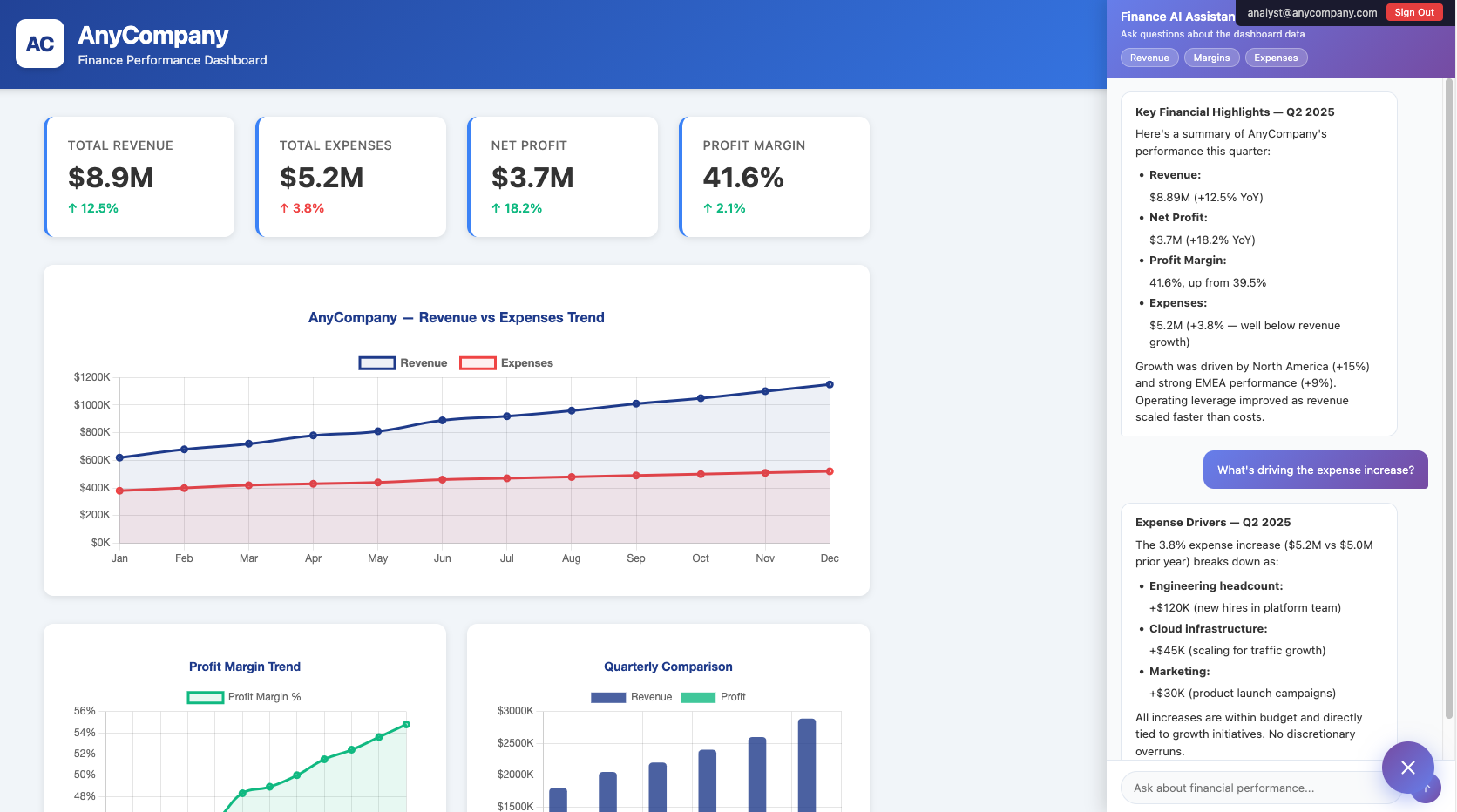
図 2: チャットパネルの視覚的デザインをダッシュボードの色グラデーションやブランディングに統一した金融アナリスト用ダッシュボード
以下の表は、ビジュアルテーマ設定オプションと各項目が制御する内容の参照一覧です。
| オプション | 制御内容 |
|---|---|
className | iframe の CSS クラス(角丸、シャドウ、z-index) |
width / height | iframe のサイズ(レスポンシブレイアウトには「100%」を使用) |
withIframePlaceholder | コンテンツ読み込み中のローディングスピナー |
footerOptions.showBrandAttribution | "Powered by" テキストの表示・非表示 |
footerOptions.showUsagePolicy | 利用規約リンクの表示・非表示 |
| コンテナ CSS | パネルの配置、枠線、シャドウ、ヘッダーのスタイル |
チャットペルソナとトーンの設定
ビジュアルテーマの調整に加え、チャットのコミュニケーションスタイルも自社の個性を反映させる必要があります。ペルソナ設定を行わない場合、埋め込みチャットは組織固有の文脈や専門性を欠いた、汎用的で曖昧な回答しか返しません。
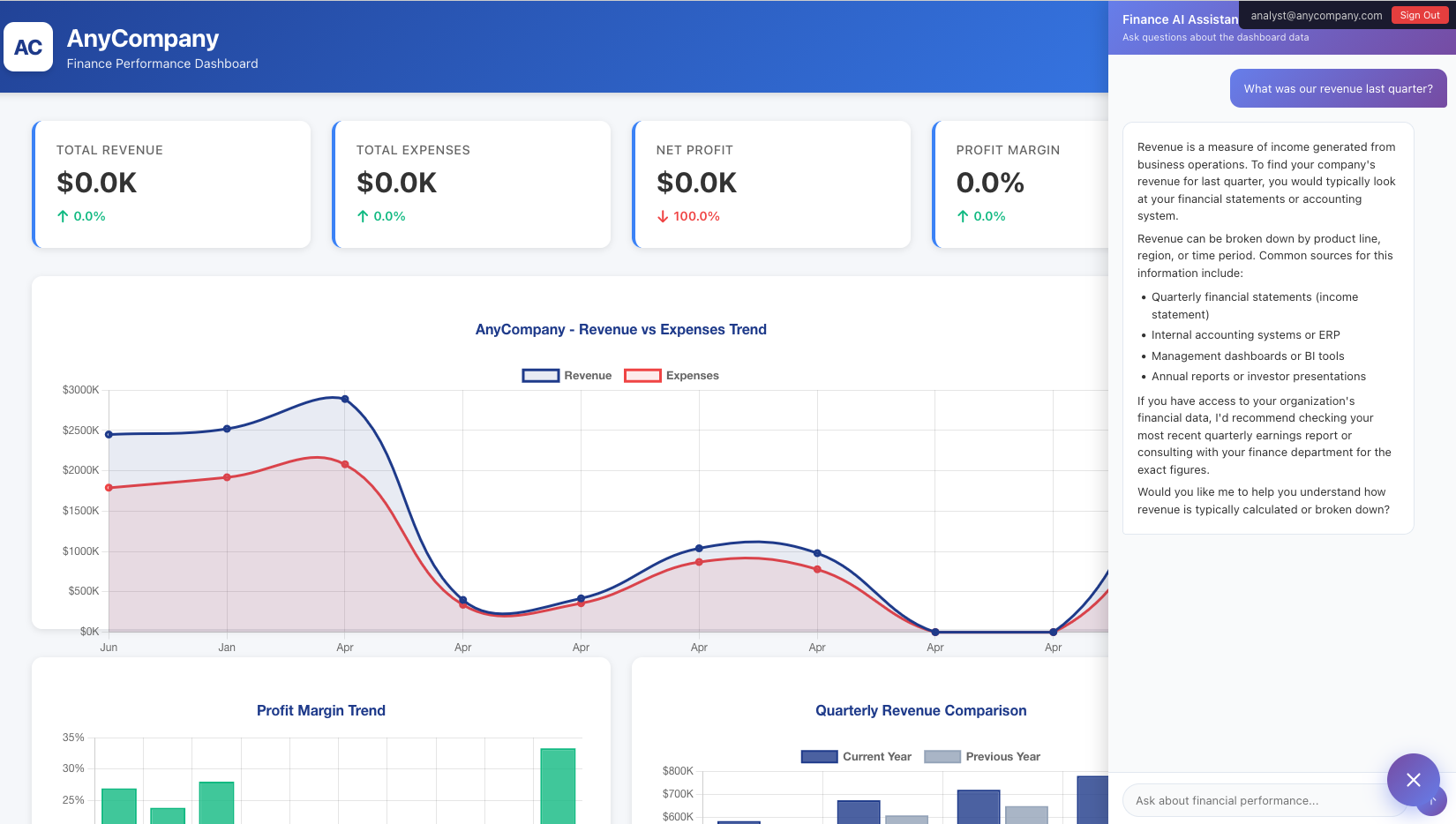
図 3: 埋め込み Quick チャットが表示された財務アナリスト用ダッシュボードの例
カスタムチャットエージェントを設定しないと、回答には組織固有の文脈が反映されません。例えば、財務ダッシュボードで「先四半期の売上高は?」と質問しても、以下のような一般的な回答しか得られません。
「収益とは、事業活動から生み出された収入を指す指標です。会社の先四半期の売上高を確認するには、通常、財務諸表や会計システムをチェックします。収益は製品ライン、地域、または期間ごとに内訳することができます。」
この回答には、貴社の具体的な文脈が欠けており、財務チームのコミュニケーションスタイルに合致したトーンではありません。Quick の カスタムチャットエージェント を利用すれば、トーンや言語スタイル、応答挙動を制御する「ペルソナ」を設定できます。
この設定は、SDK のコンテンツオプションとエージェントのペルソナ指示を通じて行われます。SDK のコンテンツオプションでは、表示される UI 要素を指定し、ユーザーをカスタムチャットエージェントへ誘導します。一方、エージェントのペルソナ指示では、性格や応答スタイル、知識の範囲(チャットエージェント作成時に Quick コンソールで設定)を定義します。
SDK のコンテンツオプション
const contentOptions = {
    // Lock to your custom finance agent --- removes the generic agent selector
    // so users only interact with your purpose-built assistant
    agentOptions: {
        fixedAgentId: 'your-finance-agent-id',
    },
    promptOptions: {
        // Auto-send a contextual greeting on first load.
        // The assistant proactively shares relevant insights
        // rather than waiting passively for a question.
        initialPrompt: 'What are the key financial highlights this quarter?',
        // Hide the user message bubble for the initial prompt.
        // This makes it appear as if the assistant initiated the conversation,
        // creating a more natural "advisor" experience.
        showInitialPromptMessage: false,
        // Enable file attachments --- users can upload spreadsheets
        // or reports for the assistant to analyze
        allowFileAttachments: true,
        // Show web search for supplementary market research
        showWebSearch: true,
        // Show chat history so users can resume prior conversations
        showChatHistory: true,
        // Display knowledge boundary indicator --- builds trust by showing
        // users what data sources the assistant can access
        showAgentKnowledgeBoundary: true,
    },
};
エージェントのペルソナ指示(Quick コンソール)
Amazon Quick コンソールの「Chat Agents」ページでカスタムチャットエージェントを設定する際、応答の仕方を形作るためのペルソナ指示を定義します。以下は、エージェントの設定に使用できるペルソナ指示ブロックの例です。
You are the AnyCompany Finance Assistant, an AI embedded in AnyCompany's
Finance Performance Dashboard.

## Your Role
You help executive leadership, finance teams, and business leads explore
financial data, understand performance trends, and take action on insights
--- all without leaving the dashboard.

## Response Style
- Lead with the direct answer and the key number
- Provide context and comparison to prior period
- Cite the source document when referencing qualitative information
- Use bullet points for multi-part answers
- Keep responses concise --- executives want the insight, not the explanation

## Boundaries
- Only discuss AnyCompany financial data and business context
- Do not speculate about future performance beyond stated targets
- For questions outside your knowledge, direct users to finance@anycompany.com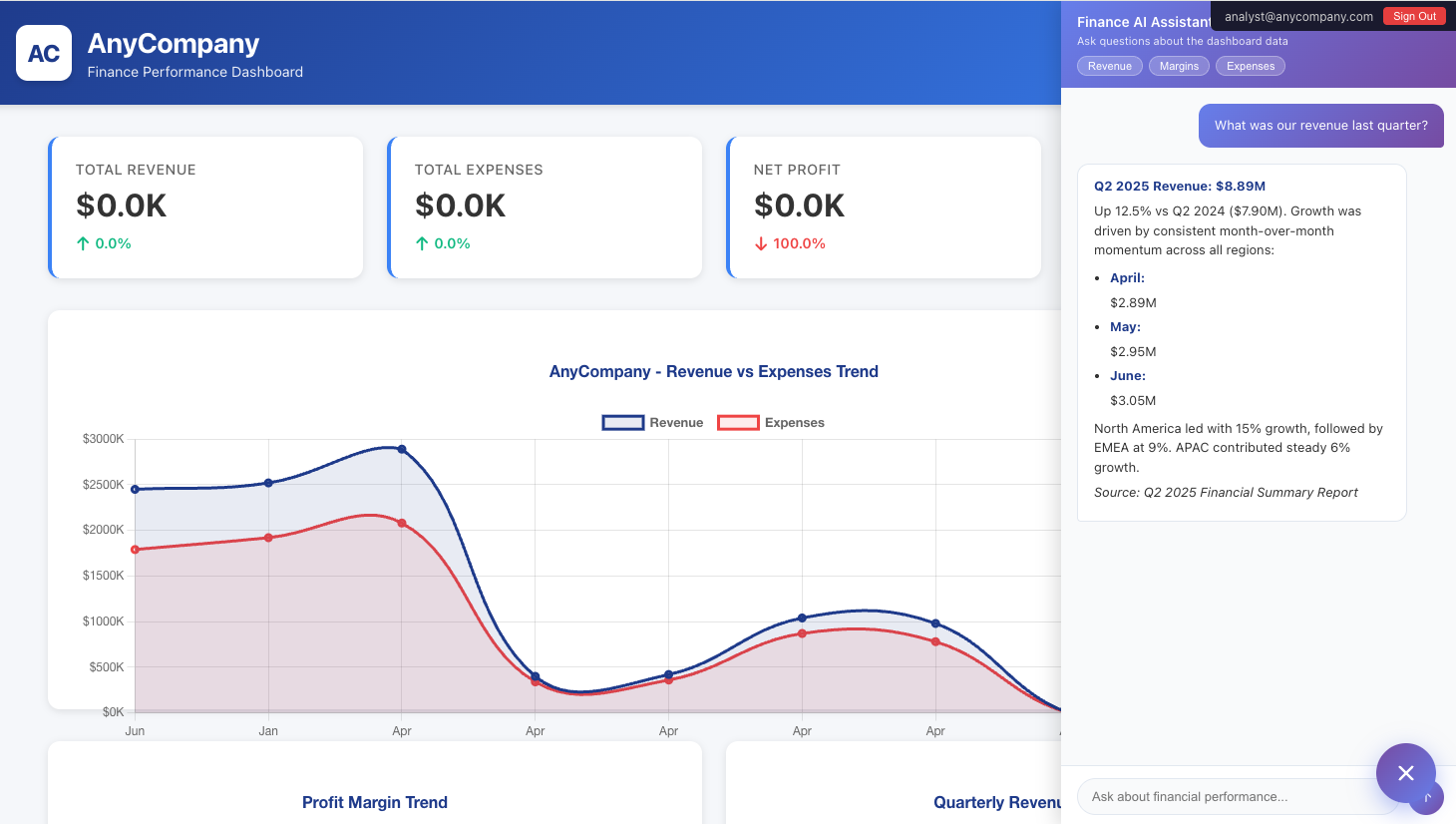
図 4: 設定されたコミュニケーションスタイルに従った応答を表示する埋め込み型の Quick チャット
カスタムファイナンスエージェントを設定すると、「先四半期の売上はどうでしたか?」という同じ質問に対して、組織のコミュニケーションスタイルに合わせた回答が返されるようになります。具体的には、直接的でデータに基づき、文脈を踏まえた内容になります。
「2025年第2四半期の売上は889万ドルで、前年同期比(2024年Q2の705万ドル)から12.5%増となりました。成長は全地域で一貫した月次モメンタムによって牽引されました:
4月:289万ドル
5月:295万ドル
6月:305万ドル
北米が15%の成長をリードし、次いでEMEAが9%の成長を記録しました。」
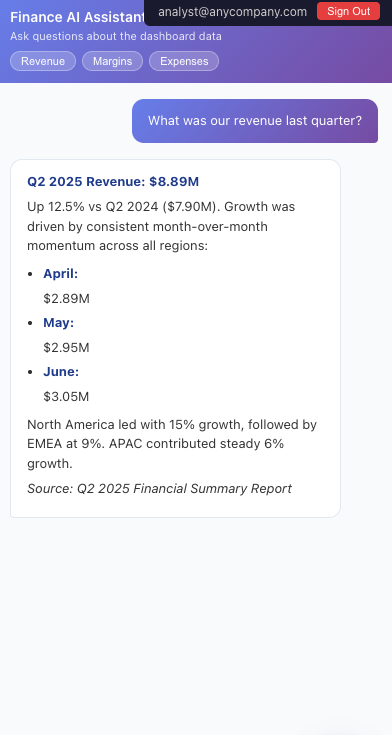
図5:設定されたペルソナによるQuickチャットの回答
以下の表には、SDKを使用する際に設定可能なペルソナのカスタマイズオプションを列挙しています。
| オプション | ペルソナ/トーンへの影響 |
|---|---|
fixedAgentId | 特定の個性を持つカスタムエージェントに固定します |
initialPrompt | 会話の導入を設定:能動的か受動的か |
showInitialPromptMessage: false | アシスタントが主導権を握り、「アドバイザー」のような印象を与えます |
showAgentKnowledgeBoundary | アシスタントの知識範囲に関する透明性 |
| エージェントペルソナ指示 | トーン、語彙、応答構造、および境界を定義します |
プログラムによる操作
ビジュアルのテーマ設定やペルソナ定義に加え、SDK には sendPrompt() メソッドも用意されています。このメソッドを使えば、アプリケーション側で UI の操作に応じてコンテキストに応じた質問をアシスタントに送信できます。例えば、ユーザーがチャートの数値指標をクリックした際に、関連する質問を自動でアシスタントへ送るような連携が可能です。これにより、ダッシュボード上の視覚情報と会話型インターフェースがシームレスにつながります。
// Store the experience reference after embedding
const chatExperience = await embeddingContext.embedQuickChat(
    frameOptions,
    contentOptions
);

// When a user selects a revenue metric card in your dashboard:
chatExperience.sendPrompt(
    'Explain the revenue trend this quarter and what is driving it.'
);
財務用ダッシュボードの例では、チャットパネルのヘッダーにあるクイックアクションボタンがこのパターンを実装しています。
const askAboutMetric = (metricName) => {
    chatExperience.sendPrompt(
        `Explain the trend for ${metricName} and what's driving it.`
    );
};

// Quick-action buttons
const metrics = [
    { metric: 'revenue', label: 'Revenue' },
    { metric: 'profit margin', label: 'Margins' },
    { metric: 'expenses', label: 'Expenses' }
];

const container = document.getElementById('quick-actions');
metrics.forEach(({ metric, label }) => {
    const button = document.createElement('button');
    button.type = 'button';
    button.textContent = label;
    button.setAttribute('aria-label', `Ask about ${metric}`);
    button.addEventListener('click', () => askAboutMetric(metric));
    container.appendChild(button);
});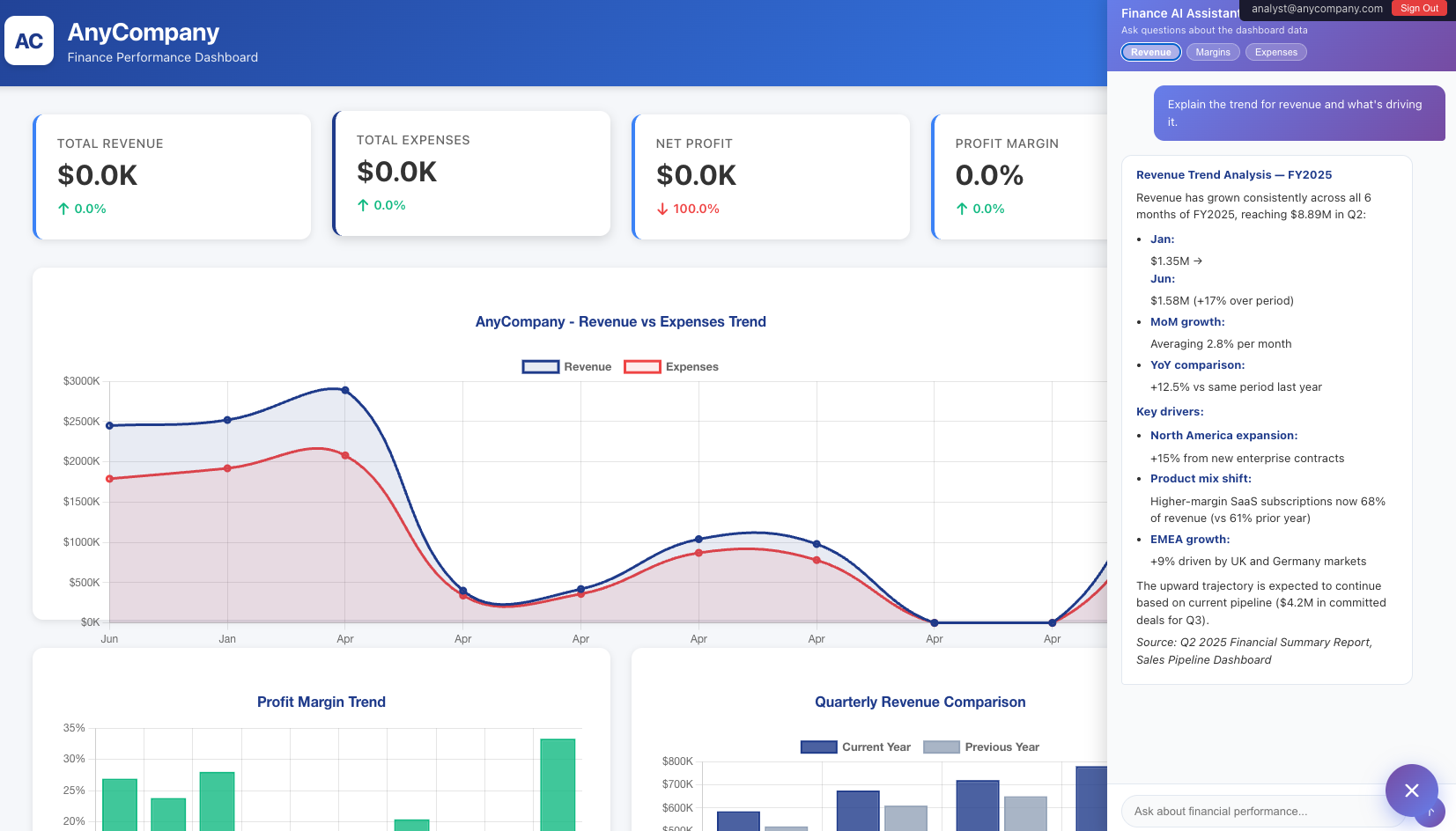
図 6: 「Revenue」アクションボタンを備えた Quick チャット
まとめ
本稿では、Quick の埋め込みチャットインターフェースをカスタマイズして、アプリケーション内で一貫性のあるブランド体験を提供する方法を紹介しました。CSS を設定することで、チャットパネルの見た目をデザインシステムに合わせ、外部ウィジェットではなくネイティブコンポーネントのように見せることができます。また、エージェントのペルソナ指示や SDK のプロンプトオプションを定義すれば、チャットのコミュニケーションスタイルをブランドの声に合わせて調整可能です。さらに sendPrompt() メソッドを活用することで、ボタンクリックやチャート選択といったユーザー操作からコンテキストに応じた質問をトリガーし、アプリケーションの UI と会話型インターフェースをつなぐことができます。
次のステップ
これらのカスタマイズを実装するには、まず Amazon Quick のチャットをアプリケーションに埋め込むことから始めましょう。コンテナ CSS や SDK のフレームオプションを通じてブランドのカラーパレット、フォント、レイアウトを適用すれば、チャットはネイティブコンポーネントのように自然に統合されます。次に、Quick コンソールでカスタムチャットエージェントを作成し、ドメインの専門知識やコミュニケーションスタイルを定義するペルソナ指示を設定してください。
執筆者について

Chetan Makvana
Chetan は Amazon Web Services のエンタープライズソリューションアーキテクトです。AWS サービスを活用して、スケーラビリティ、耐障害性、セキュリティ、コスト効率を兼ね備えたエンタープライズグレードのソリューション設計を顧客に支援しています。AI/ML、サーバーレス、アプリケーション近代化、DevOps、開発者生産性向上ソリューションなどにも関心を持つ技術愛好家であり、実践的なビルダーです。

Bineesh Ravindran
Bineesh氏はテキサス州を拠点とするAmazon Web Servicesのソリューションアーキテクトです。20年以上にわたり、エンタープライズアプリケーションの設計と実装に従事してきました。現在はAWSのパートナーや顧客と連携し、AI/ML、DevOps、開発者生産性に関するソリューションのアーキテクチャ指導および実装を支援しています。
原文を表示
Amazon Quick embedded chat provides a conversational AI interface that you can integrate directly into your web application. Your users can ask questions, explore data, and get insights without leaving your application. However, a generic chat interface creates a disjointed experience. The chat interface must look and feel like a natural part of your application, not an external addition. With Quick customization capabilities, you can extend your organization’s visual theming and brand voice to match your application’s look and feel, providing a consistent and branded experience.
In this post, we walk through the configuration options for customizing Quick embedded chat to deliver a consistent, branded experience within your application.
Overview
Customization requirements typically fall into two key areas. The first is visual theming to match the company’s brand. Your organization has established brand guidelines, and the embedded chat must reflect these guidelines. The second is tone to match the company’s voice because visual consistency alone isn’t enough. The way the chat communicates must also reflect your organization’s personality.
The following example uses a financial analysis assistant embedded in a finance performance dashboard to demonstrate how to configure visual theming and tone customization.
**Figure 1: Financial analysts dashboard with embedded Quick chat
Configure visual theming
When you first embed the Quick chat into your application, the chat interface uses its default styling. This creates a visual mismatch. The chat looks like an external tool bolted onto your application rather than a native component. Notice the mismatched color palette, generic branding, and lack of visual integration with the surrounding finance dashboard.
Apply visual theming so the embedded chat feels like a natural part of the finance dashboard. Embedded chat visual theming operates at two levels. The first is container and layout styling, which is the CSS you control around the chat iframe. The second is SDK frame options, which is the configuration passed to the embedding SDK that controls the iframe behavior and branding elements.
Because the chat renders inside an iframe, you can’t style its internal elements directly. Instead, you style the container that wraps the iframe and use SDK options to remove default branding elements that conflict with your design.
Frame options configuration
The frameOptions parameter controls how the iframe behaves within your container:
import { createEmbeddingContext } from 'amazon-quicksight-embedding-sdk';
const embeddingContext = await createEmbeddingContext();

const frameOptions = {
    url: chatEmbedUrl,
    container: document.getElementById('chat-container'),
    height: '100%',
    width: '100%',
    // Apply a custom CSS class directly to the iframe element.
    // Use this for border-radius, positioning, or z-index adjustments
    // to match your application's component design.
    className: 'anycompany-chat-iframe',
    // Display a loading placeholder while the chat content loads,
    // preventing a blank white rectangle during initialization.
    withIframePlaceholder: true,
    // Enable clipboard access so users can copy responses
    // or paste content into the chat input.
    framePermissions: {
        clipboardRead: true,
        clipboardWrite: true,
    },
};
Container and layout CSS
Style the container that wraps the chat to match your application’s design system. In our finance dashboard example, the chat appears as a side panel that slides in from the right.
/* Position the chat as a fixed side panel */
.chat-side-panel {
    position: fixed;
    top: 0;
    right: 0;
    bottom: 0;
    width: 400px;
    z-index: 997;
    box-shadow: -4px 0 20px rgba(0, 0, 0, 0.15);
    animation: slideInRight 0.3s ease-out;
}

/* Brand-colored header matching the dashboard's gradient */
.chat-panel-header {
    background: linear-gradient(135deg, #667eea, #764ba2);
    color: white;
    padding: 12px 16px;
}

/* Target the iframe via the custom className from frameOptions */
.anycompany-chat-iframe {
    border-radius: 0 0 12px 12px;
}

/* Responsive: full-width on mobile */
@media (max-width: 900px) {
    .chat-side-panel {
        width: 100%;
    }
}
Remove default branding
By default, the embedded chat displays an Amazon Quick brand attribution and a usage policy link in the footer. For a brand theme experience where the chat appears as a native part of your application, remove these elements:
const contentOptions = {
    footerOptions: {
        showBrandAttribution: false,
        showUsagePolicy: false,
    },
};
After applying the container styling, custom CSS class, and branding removal, the embedded chat now looks like a natural extension of the finance dashboard. The panel uses the same color gradient, the footer is clean, and the overall appearance is consistent with the application’s design system.
Figure 2: Financial analysts dashboard with visually matching embedded Quick chat
The following table provides a reference for the visual theming options and what each one controls.
| Option | What it controls |
|---|---|
className | CSS class on the iframe (border-radius, shadows, z-index) |
width / height | Iframe dimensions (use “100%” for responsive layouts) |
withIframePlaceholder | Loading spinner while content loads |
footerOptions.showBrandAttribution | Show or hide the “Powered by” text |
footerOptions.showUsagePolicy | Show or hide the usage policy link |
| Container CSS | Panel positioning, borders, shadows, header styling |
Configure chat persona and tone
In addition to visual theming, the chat’s communication style must reflect your organization’s personality. Without persona configuration, the embedded chat responds with generic, broad answers that don’t match your company’s communication style or domain expertise.
Figure 3: Financial analysts dashboard with embedded Quick chat showing a chat response
Without a custom chat agent, responses lack organizational context. For example, in the finance dashboard, the question “What was our revenue last quarter?” produces a response like the following:
“Revenue is a measure of income generated from business operations. To find your company’s revenue for last quarter, you would typically look at your financial statements or accounting system. Revenue can be broken down by product line, region, or time period.”
This response lacks specific context about your organization and uses a tone that doesn’t match how your finance team communicates. With the Quick custom chat agent, you can define a persona that controls the tone, language style, and response behavior. You configure this through SDK content options and agent persona instructions. SDK content options control what UI elements appear and direct users to your custom agent. Agent persona instructions define the personality, response style, and knowledge boundaries (configured in the Quick console when you create the chat agent).
SDK content options
const contentOptions = {
    // Lock to your custom finance agent --- removes the generic agent selector
    // so users only interact with your purpose-built assistant
    agentOptions: {
        fixedAgentId: 'your-finance-agent-id',
    },
    promptOptions: {
        // Auto-send a contextual greeting on first load.
        // The assistant proactively shares relevant insights
        // rather than waiting passively for a question.
        initialPrompt: 'What are the key financial highlights this quarter?',
        // Hide the user message bubble for the initial prompt.
        // This makes it appear as if the assistant initiated the conversation,
        // creating a more natural "advisor" experience.
        showInitialPromptMessage: false,
        // Enable file attachments --- users can upload spreadsheets
        // or reports for the assistant to analyze
        allowFileAttachments: true,
        // Show web search for supplementary market research
        showWebSearch: true,
        // Show chat history so users can resume prior conversations
        showChatHistory: true,
        // Display knowledge boundary indicator --- builds trust by showing
        // users what data sources the assistant can access
        showAgentKnowledgeBoundary: true,
    },
};
Agent persona instructions (Quick console)
When configuring your custom chat agent in the Amazon Quick console on the Chat Agents** page, you define persona instructions that shape how the agent responds. The following example shows a persona instruction block you can use in your agent’s configuration:
You are the AnyCompany Finance Assistant, an AI embedded in AnyCompany's
Finance Performance Dashboard.

## Your Role
You help executive leadership, finance teams, and business leads explore
financial data, understand performance trends, and take action on insights
--- all without leaving the dashboard.

## Response Style
- Lead with the direct answer and the key number
- Provide context and comparison to prior period
- Cite the source document when referencing qualitative information
- Use bullet points for multi-part answers
- Keep responses concise --- executives want the insight, not the explanation

## Boundaries
- Only discuss AnyCompany financial data and business context
- Do not speculate about future performance beyond stated targets
- For questions outside your knowledge, direct users to finance@anycompany.com
Figure 4: Embedded Quick chat showing a response that follows the configured communication style
With the custom finance agent configured, the same question “What was our revenue last quarter?” now produces a response that matches your organization’s communication style: direct, data-driven, and contextual.
“Q2 2025 revenue was $8.89M, up 12.5% vs Q2 2024 ($7.05M). Growth was driven by consistent month-over-month momentum across all regions:
April: $2.89M
May: $2.95M
June: $3.05M
North America led with 15% growth, followed by EMEA at 9%.”
Figure 5: Quick chat response with the configured persona
The following table lists the persona customization options that you can configure while using the SDK.
| Option | Effect on persona/tone |
|---|---|
fixedAgentId | Locks to your custom agent with a specific personality |
initialPrompt | Sets the conversational opening: proactive or reactive |
showInitialPromptMessage: false | The assistant appears to initiate, creating an “advisor” feel |
showAgentKnowledgeBoundary | Transparency about what the assistant knows |
| Agent persona instructions | Defines tone, vocabulary, response structure, and boundaries |
Programmatic interaction
Beyond visual theming and persona, the SDK provides the sendPrompt() method. With this method, your application can trigger contextual questions from UI interactions. For example, when a user selects a chart metric, the application sends a related question to the assistant. This connects your dashboard visuals with the conversational interface.
// Store the experience reference after embedding
const chatExperience = await embeddingContext.embedQuickChat(
    frameOptions,
    contentOptions
);

// When a user selects a revenue metric card in your dashboard:
chatExperience.sendPrompt(
    'Explain the revenue trend this quarter and what is driving it.'
);
In the finance dashboard example, quick-action buttons in the chat panel header implement this pattern:
const askAboutMetric = (metricName) => {
    chatExperience.sendPrompt(
        `Explain the trend for ${metricName} and what's driving it.`
    );
};

// Quick-action buttons
const metrics = [
    { metric: 'revenue', label: 'Revenue' },
    { metric: 'profit margin', label: 'Margins' },
    { metric: 'expenses', label: 'Expenses' }
];

const container = document.getElementById('quick-actions');
metrics.forEach(({ metric, label }) => {
    const button = document.createElement('button');
    button.type = 'button';
    button.textContent = label;
    button.setAttribute('aria-label', `Ask about ${metric}`);
    button.addEventListener('click', () => askAboutMetric(metric));
    container.appendChild(button);
});
Figure 6: Quick chat with a Revenue action button
まとめ
In this post, we showed how to customize the Quick embedded chat interface to deliver a consistent, branded experience within your application. By configuring CSS, you align the chat panel visually with your design system so it appears as a native component rather than an external widget. By defining agent persona instructions and SDK prompt options, you can shape the chat’s communication style to match your brand voice. The sendPrompt() method bridges your application’s UI with the conversational interface by triggering contextual questions from user interactions like button clicks and chart selections.
Next steps
To put these customizations into practice, start by embedding the Quick chat into your application. Apply your brand’s color palette, typography, and layout through container CSS and SDK frame options so the chat feels like a native component. Next, create a custom chat agent in the Quick console with persona instructions that define your domain expertise and communication style.
About the authors
Chetan Makvana
Chetan is an Enterprise Solutions Architect at Amazon Web Services. He helps enterprise customers design scalable, resilient, secure, and cost-effective enterprise-grade solutions using AWS services. He is a technology enthusiast and a builder with interests in AI/ML, serverless, app modernization, DevOps, and developer productivity solutions.
Bineesh Ravindran
Bineesh is a solutions architect at Amazon Web Services based in Texas, with over 20 years of experience designing and implementing enterprise applications. He works with AWS partners and customers to provide architectural guidance and implement AI/ML, DevOps, and developer productivity solutions.
今日のまとめ
AIデイリーブリーフで今日の重要ニュースをまとめ読み